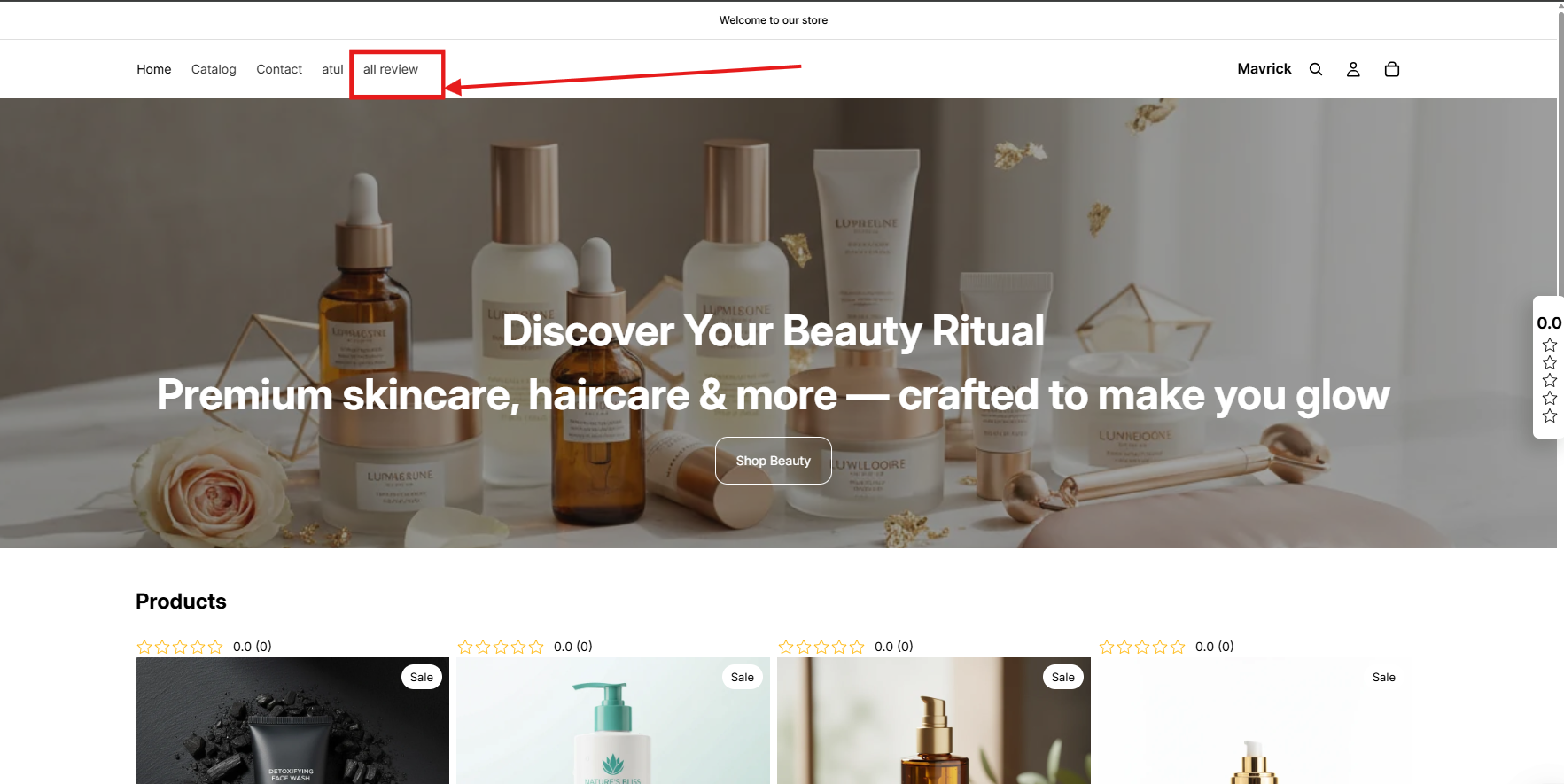
The All Reviews Page in Retenzy provides a dedicated page where customers can view reviews and ratings from other customers. This gives shoppers an easy way to explore customer feedback before making a purchase.
1. Create an All Reviews Page Template
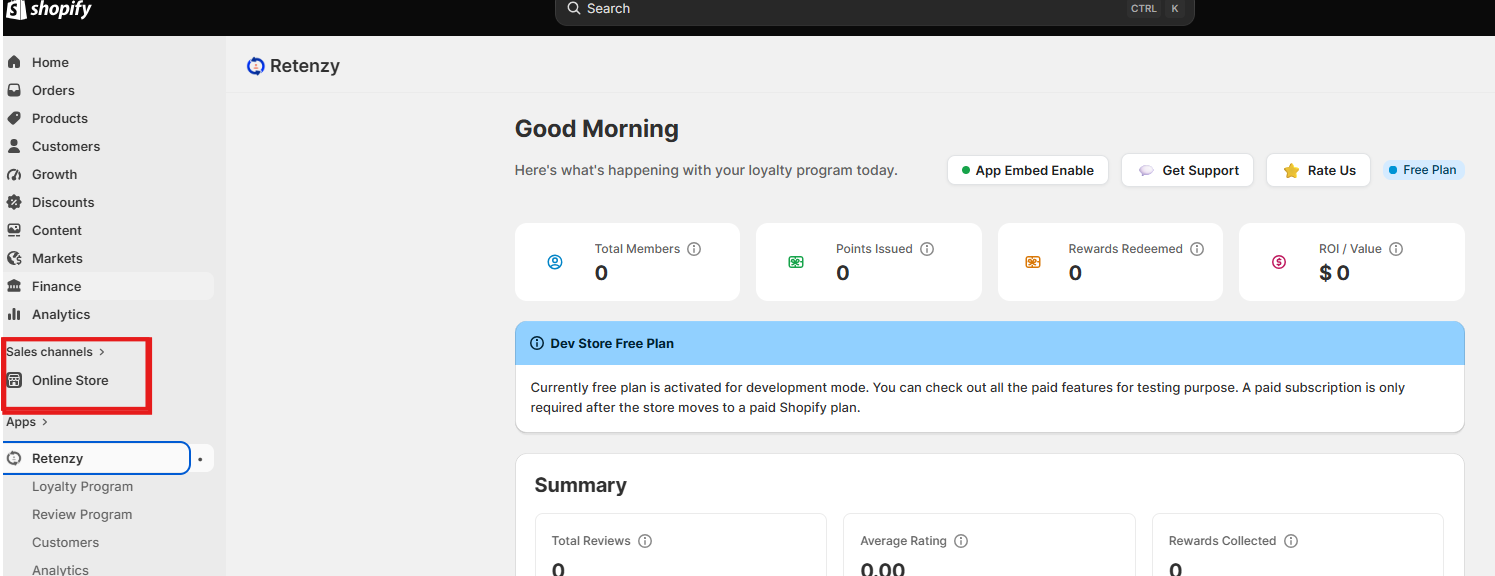
Go to Shopify Admin → Online Store.
-
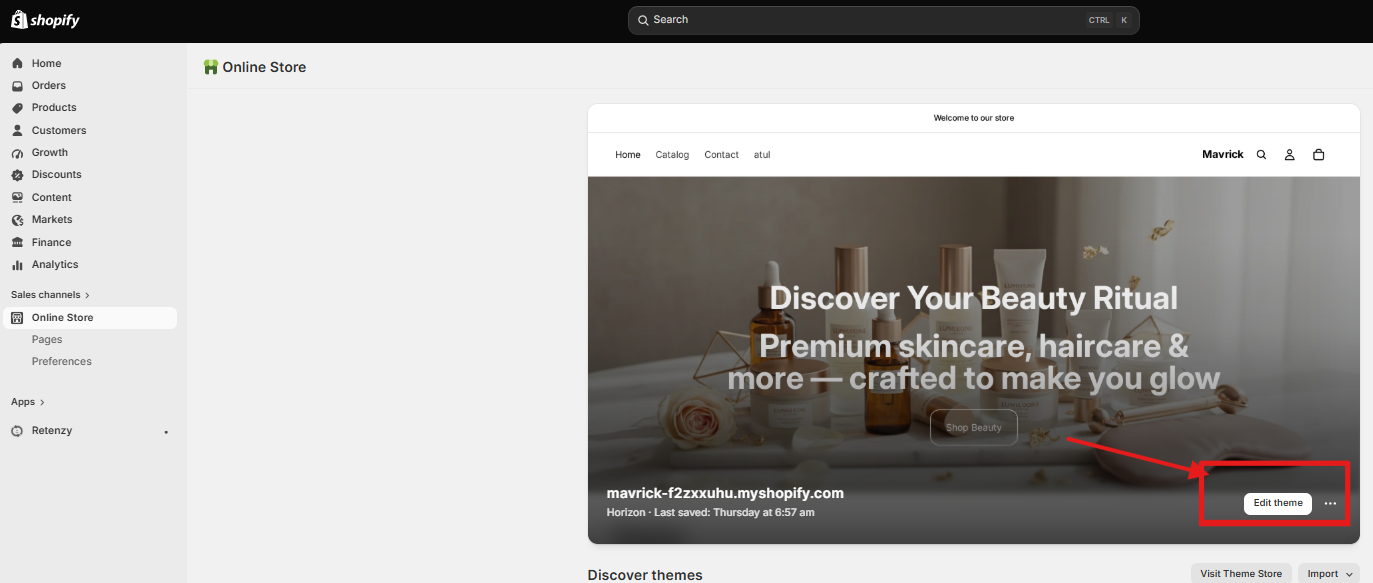
Click Edit Theme for your active theme.
-
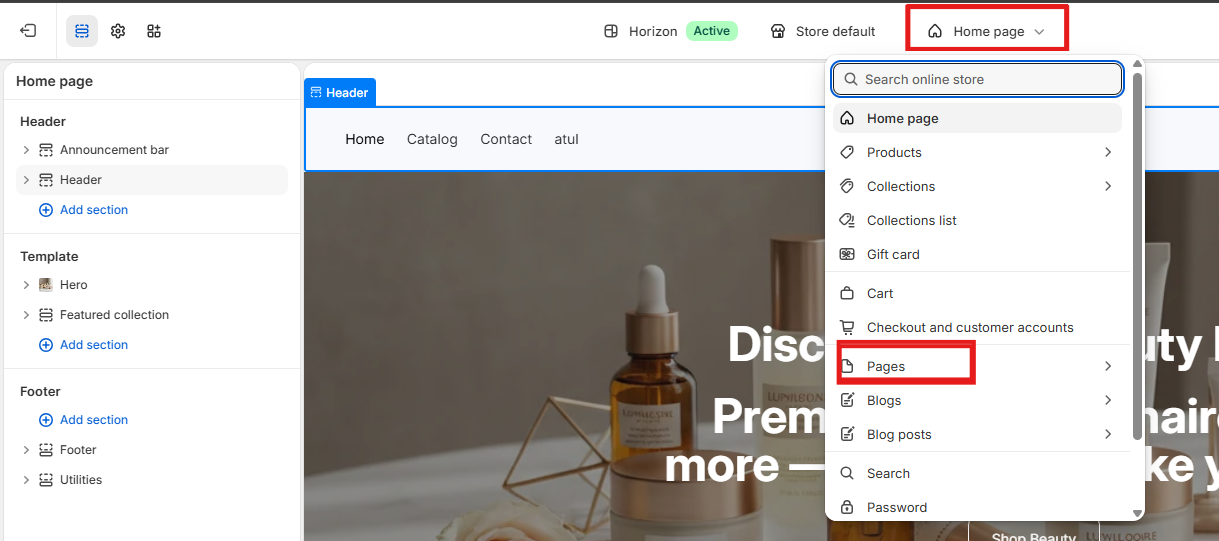
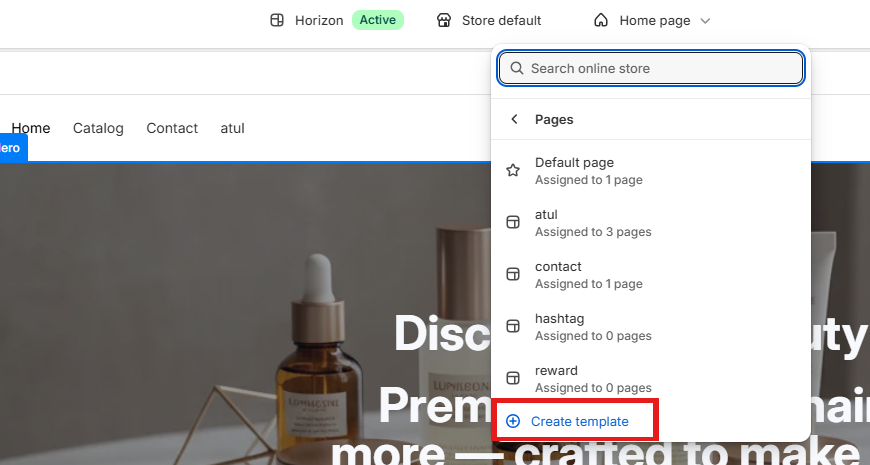
In the Theme Editor, use the top navigation bar to open the Home menu.
-
Select Pages.
-
Click Create Template.
-
Enter a name for the template, such as Review Page.
-
Click Create Template.
2. Add the All Reviews Page Section
Once the template is created:
-
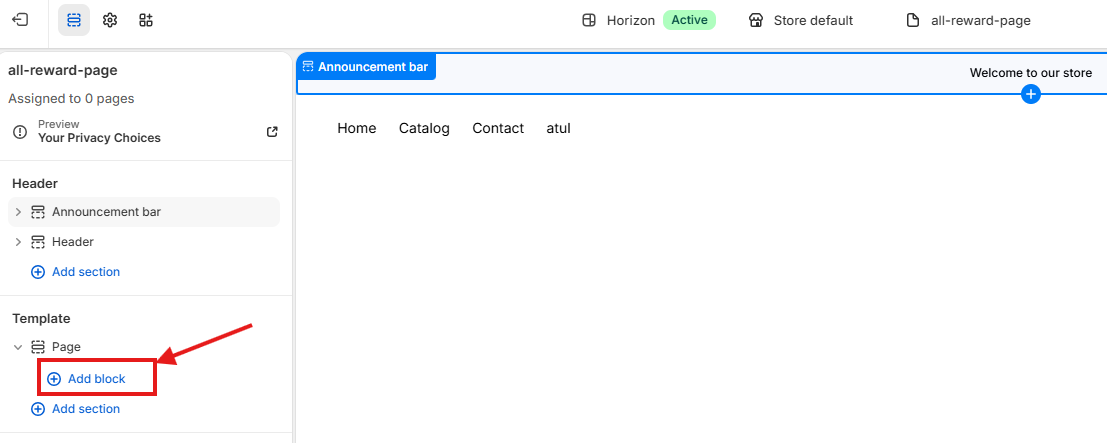
Remove any sections that were automatically added to the new template.
-
From the left-hand menu, click Add block from template Section.
-
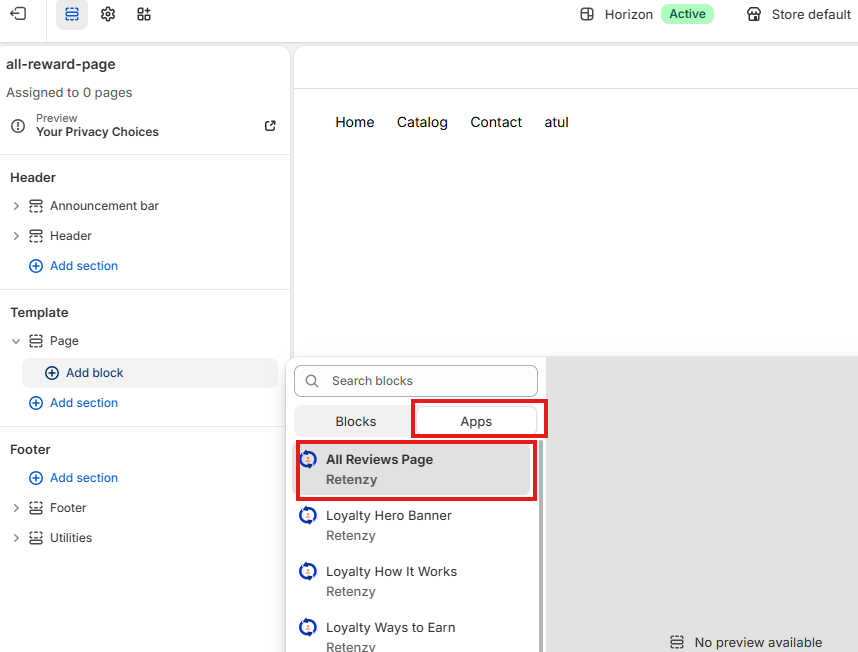
Select Apps from the pop-up window.
-
Select All Reviews Page to add it to the template.
-
Click Save to save the template.
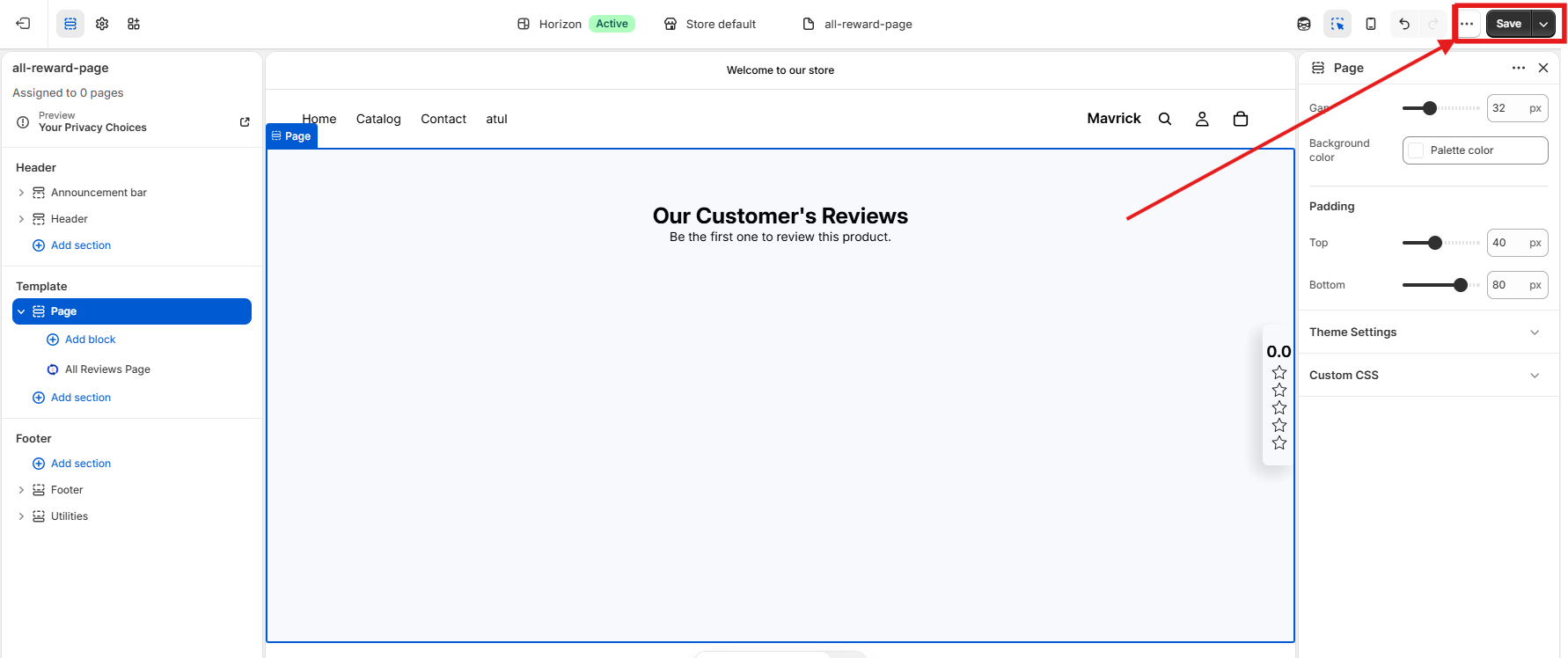
Your All Reviews Page template is now ready.
Next Step: Once the template is saved, create a new Shopify page and assign the Review Page template to it.
3. Create the All Reviews Page
Once you have created and saved the Review Page template:
-
Go to Shopify Admin → Online Store.
-
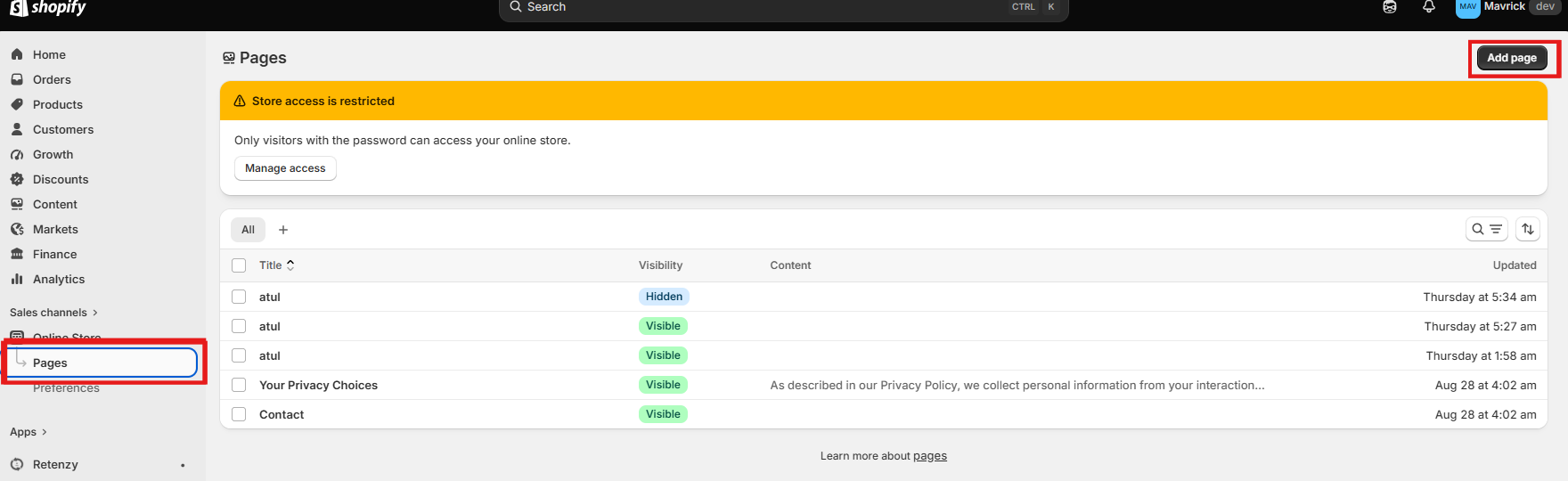
Select Pages.
-
Click Add Page from the top-right corner.
-
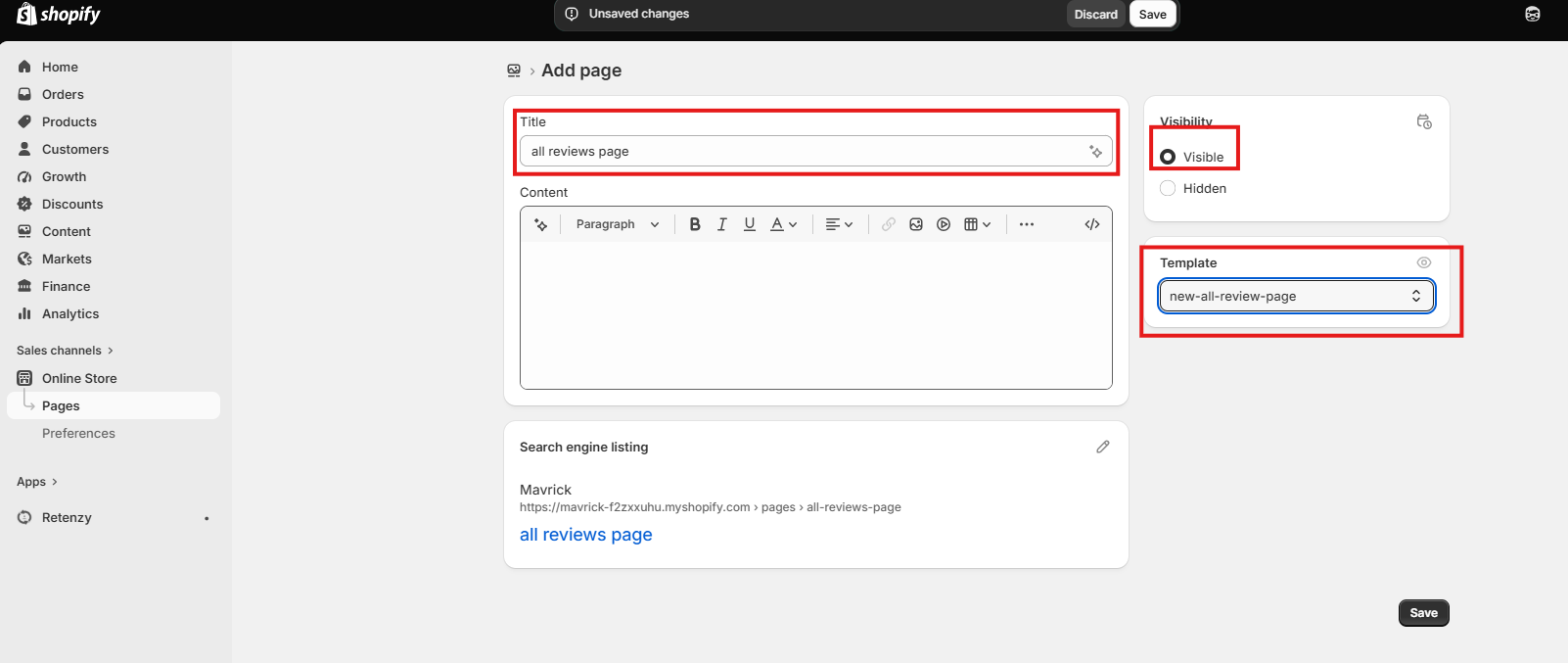
Enter the page name in the Title field.
-
Under Visibility, select Visible.
-
In the Template section, select the Review Page template you created earlier.
-
Review the page settings and click Save.
Your All Reviews Page is now created and uses the Review Page template you configured.
4. Add the All Reviews Page to Your Store Menu
Once the page is created, you can add it to your store's navigation menu so customers can easily access your reviews.
-
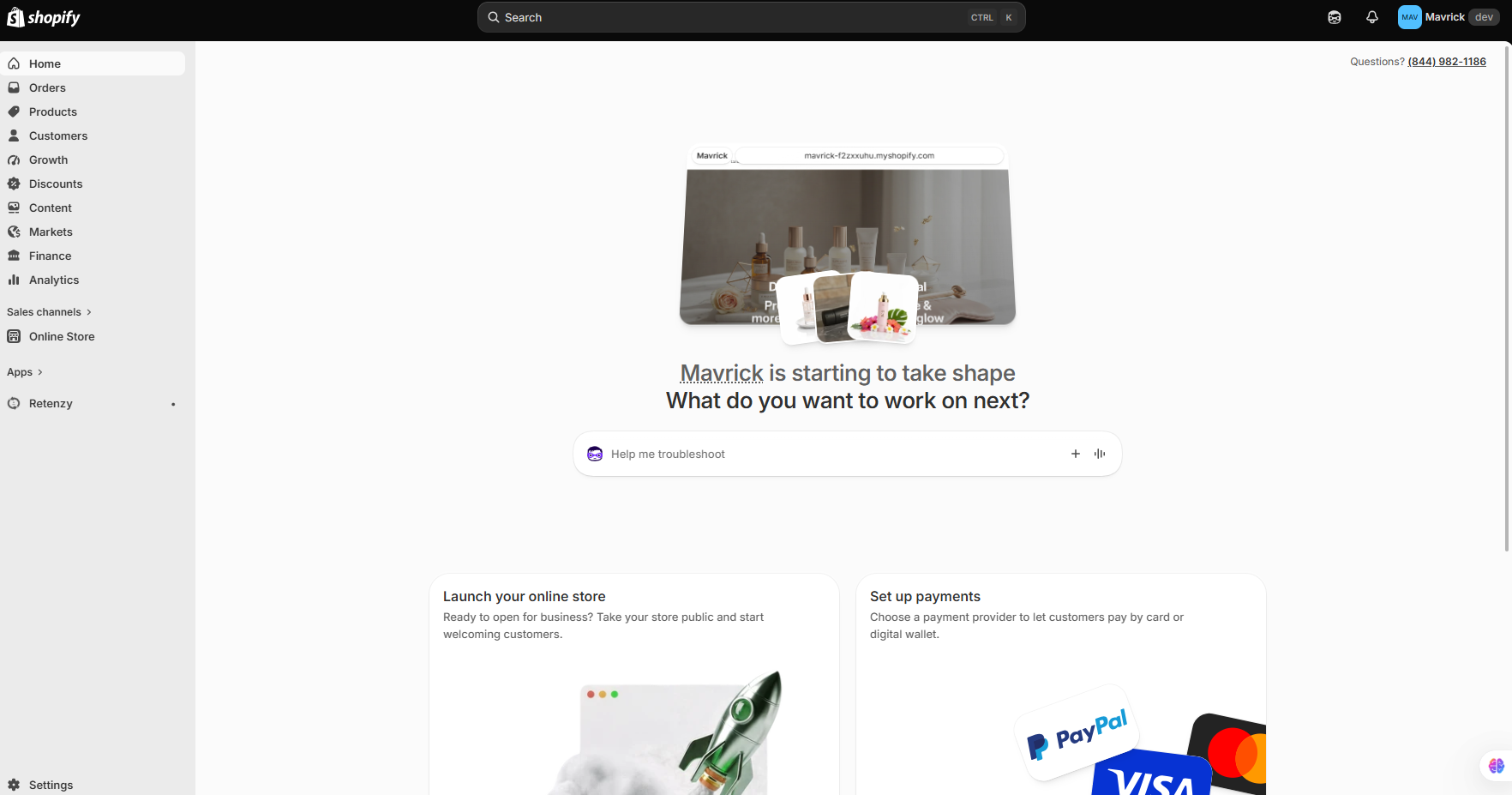
Go to Shopify Admin.
-
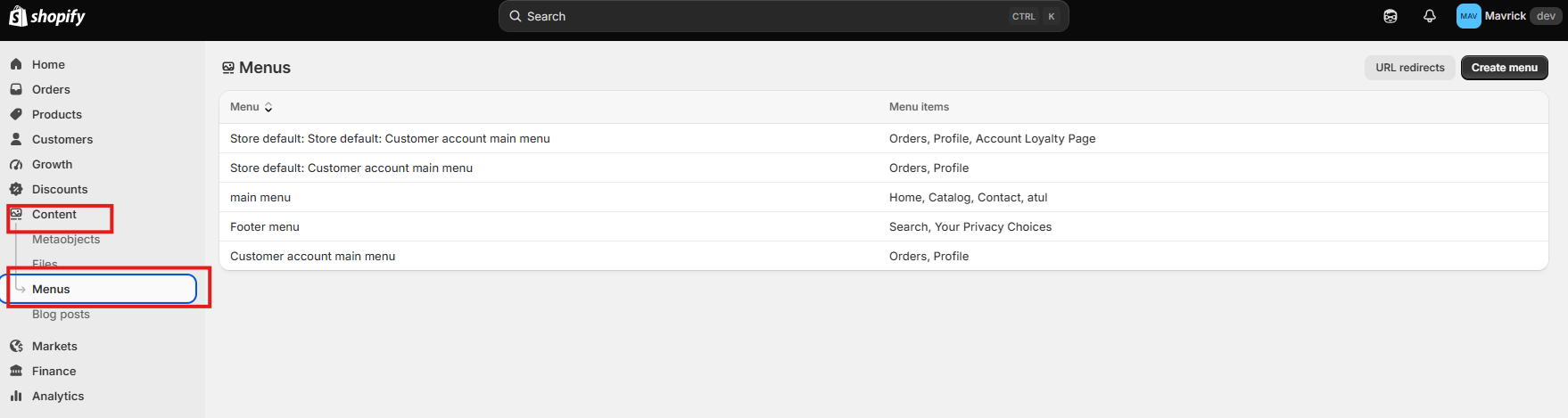
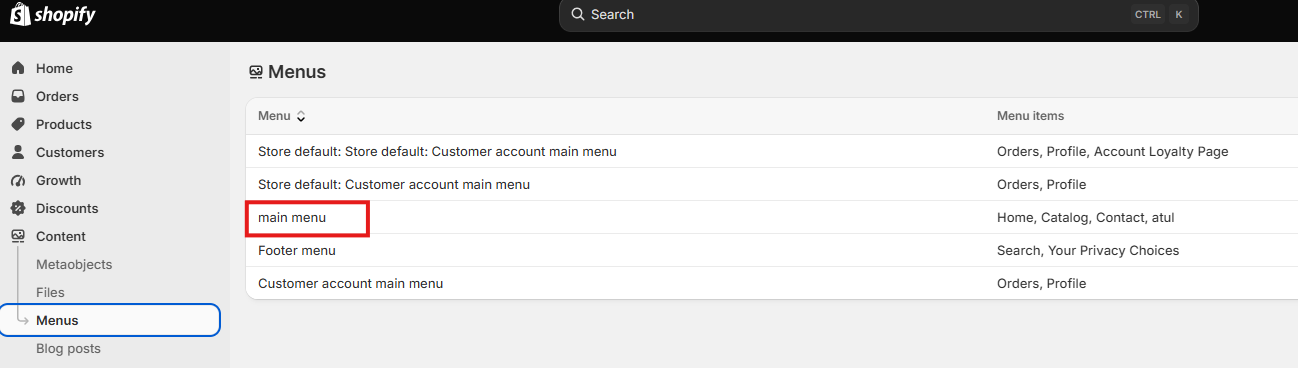
From the left-hand menu, go to Content → Menus.
-
Select the menu where you want to add the All Reviews Page. For example, select Main Menu to display the page in your store's top navigation.
-
You can also select the Footer Menu or another menu based on your preference.
-
-
We select Main Menu, Open the Main Menu.
-
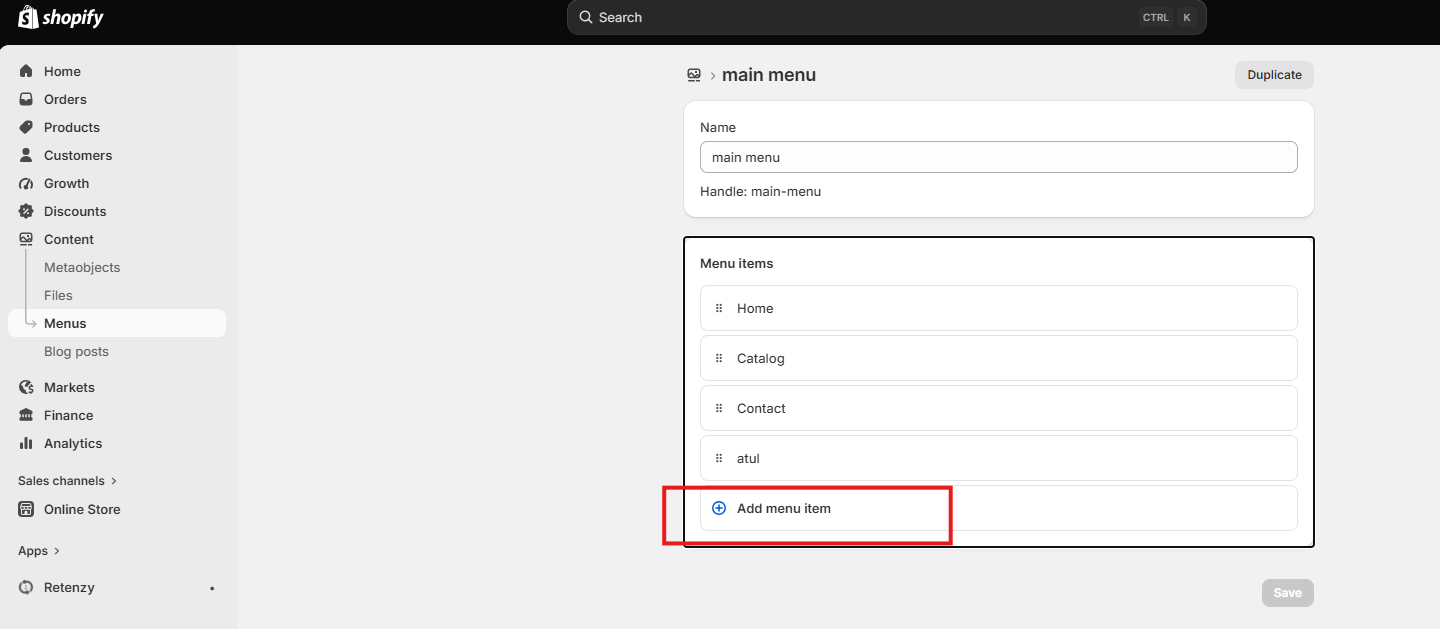
Click Add Menu Item.
-
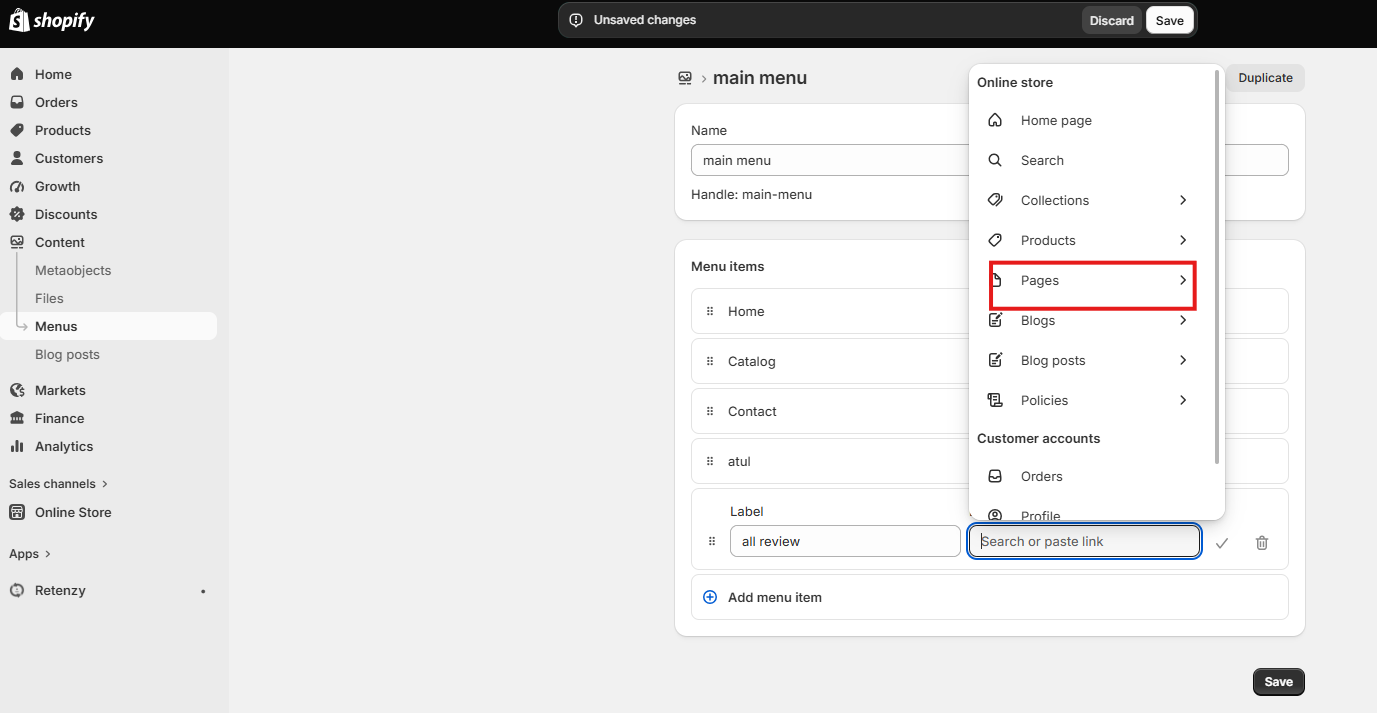
Enter the name you want customers to see for the menu item, such as Reviews.
-
Click the Link field, Select Pages.
-
Choose the Review Page you created earlier.
-
Click Save to apply the changes.
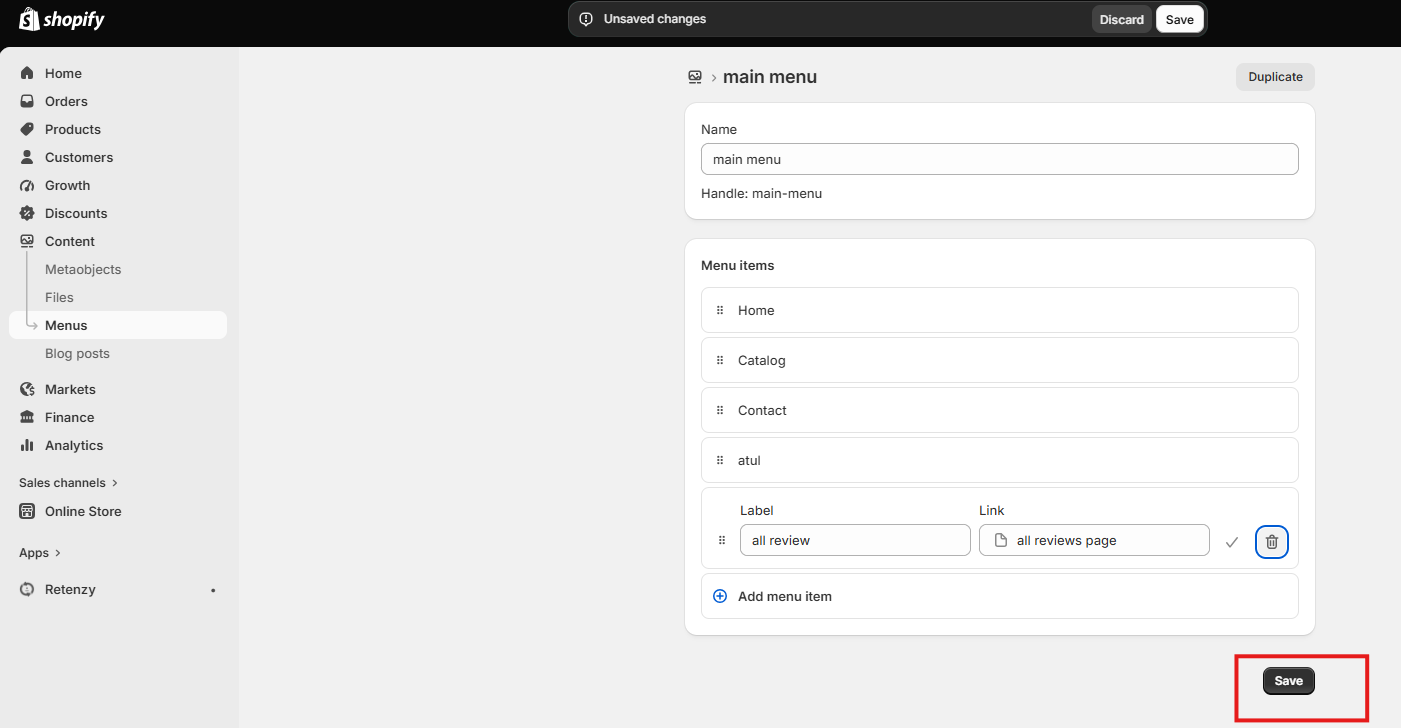
Your All Reviews Page is now ready and visible on your storefront, allowing customers to easily access and view your reviews.