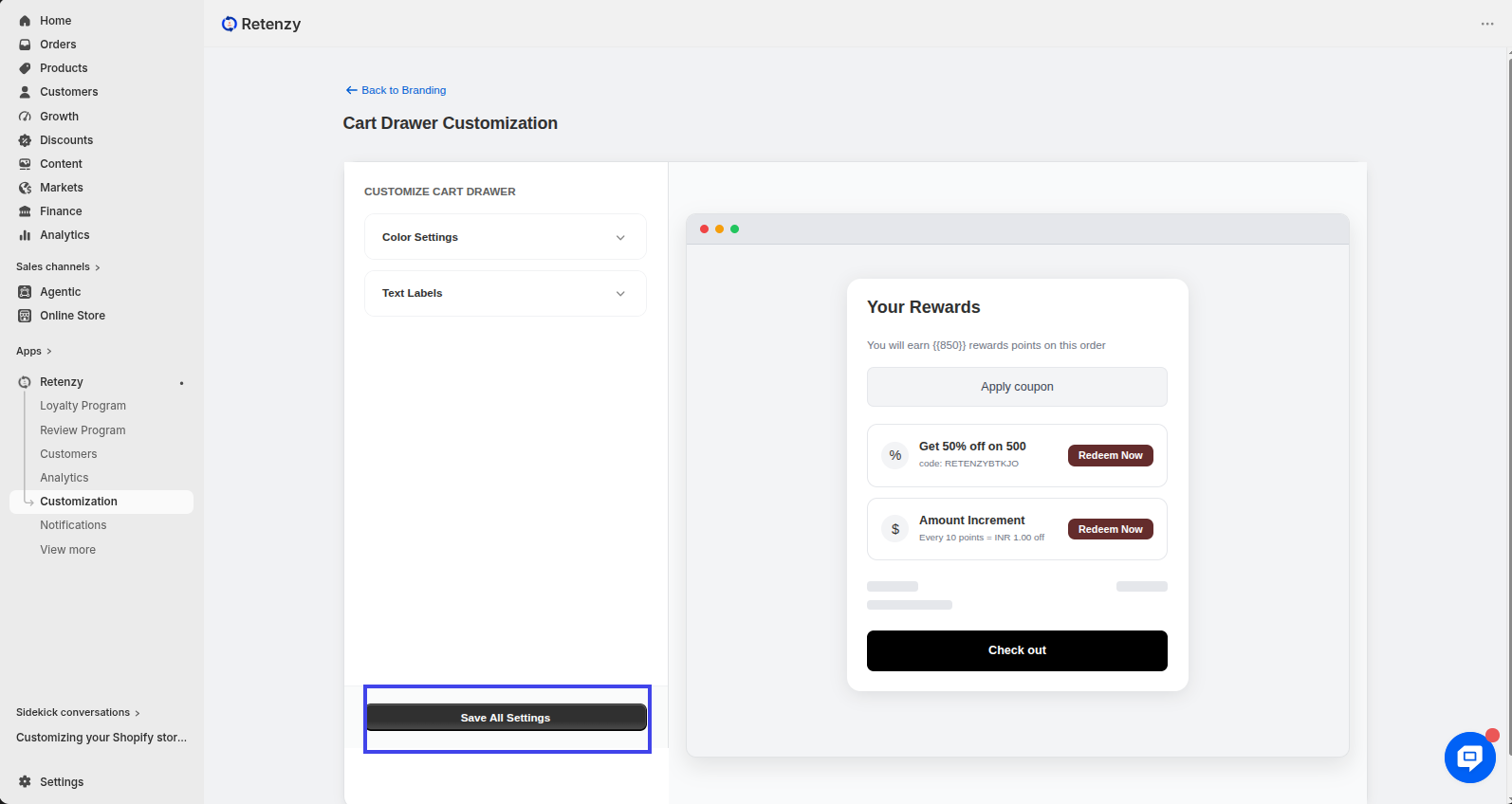
The Cart Slider Reward Widget lets customers see how many reward points they’ll earn (or redeem) directly inside the cart drawer/slider before checkout. This helps increase conversions by showing value instantly.
Steps:
Step 1: Open the Retenzy Dashboard
- Log in to your Retenzy dashboard to access your store settings.
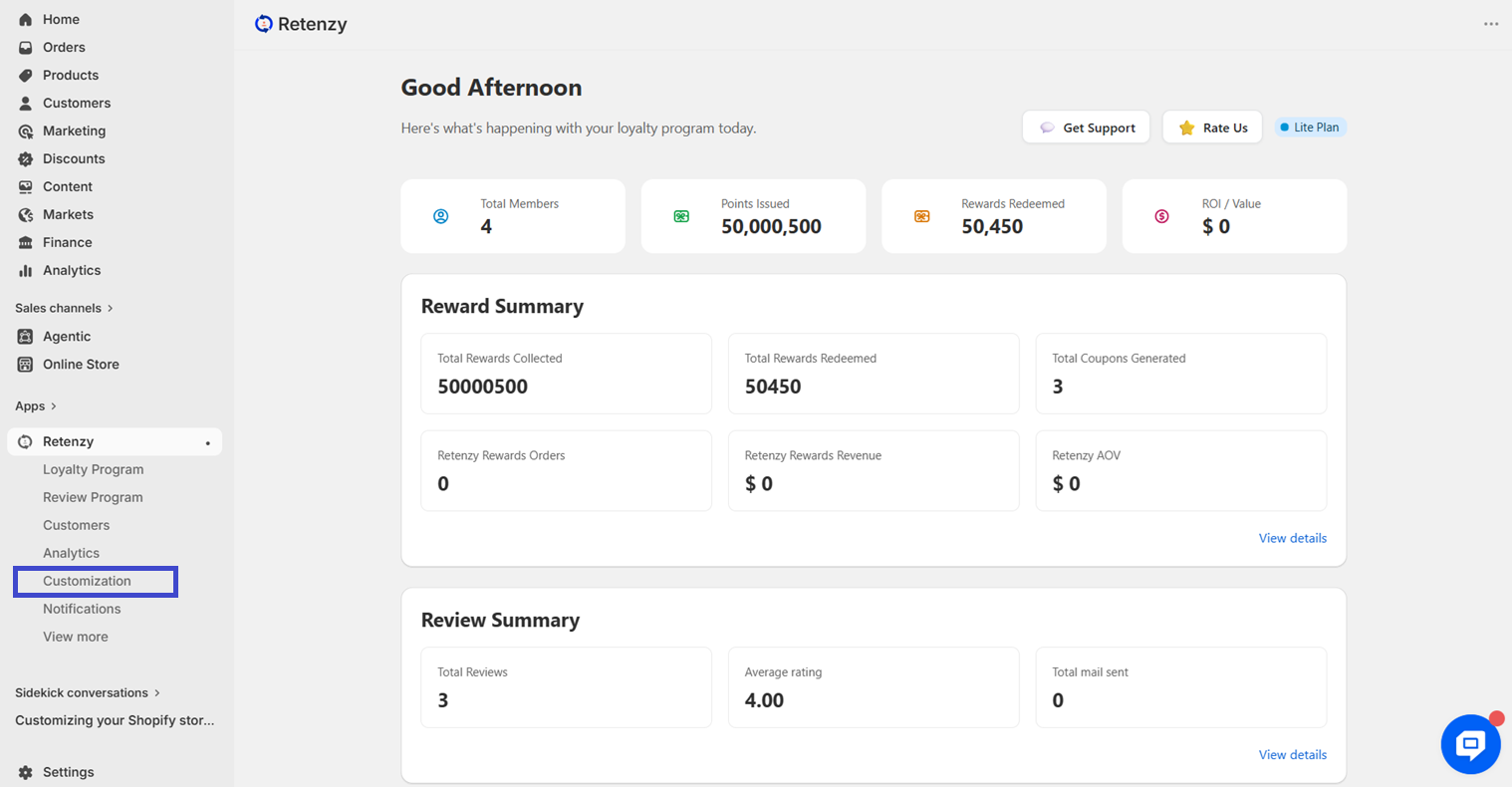
Step 2: Navigate to the Customization
- From the dashboard, click on Customization
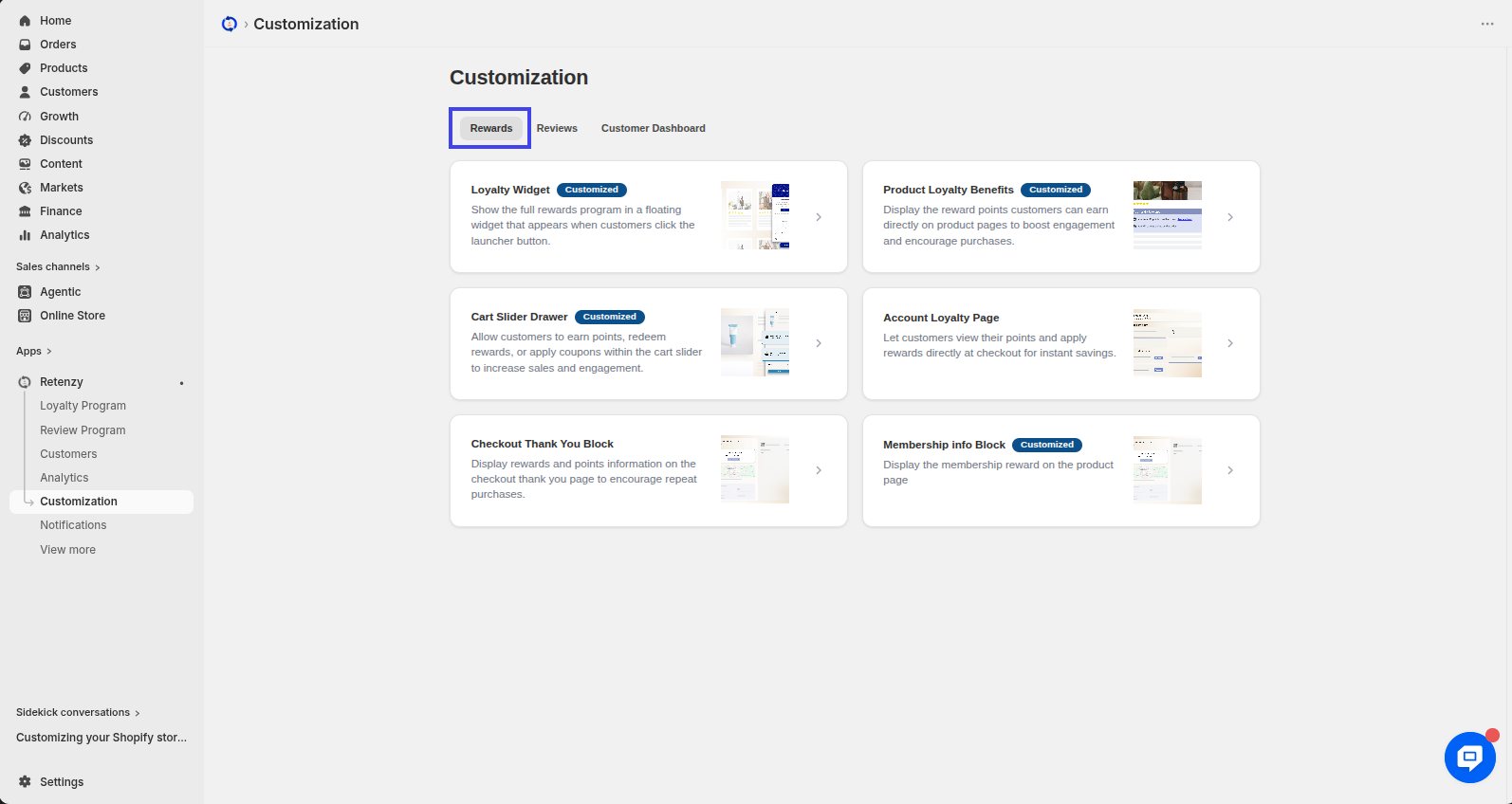
Step 3: Open the Rewards Section
- In the Customization page, navigate to the Rewards section.
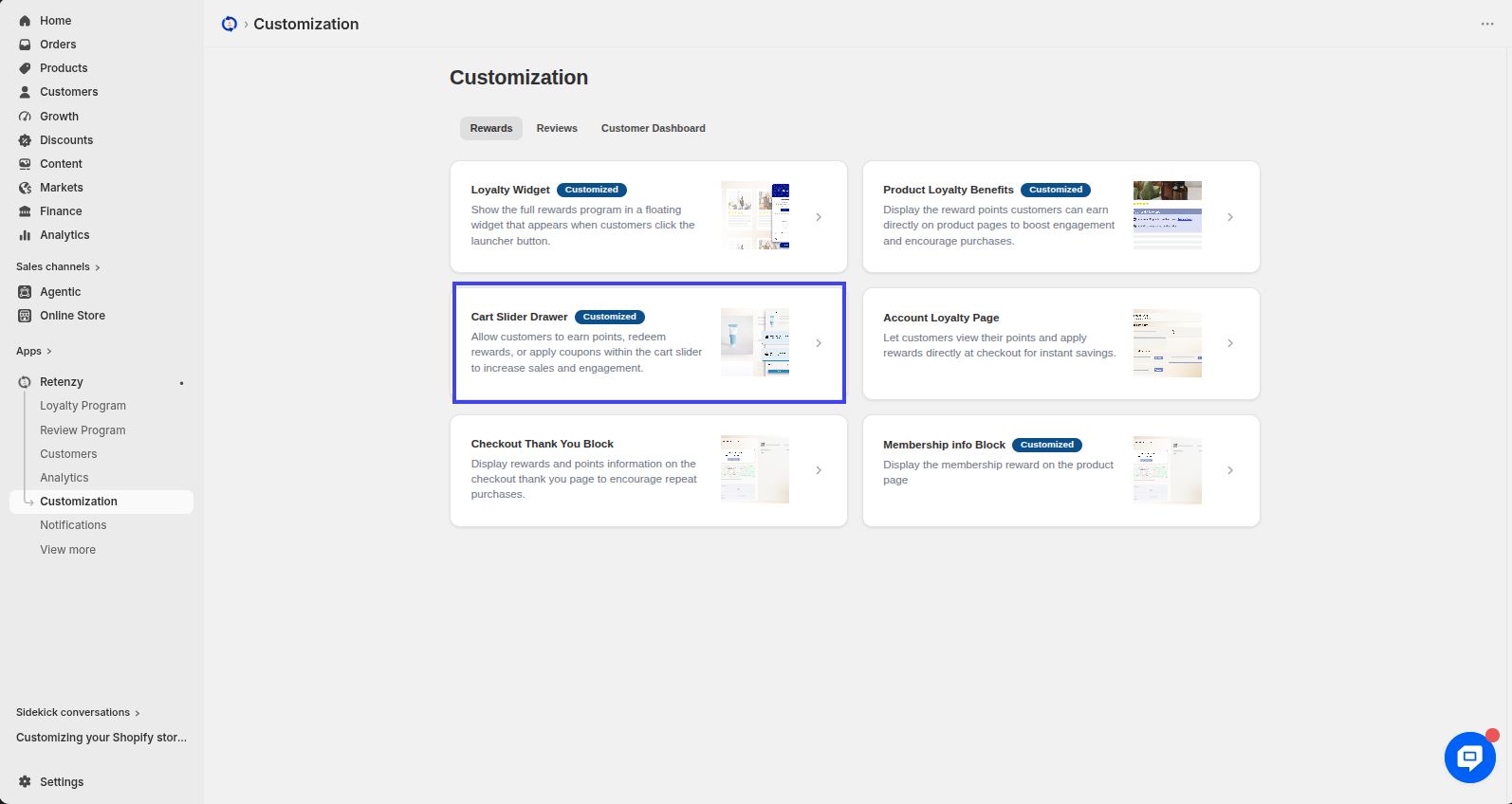
Step 4: Open the Product Review Block
- Within the Rewards section, click on the Cart Slider Drawer
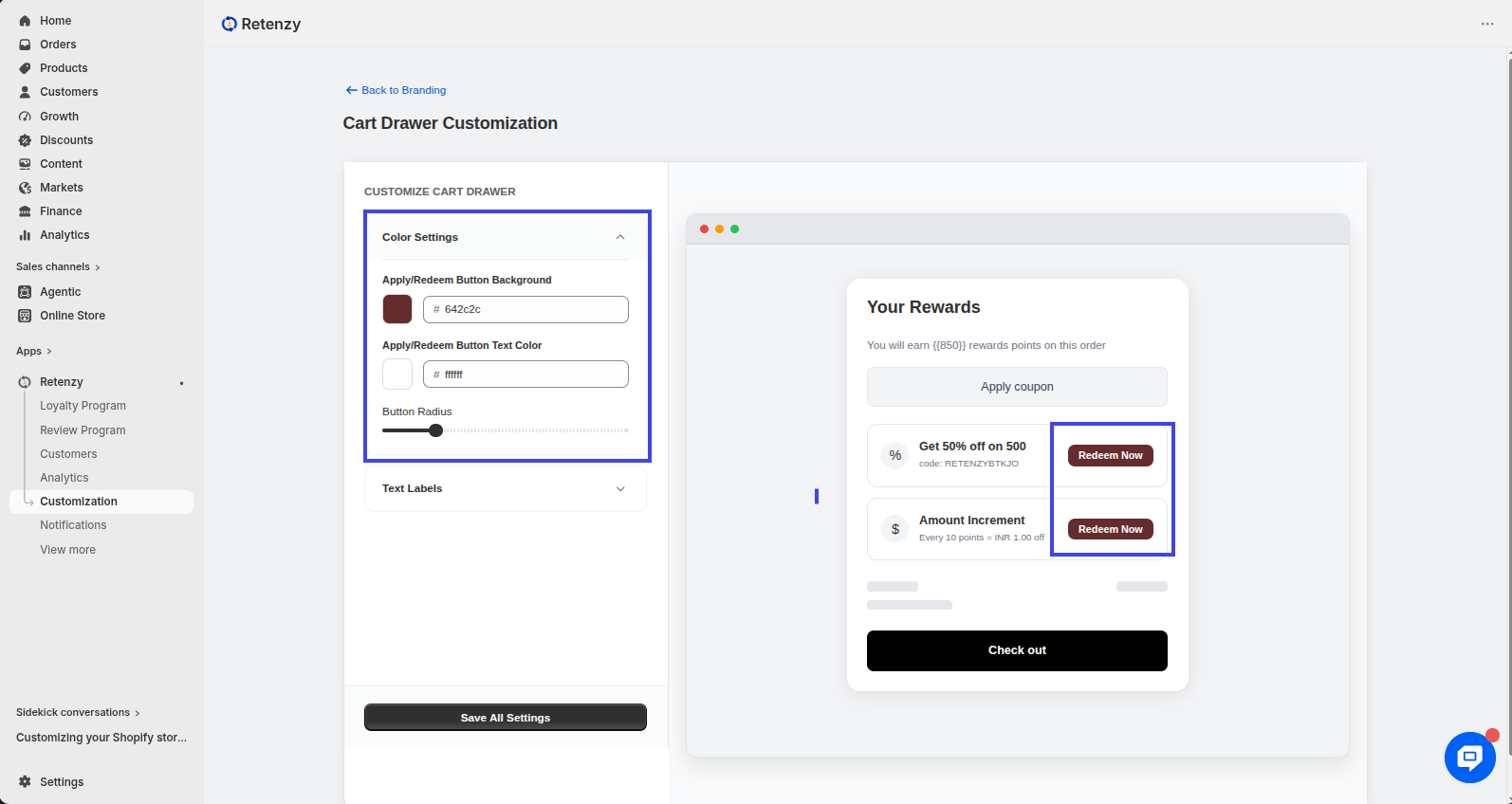
Step 5 — Button Settings
-
Button Color → Set the text/icon color.
-
Button Background Color → Choose background color to match your theme.
-
Set Button Radius → Adjust the roundness of the button (e.g., square, rounded, or pill-shaped).
Step 6 — Content Settings
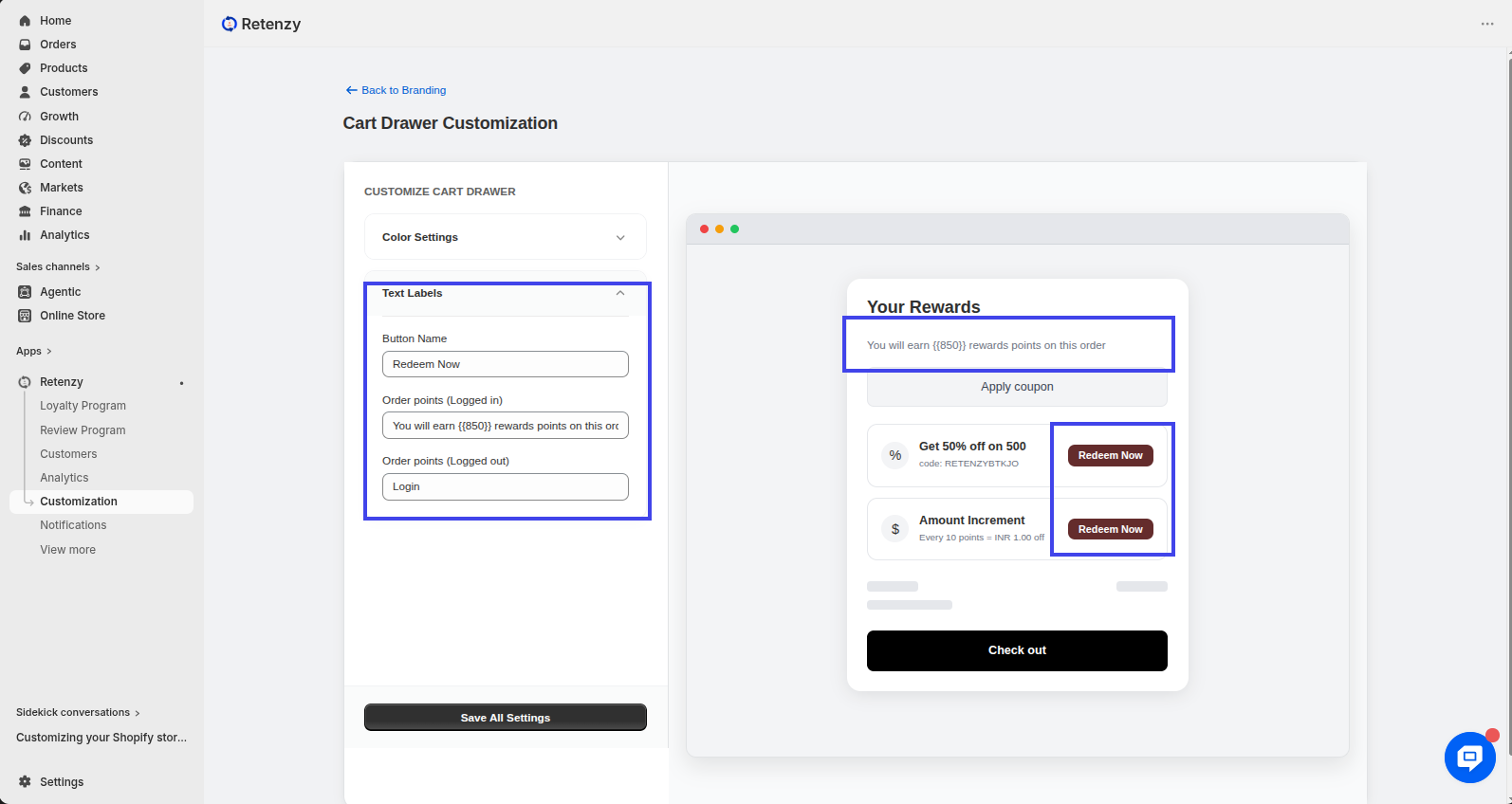
You can edit the text displayed in the cart:
-
Order point in cart (Logged in) → Customize the message for logged-in users.
Example: “You will earn {{points}} rewards points on this order.” -
Order point in cart (Logged out) → Message for guests.
Example: “Login to see your rewards.”
Step 7 — Live Preview
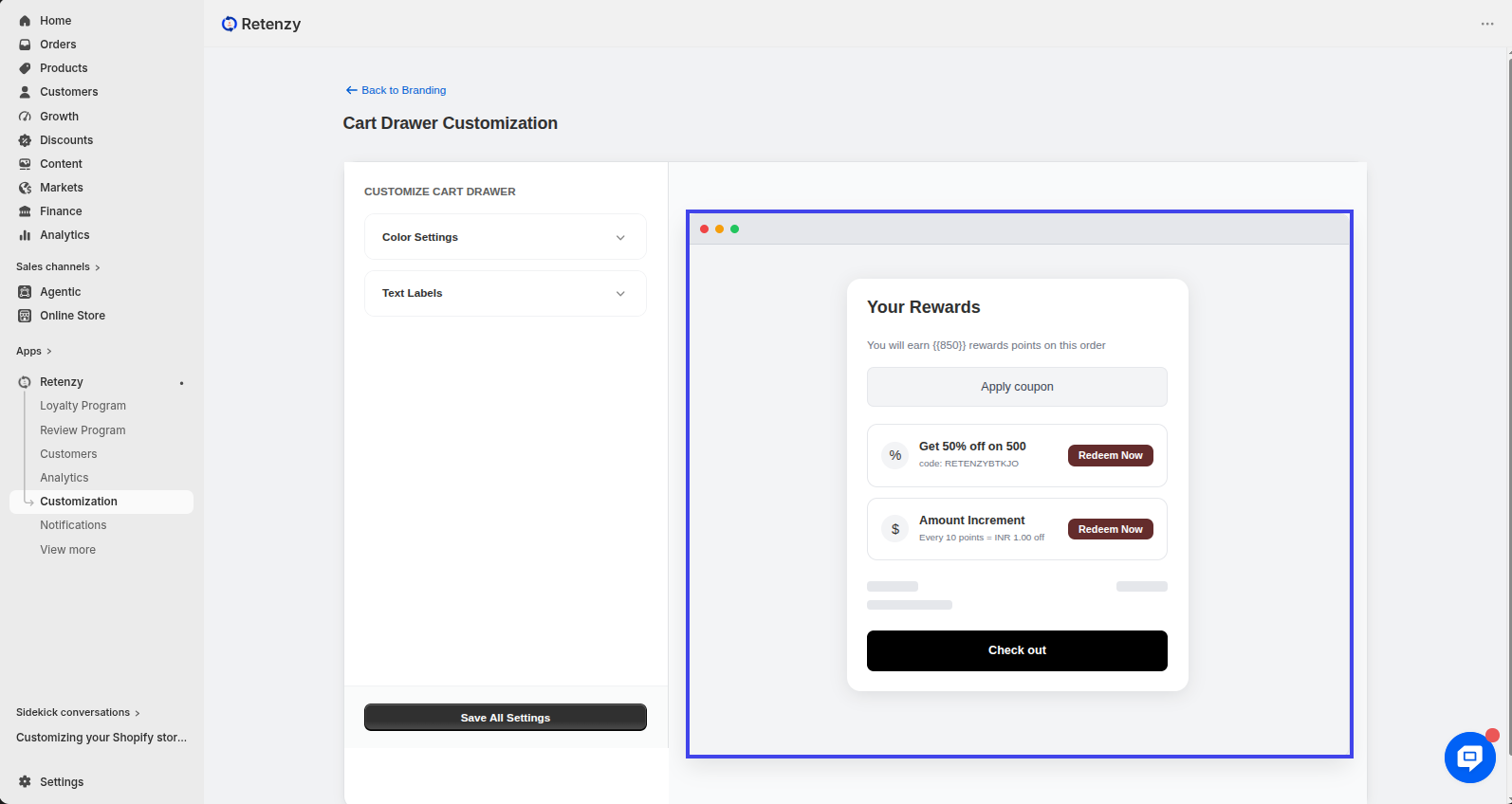
On the right side, you’ll see how it looks on your store’s cart drawer.
Example shown in preview:
-
“You will earn 850 rewards points on this order.”
-
Apply coupon button (e.g., “Get 50% off on 500” with code).
-
Redemption option (e.g., Every 10 points = INR 1.00 off).
Step 8 — Save Changes
- Once satisfied, click Save to publish the updated widget on your store’s cart slider/drawer.