Step by Step:
Step 1: Open the Retenzy Dashboard
Log in to your Retenzy dashboard to access your store settings.
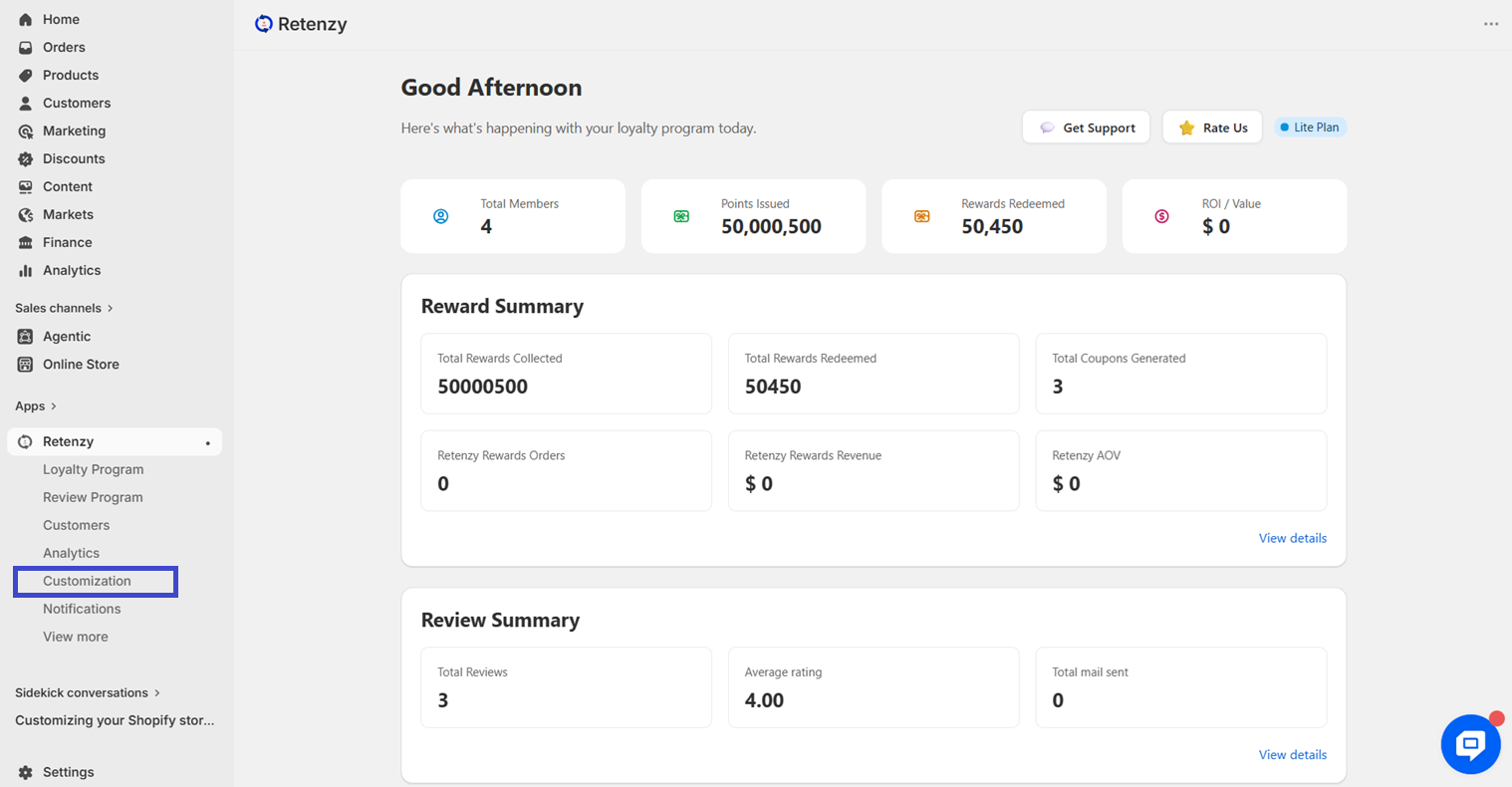
Step 2: Open the Customization Page
From the Review Program, click on Customization.
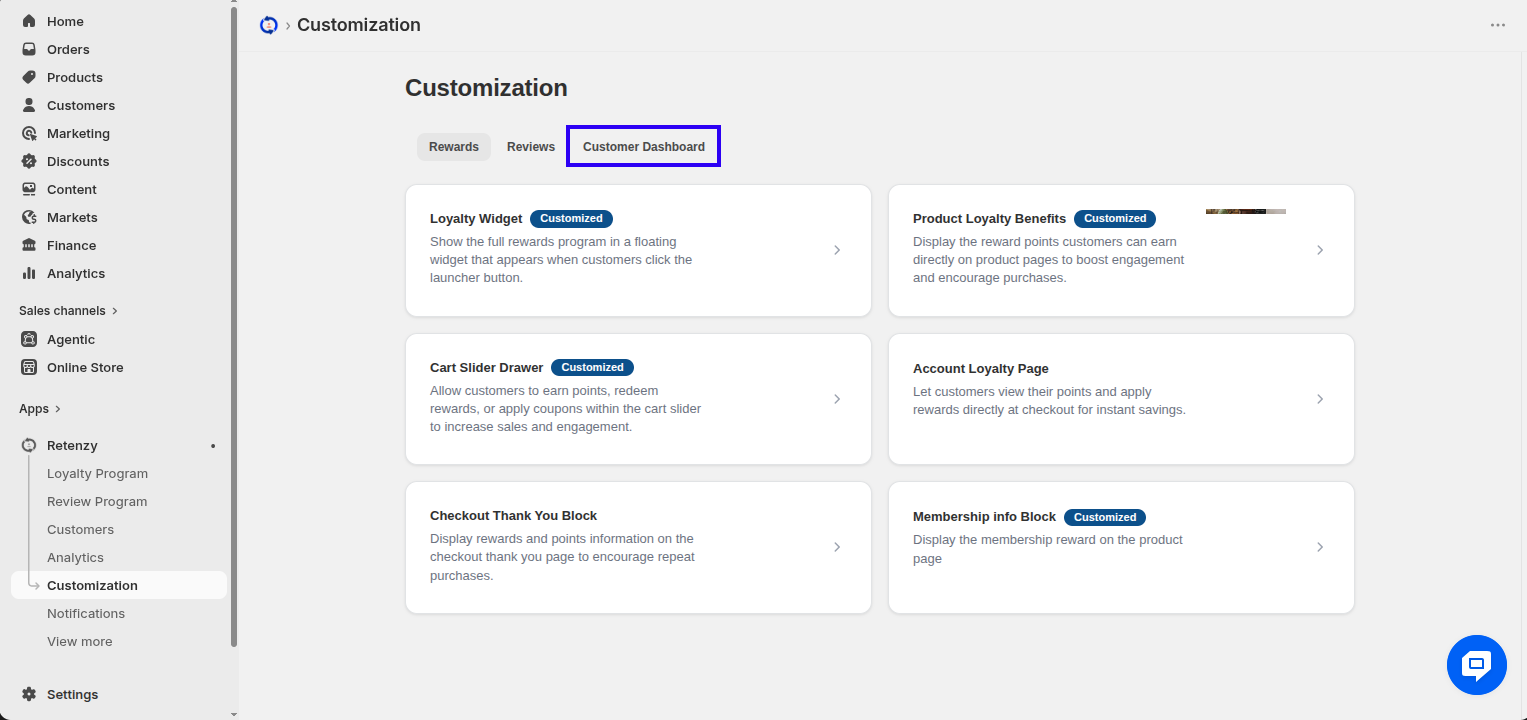
Step 3: Navigate to the Customer Dashboard Section
On the Customization page, open the Customer Dashboard section.
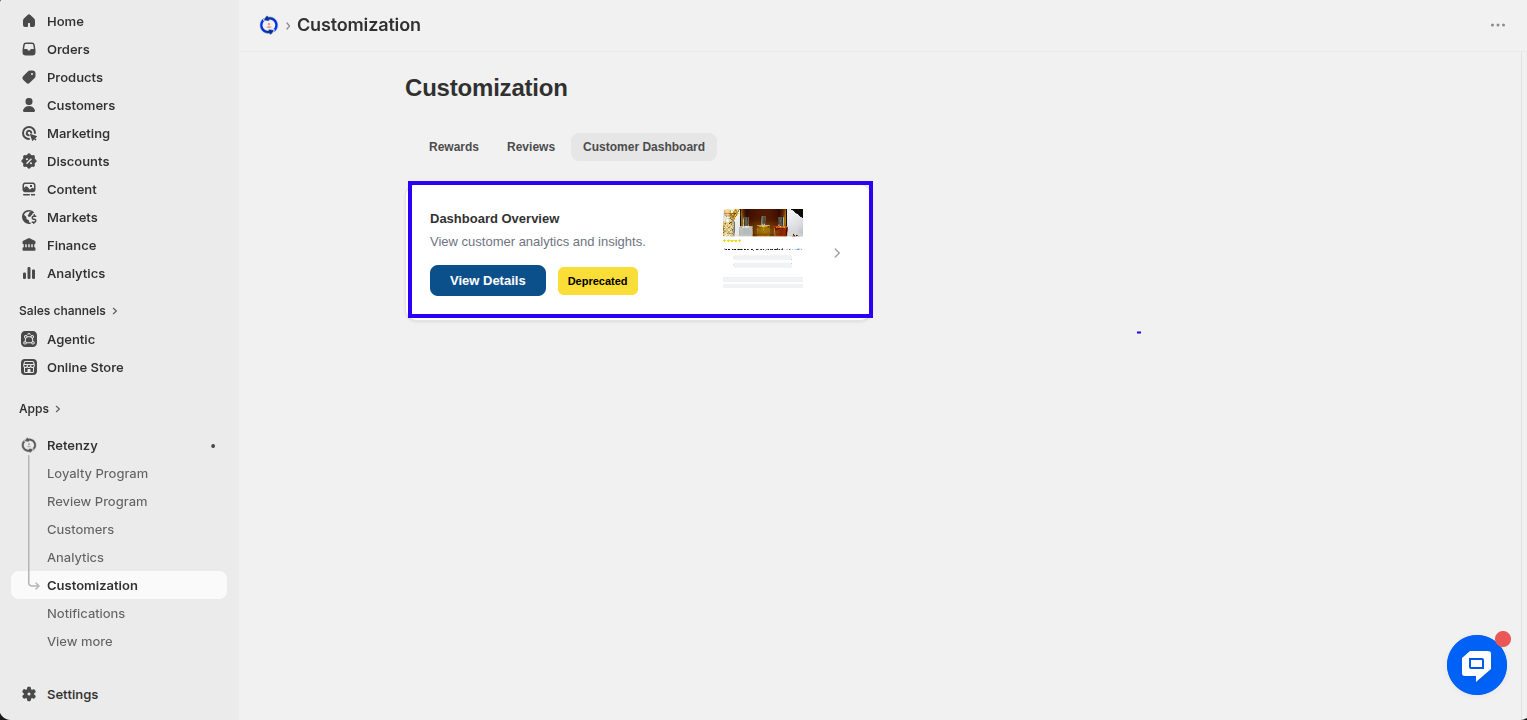
Step 4: Open the Dashboard Overview
Within the Customer Dashboard section, click on Dashboard Overview.
Step 5: Open the Widget Color Settings
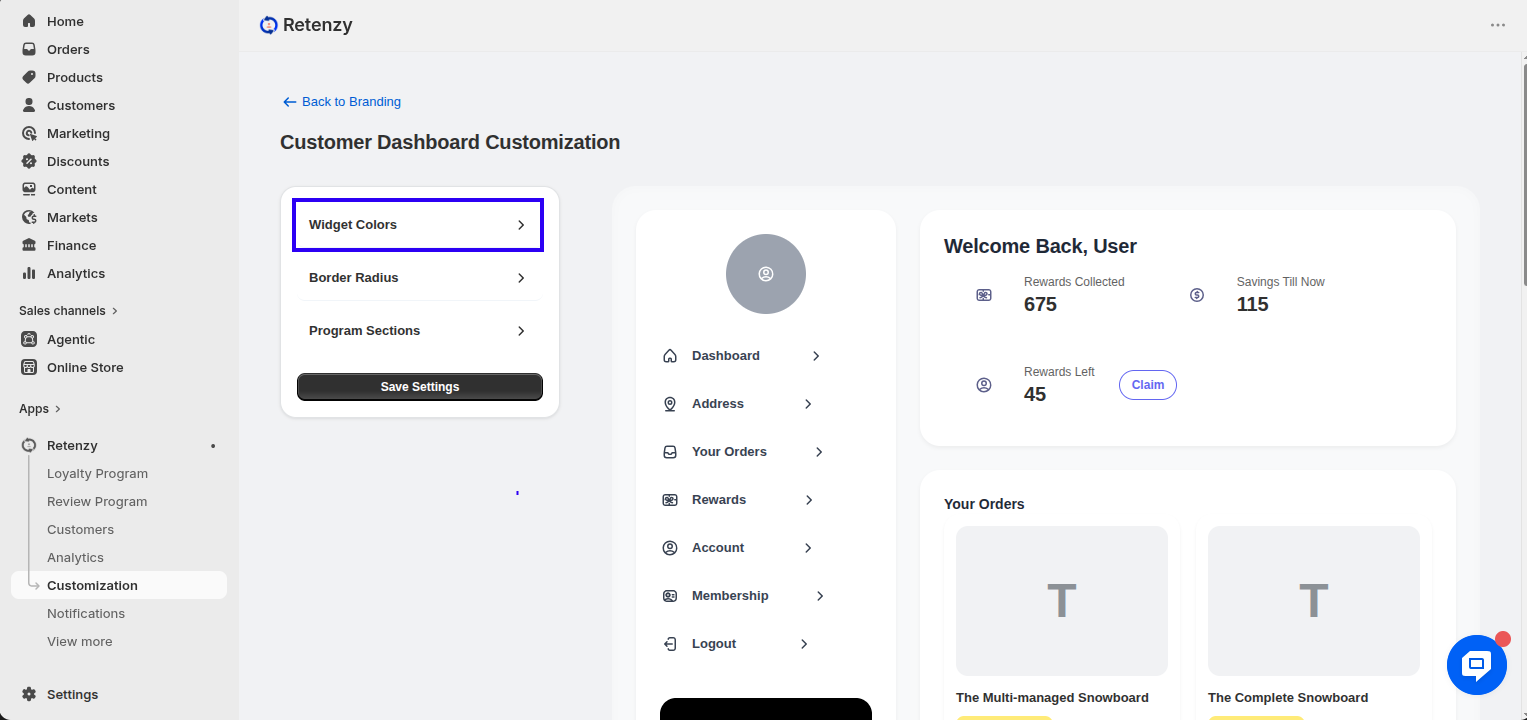
In the Dashboard Overview, you will see three customization options:
-
Widget Color
-
Border Radius
-
Program Section
Click on Widget Color.
Step 6: Customize the Widget Colors
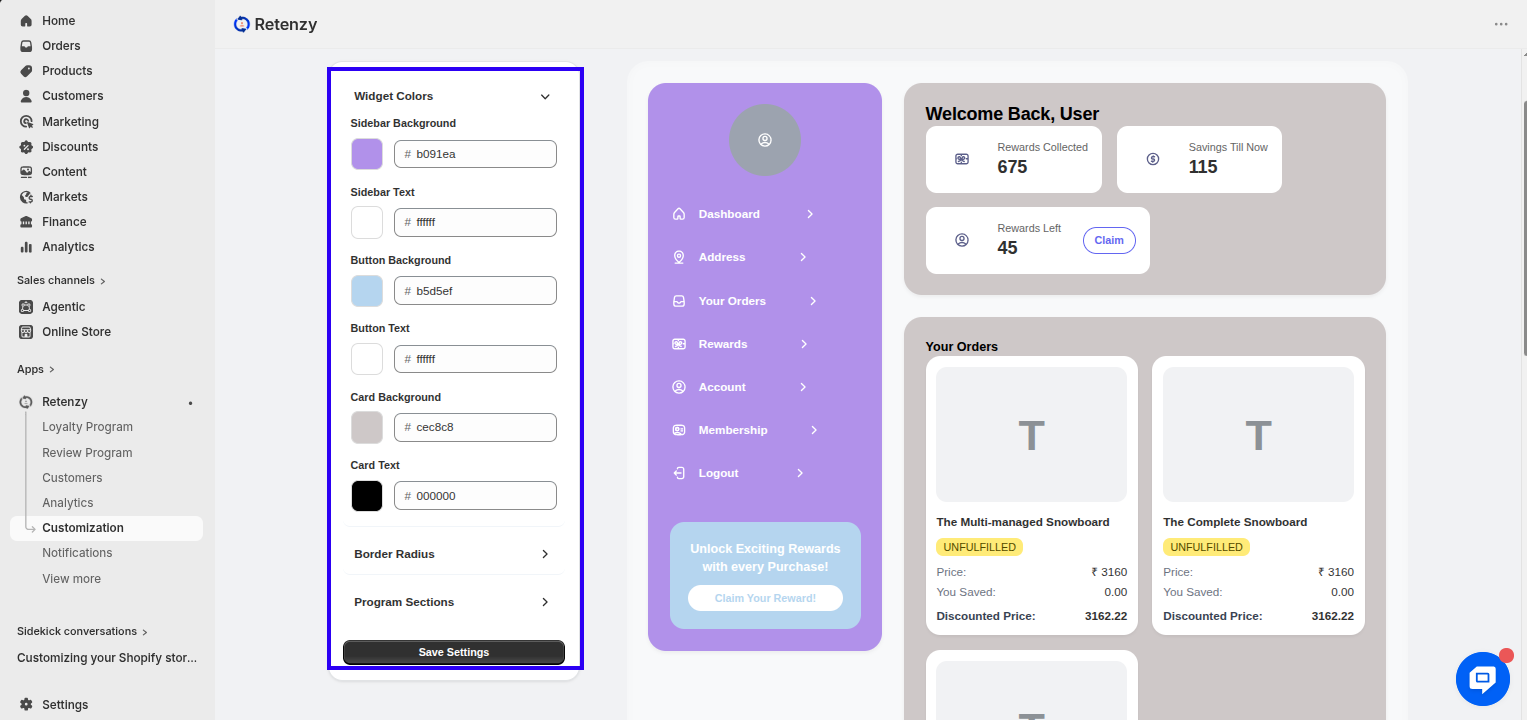
In the Widget Color settings, you can customize the colors for:
-
Sidebar Background
-
Sidebar Text
-
Button Background
-
Button Text
-
Card Background
-
Card Text
Adjust these colors to match your store's branding.
Step 7: Customize the Border Radius
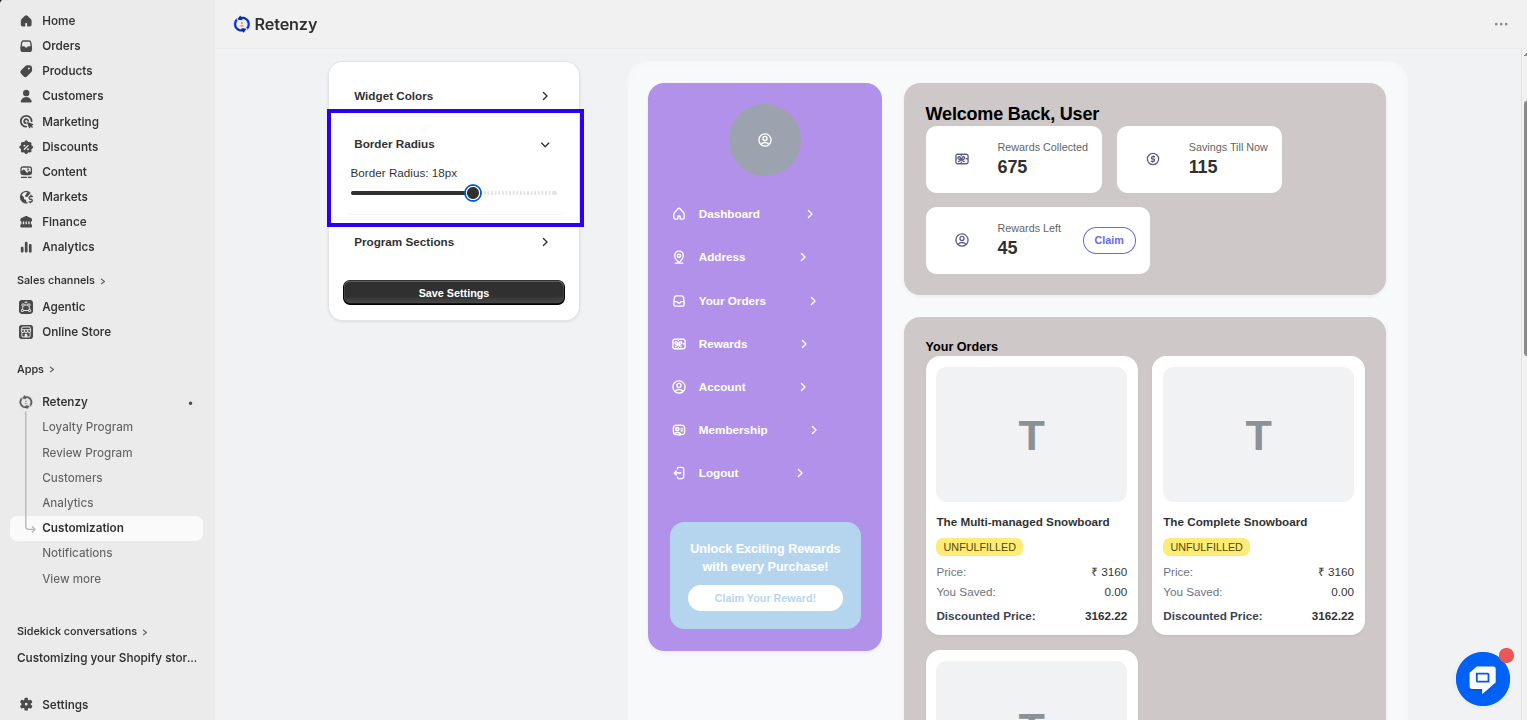
Open the Border Radius section to adjust the roundness of the dashboard borders.
Step 8: Configure the Program Sections
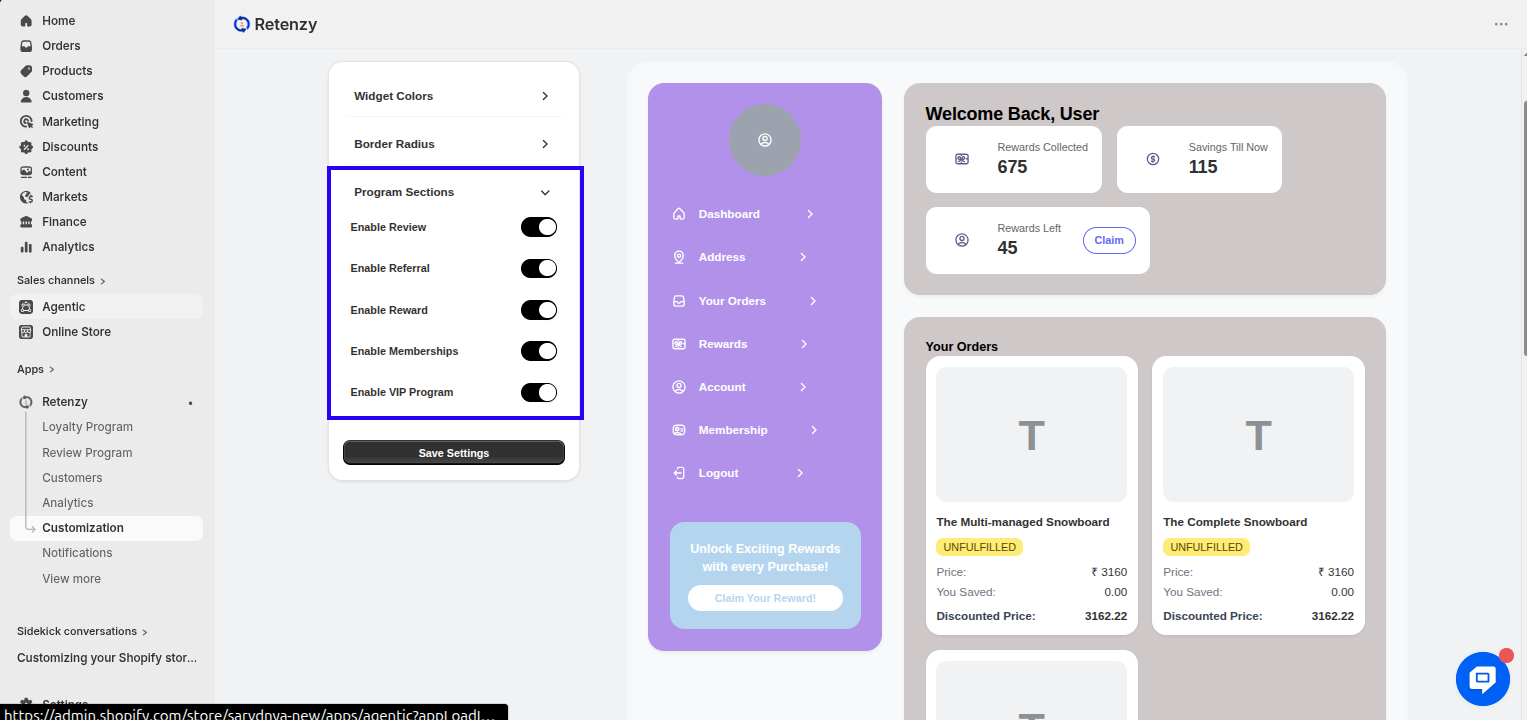
Open the Program Section settings. Here, you can enable or disable the following sections based on your requirements:
-
Enable Review
-
Enable Referral
-
Enable Reward
-
Enable Memberships
-
Enable VIP Program
Toggle each option On or Off as needed.
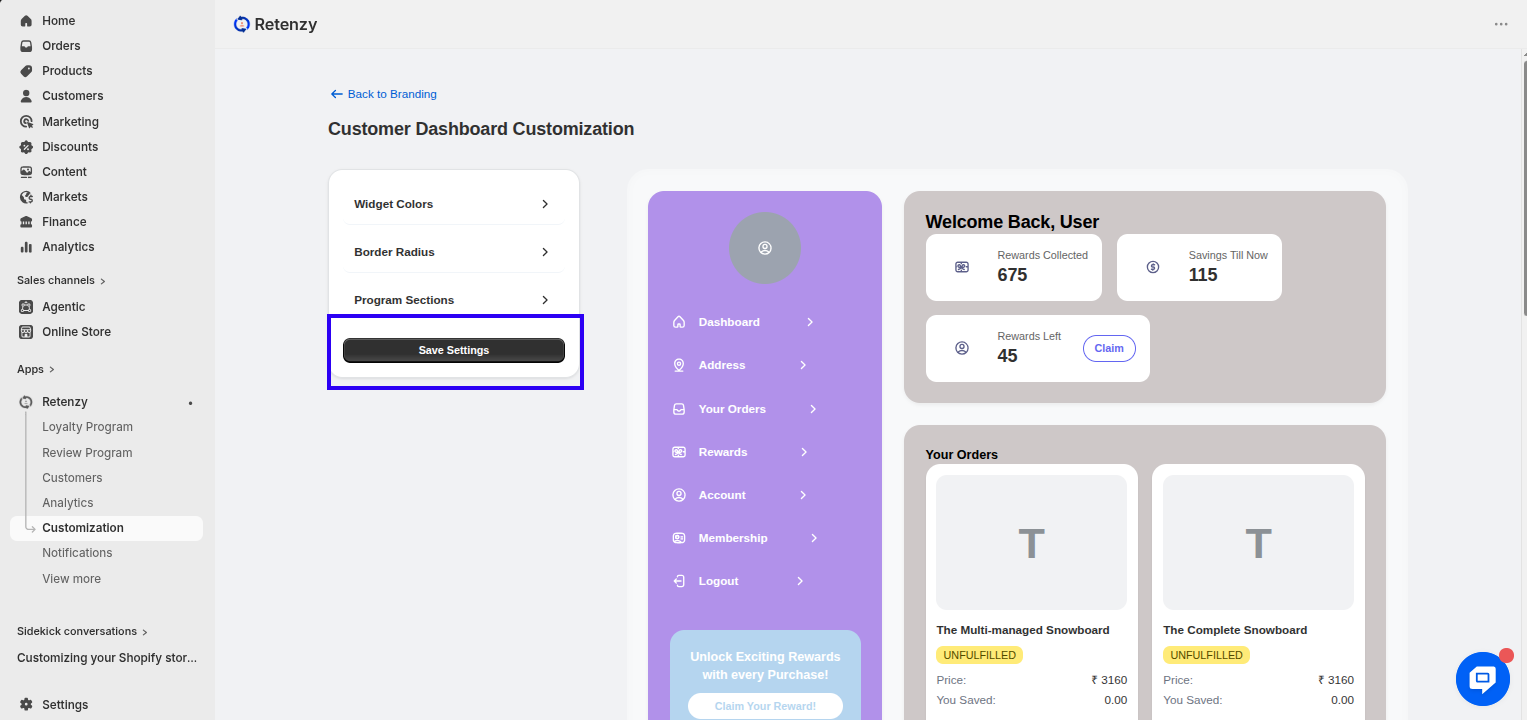
Step 9: Save Your Settings
Once you've finished customizing the dashboard, click Save Settings to apply all your changes.