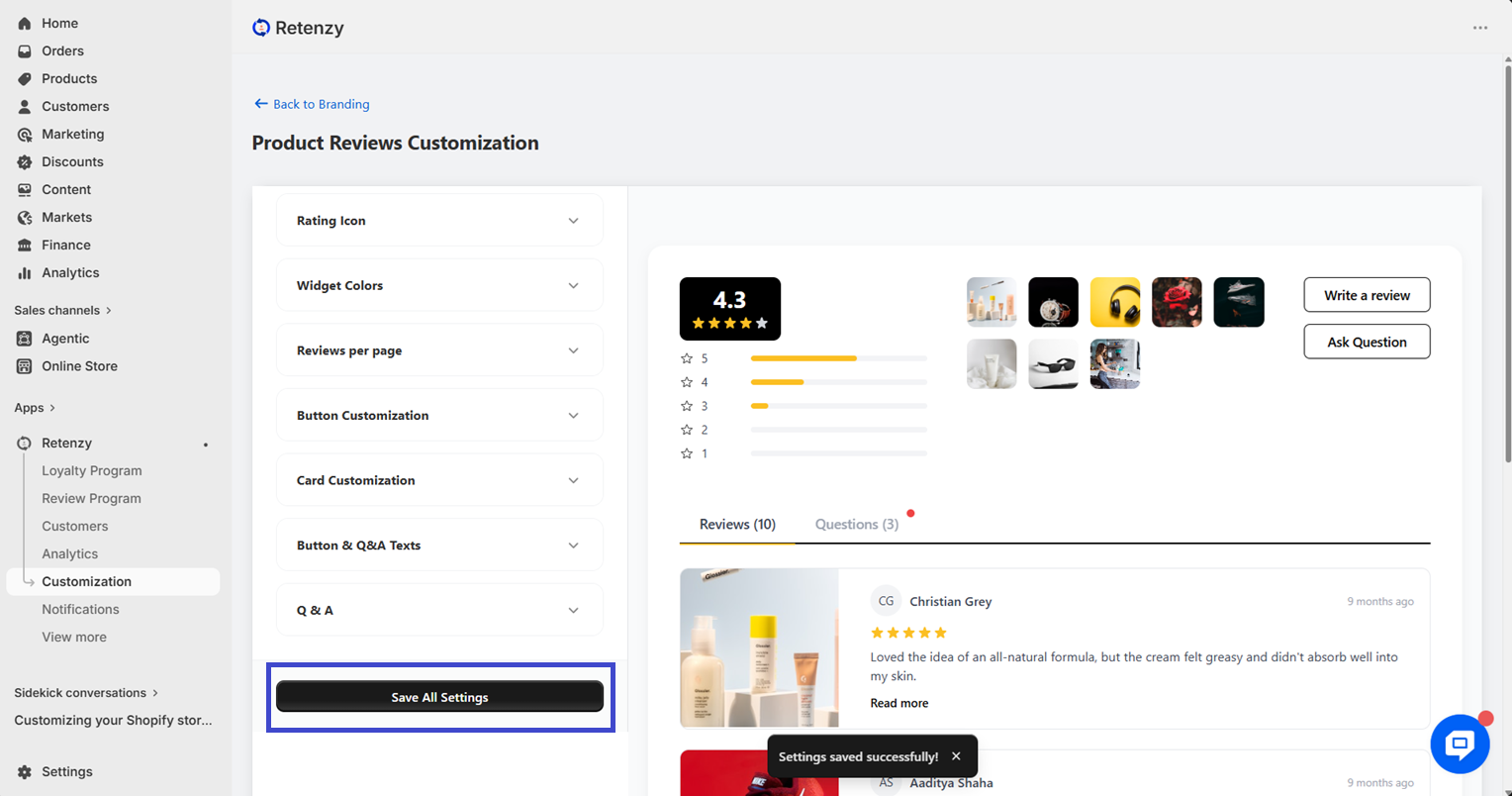
Step by Step:
Step 1: Open the Retenzy Dashboard
Log in to your Retenzy dashboard to access your store settings.
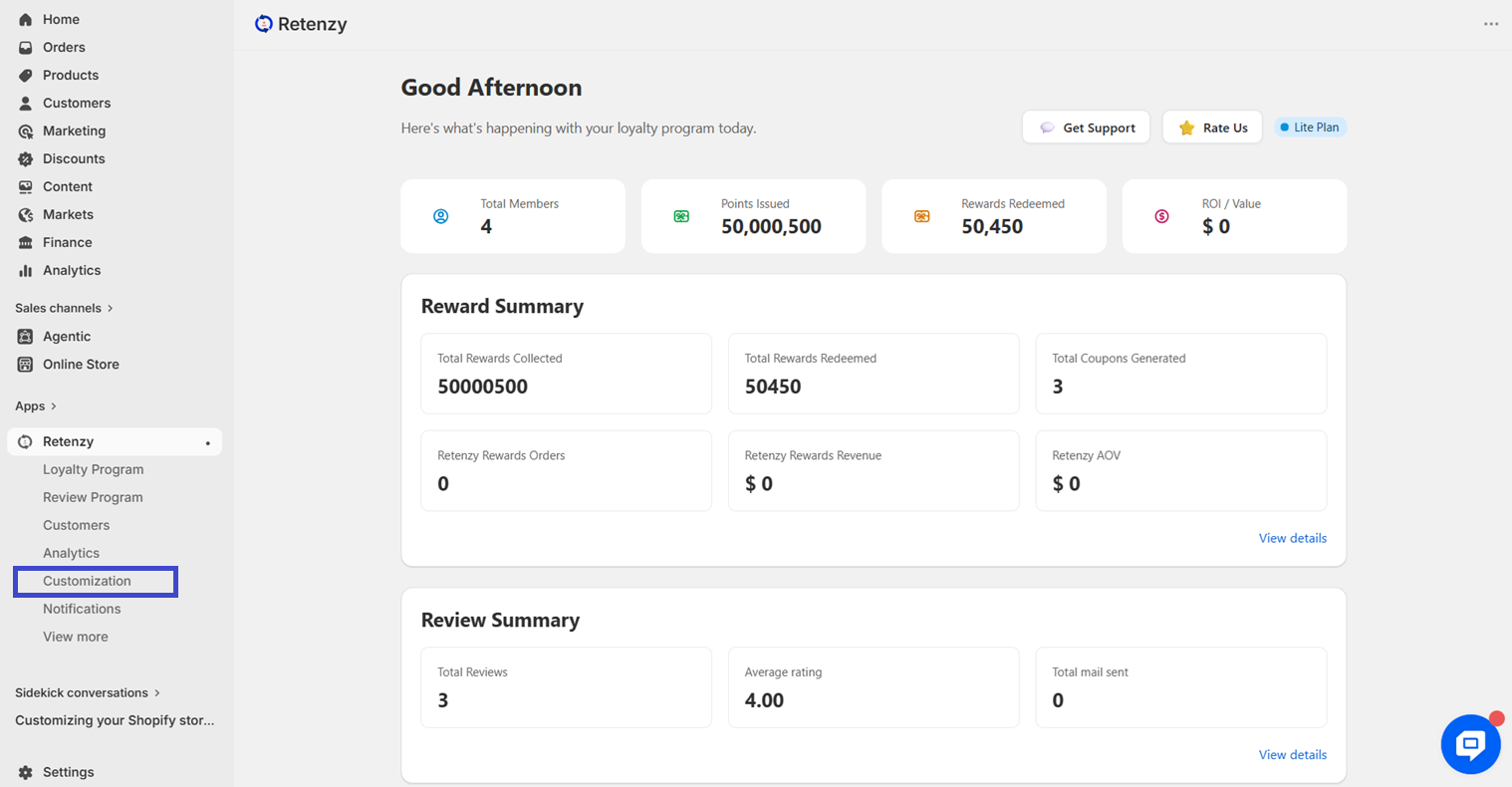
Step 2: Navigate to the Customization
From the dashboard, click on Customization
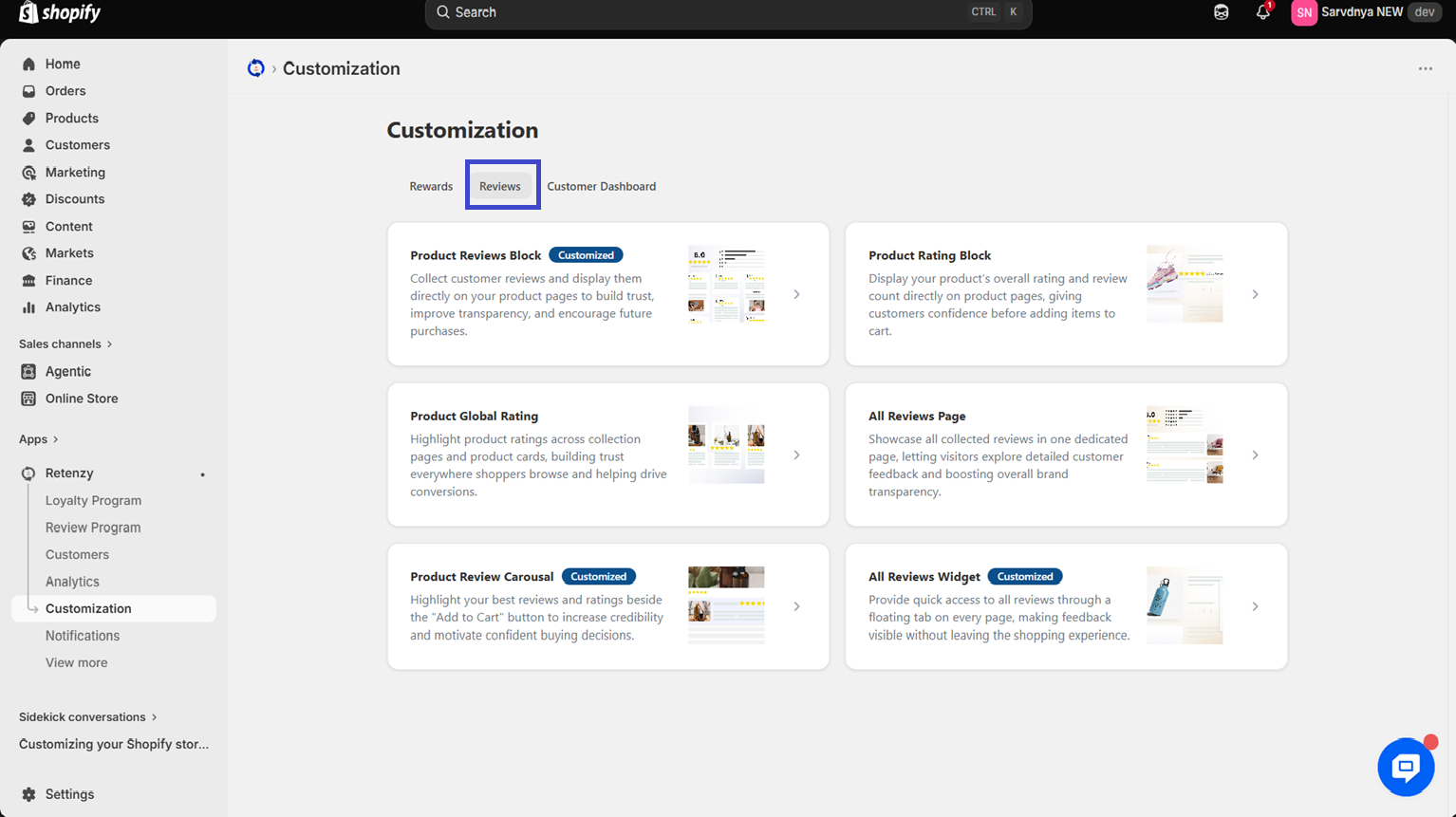
Step 3: Open the Reviews Section
In the Customization page, navigate to the Reviews section.
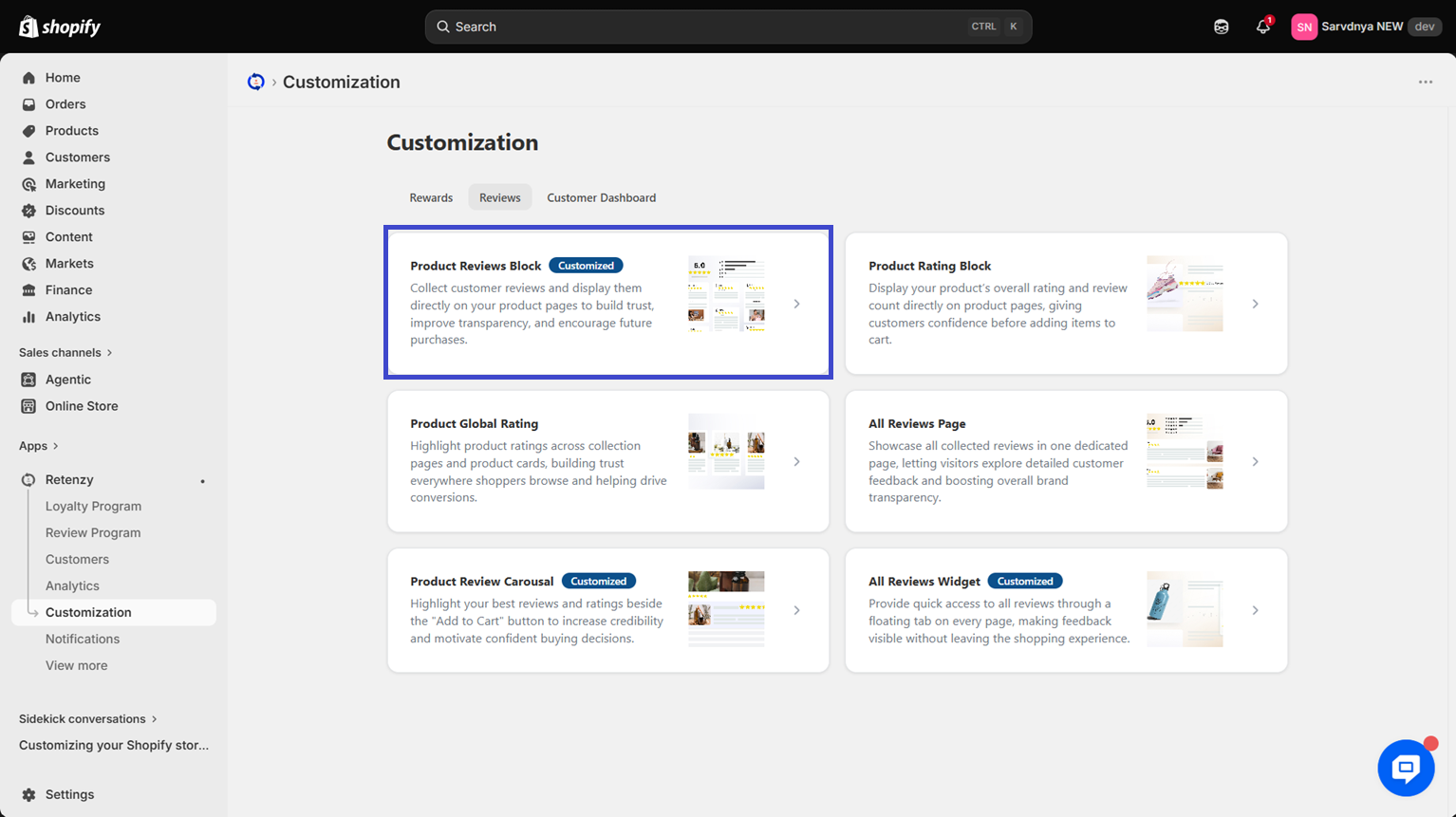
Step 4: Open the Product Review Block
Within the Reviews section, click on the Product Review Block.
Step 5: Open the Rating Icon Settings
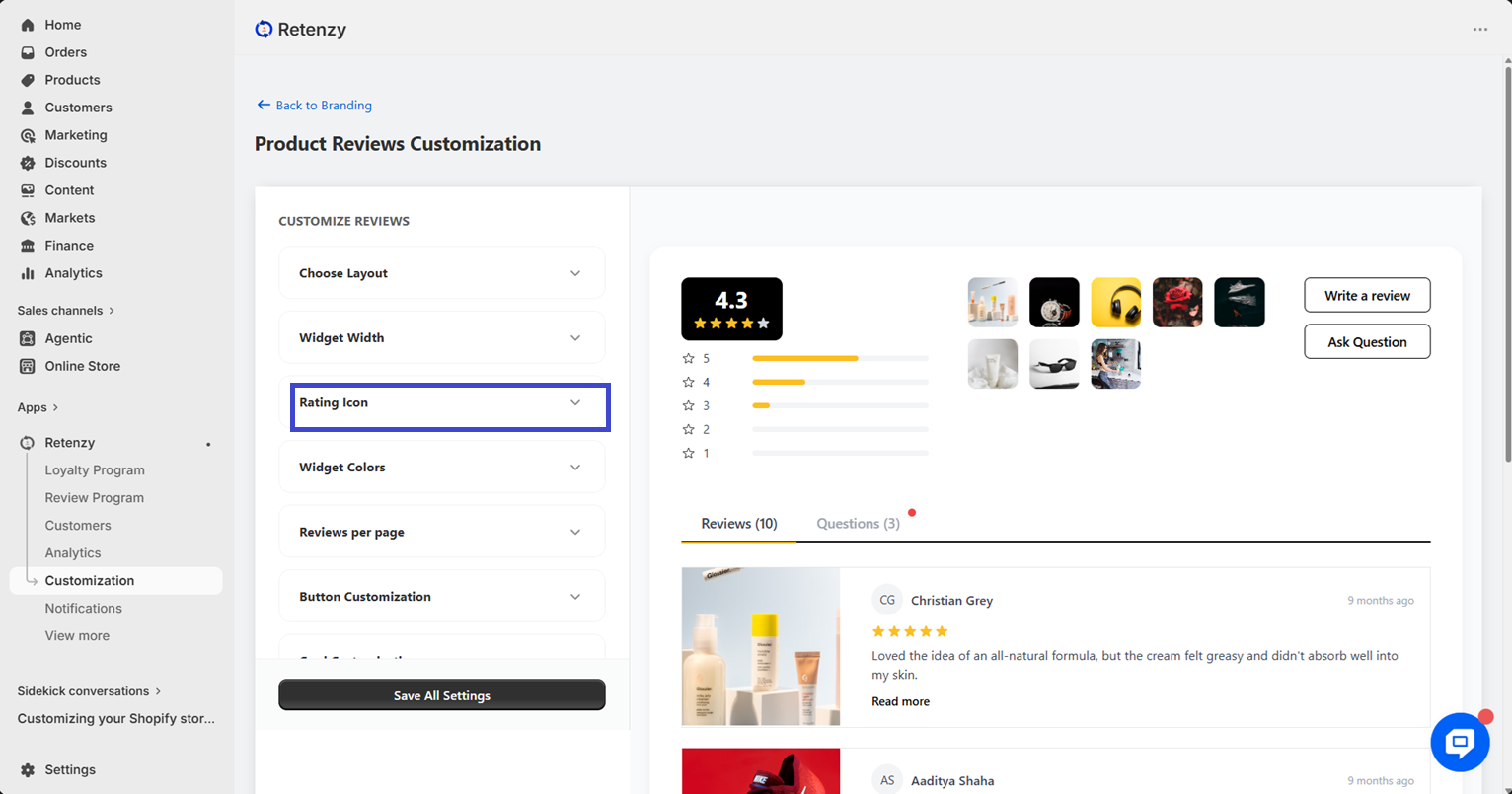
In the Product Review Block, you will see several customization options. Select Rating Icon to customize the appearance of your review ratings.
Step 6: Choose a Rating Icon Style
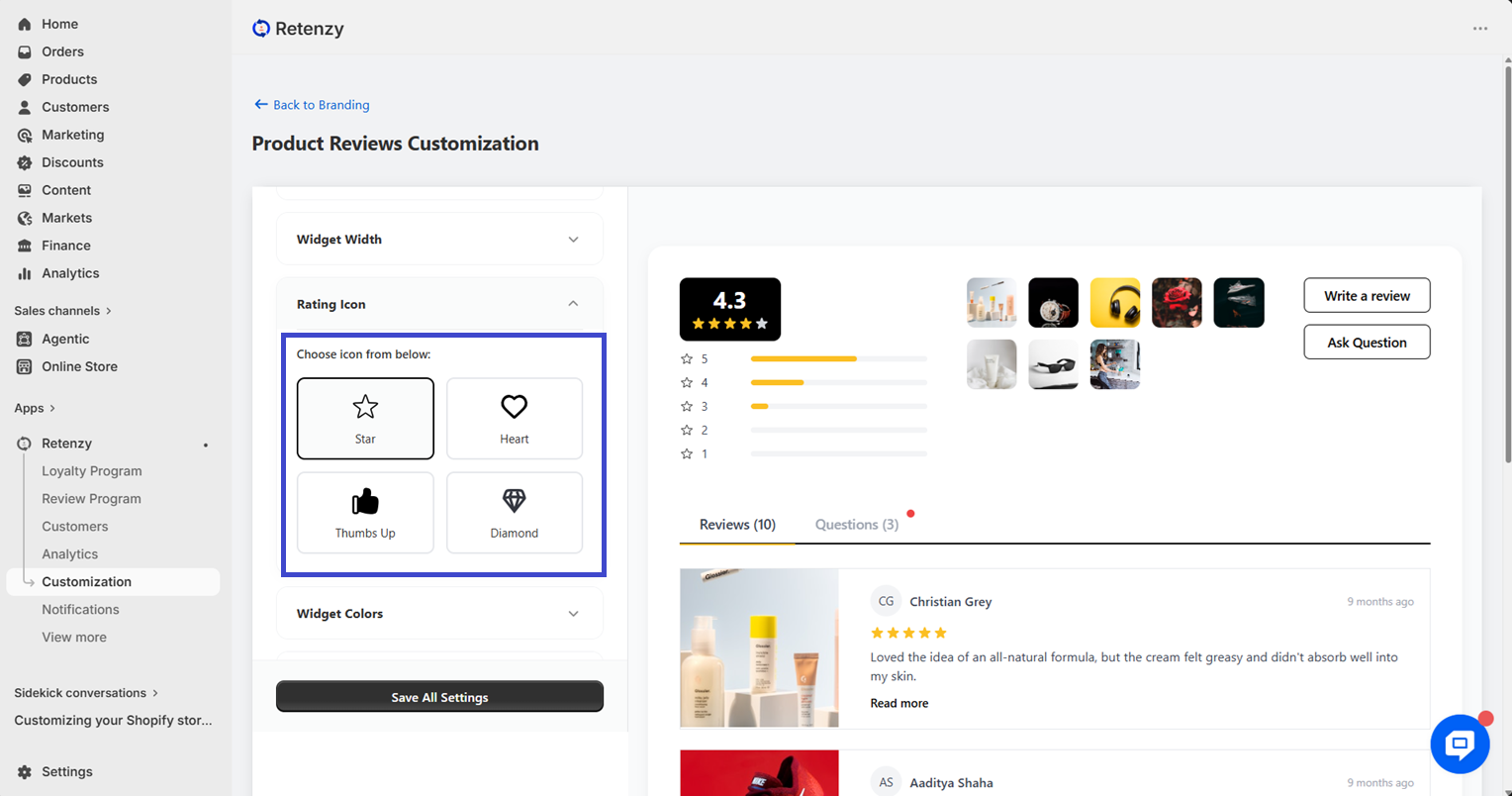
After opening the Rating Icon settings, choose your preferred rating icon style. Available options include:
-
⭐ Star
-
❤️ Heart
-
👍 Like
-
💎 Diamond
Select the icon style that best matches your store's design.
Step 7: Customize the Widget Color
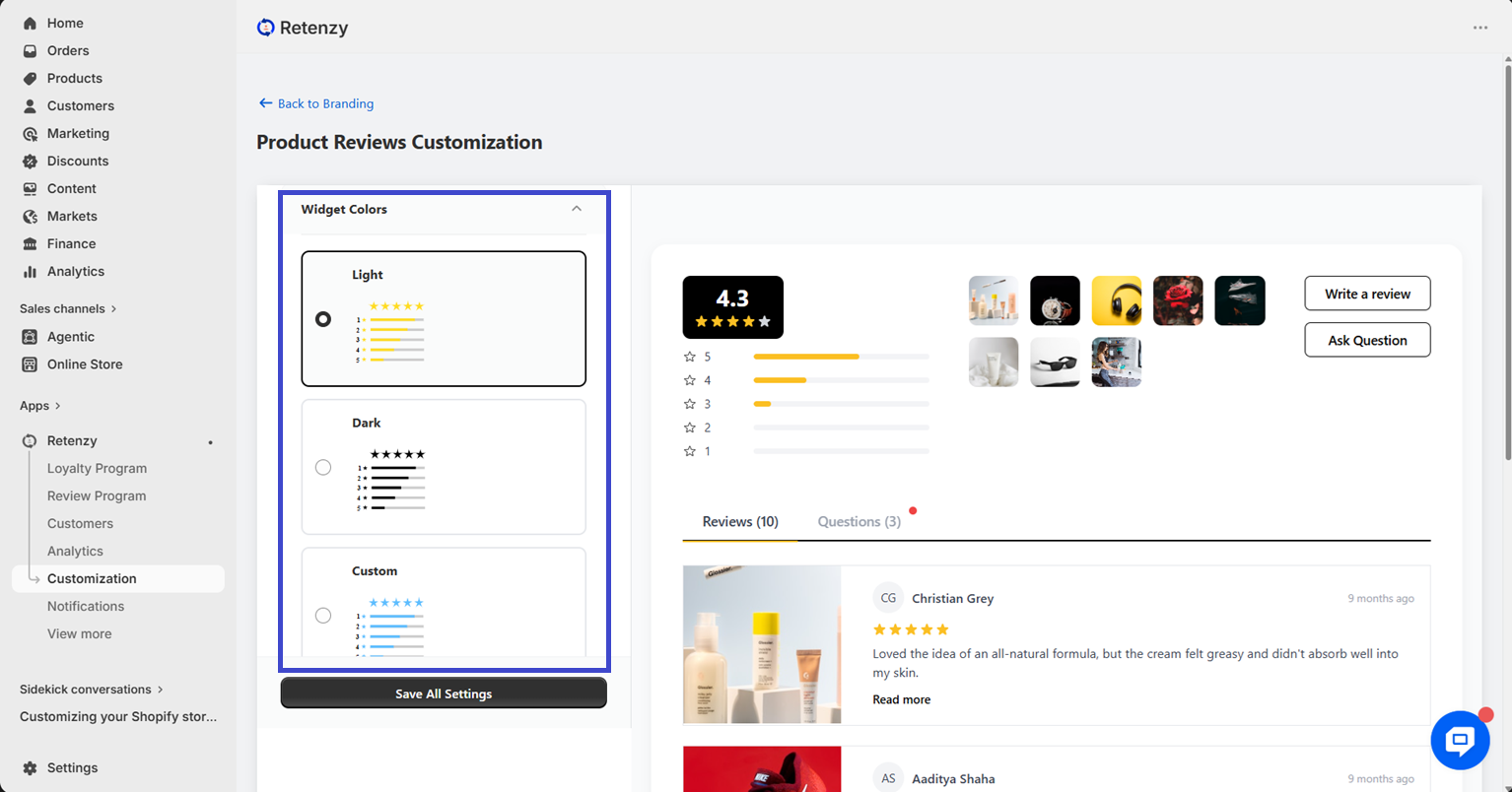
Adjust the Widget Color to match your store's branding and theme.
Step 8: Customize the Card Radius
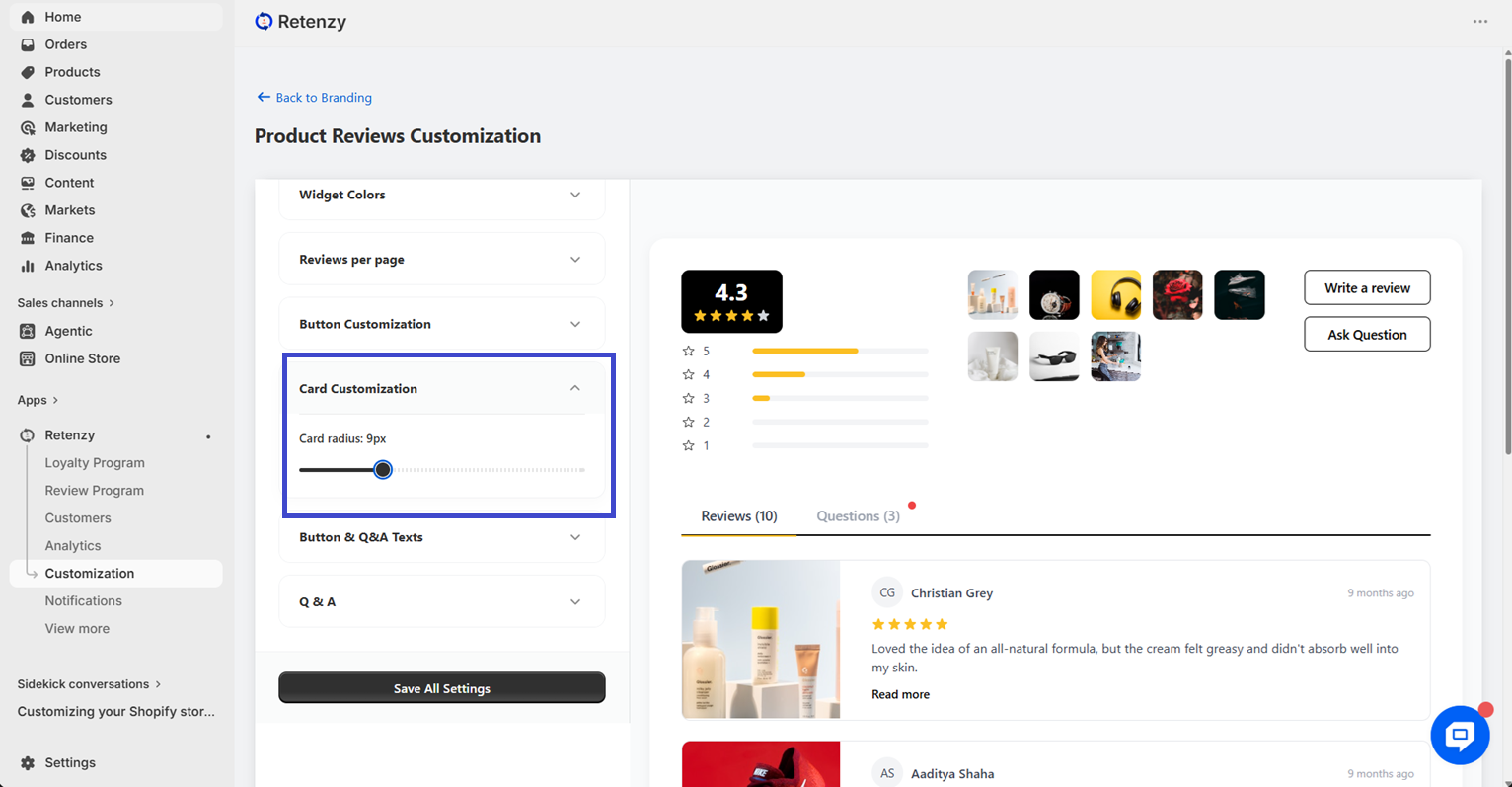
In the Card Customization section, adjust the Card Radius to change the roundness of the review cards.
Step 9: Save All Settings
Click Save All Settings at the bottom of the page once you've finished customizing the Product Review Block to apply your changes.