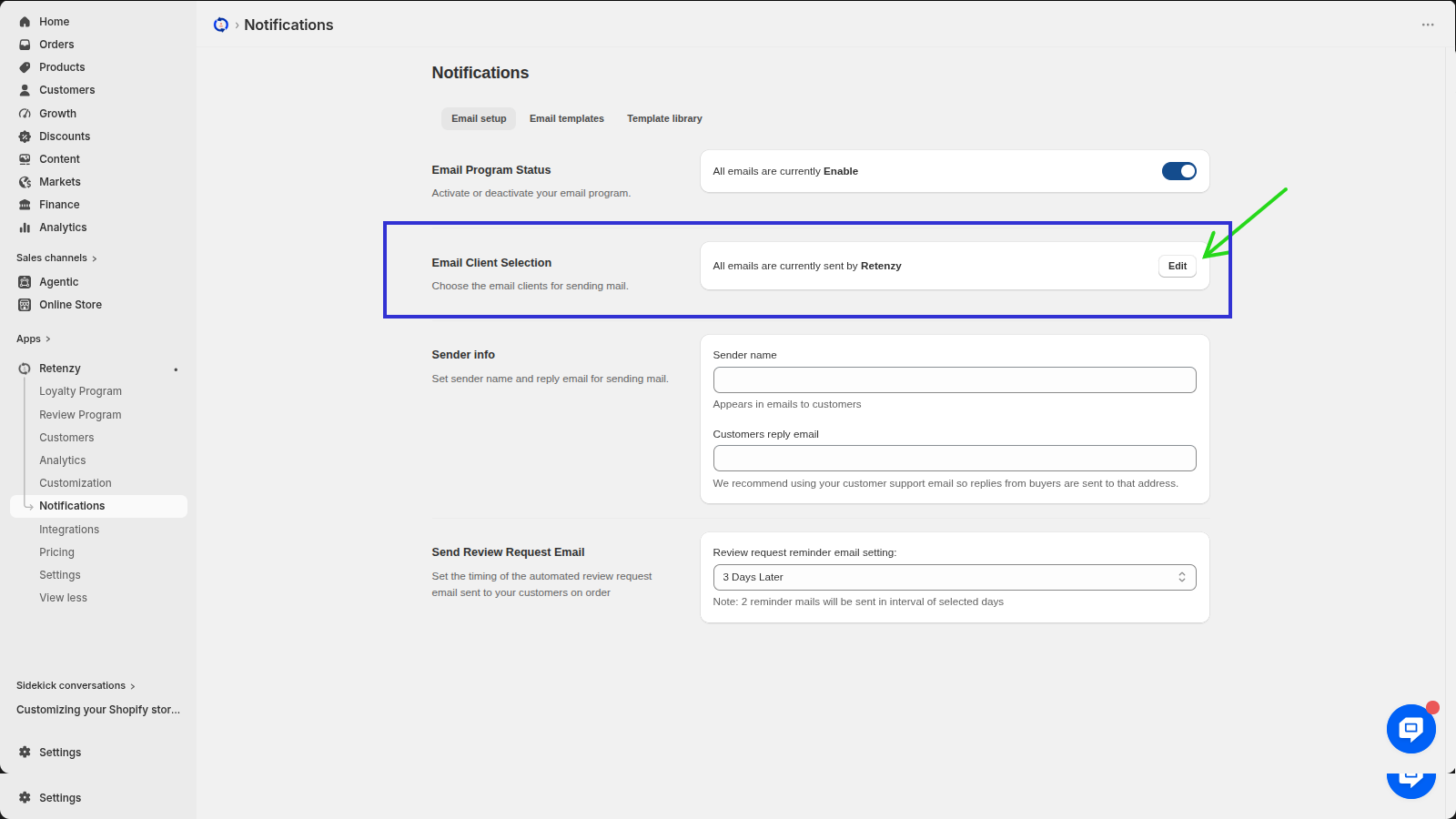
The email client defines who sends your automated emails (e.g., Retenzy or your own email domain). By default, emails are sent through Retenzy, but you can update this setting.
Steps:
Step 1: Open the Retenzy Dashboard
- Log in to your Retenzy dashboard.
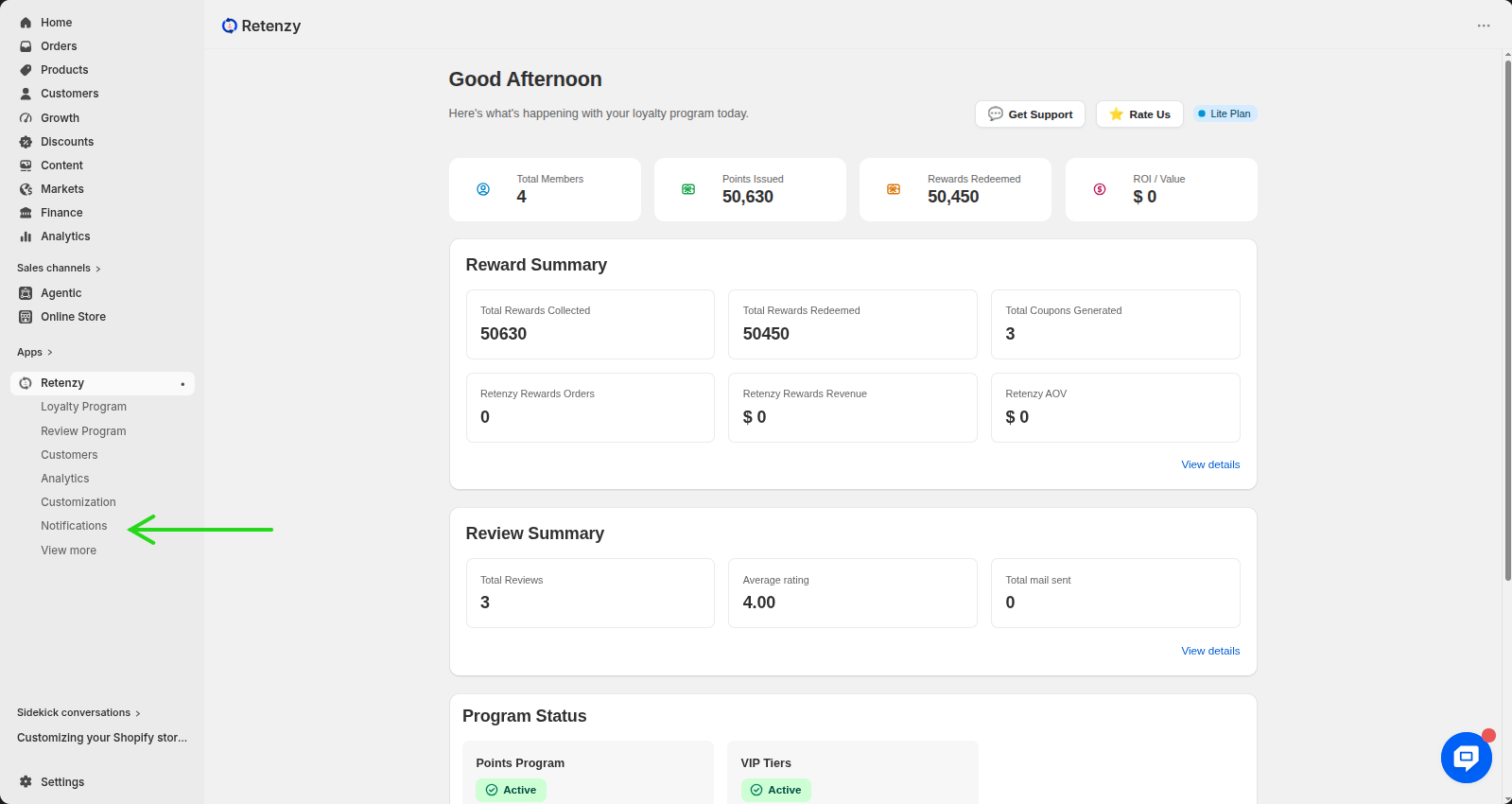
Step 2: Navigate to the Notifications Section
- From the left-hand menu, click on Notifications.
Step 3: Open Email Setup
- Under the Communication section, click on Email Setup.
Step 4: Edit the Email Client
- On the Email Setup page, locate the Email Client Selection section and click Edit.
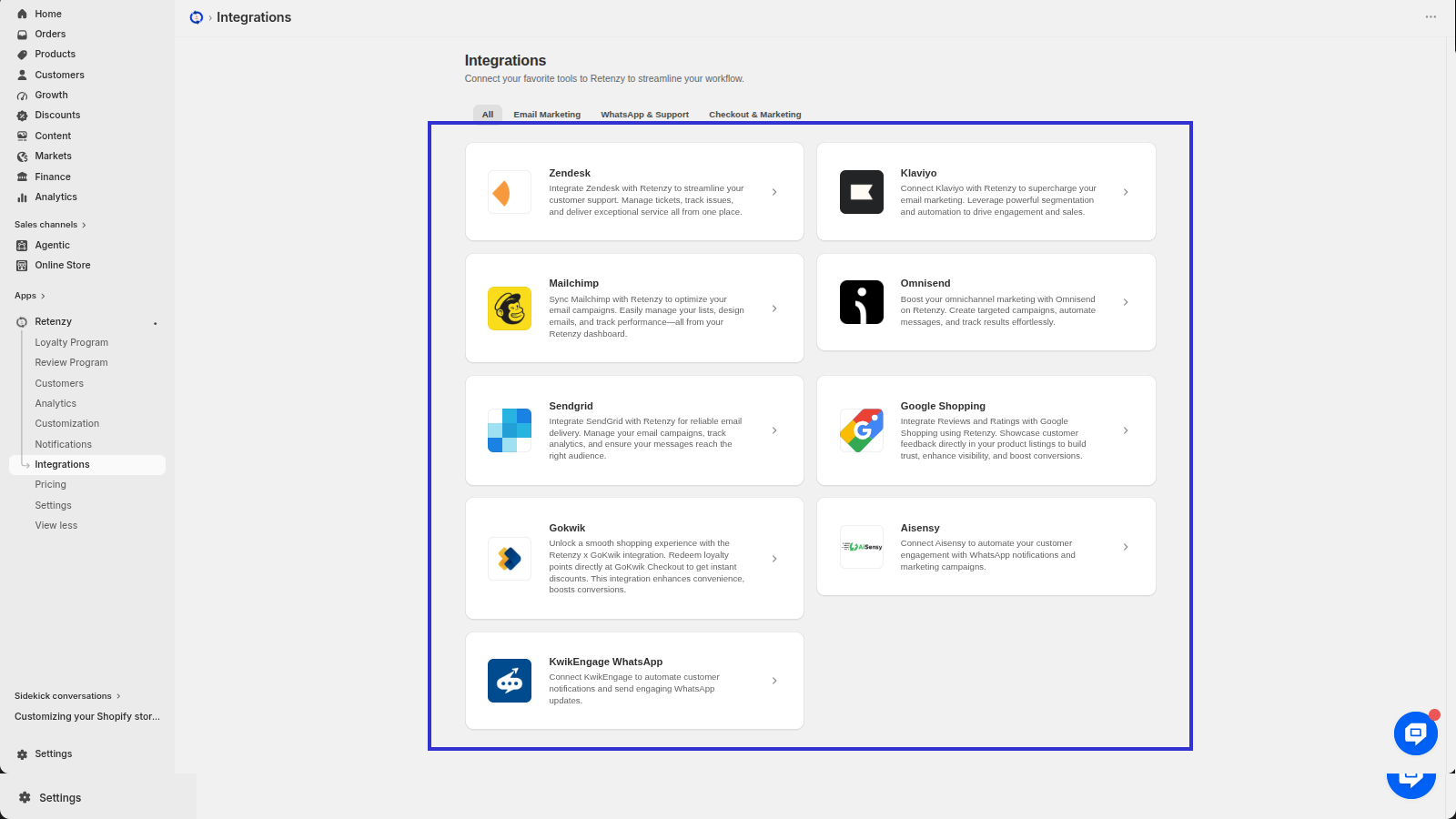
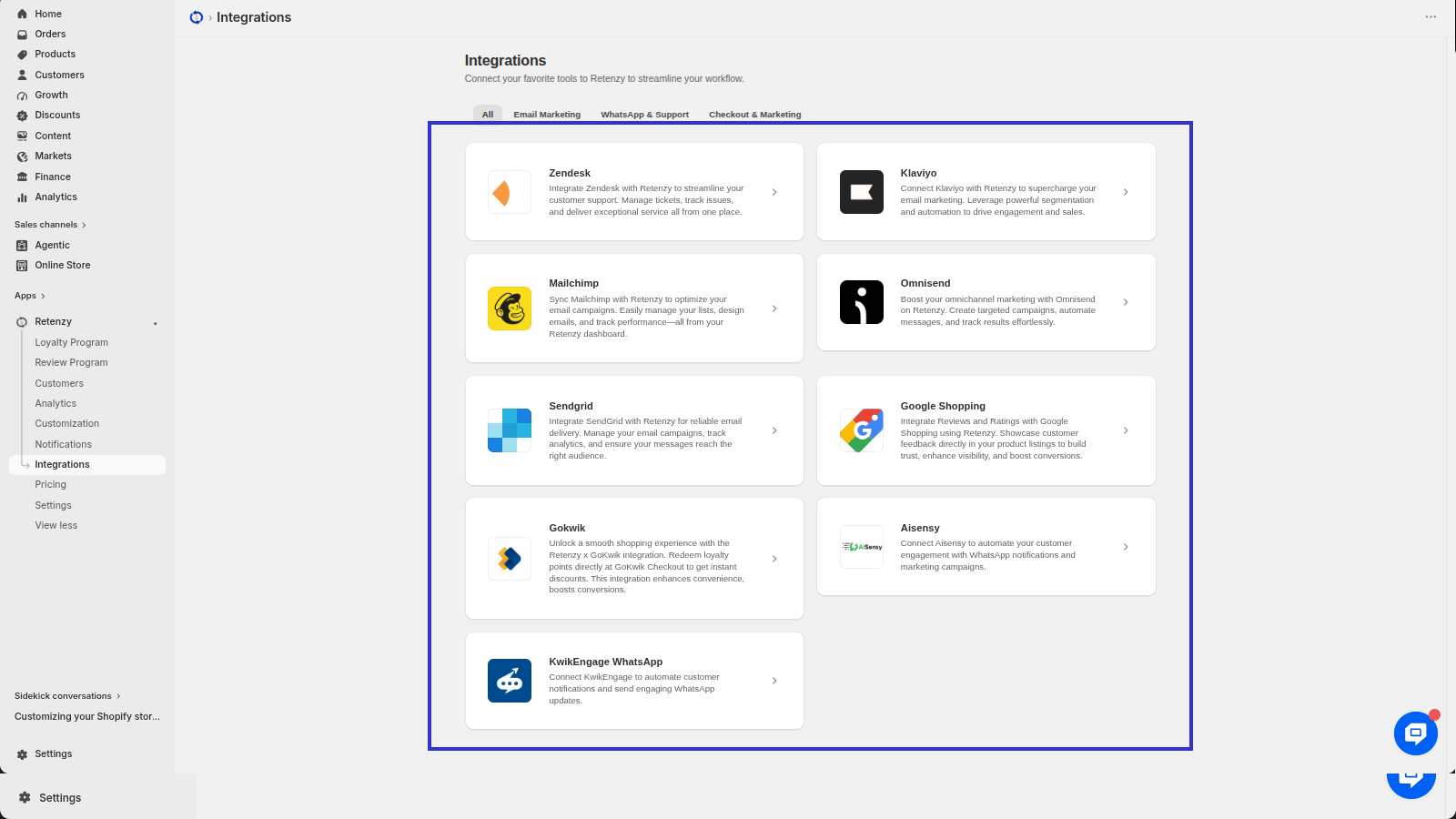
- Now, the list of email integrations is open.(Zendesk, Klaviyo, Mailchimp, Omnisend, SendGrid, Google, Shopping, GoKwik, AiSensy, KwikEngage WhatsApp)
Step 5: Choose an Email Client
Select your preferred email client from the available integrations:
- Zendesk
- Klaviyo
- Mailchimp
-
Omnisend
-
SendGrid
-
Google Shopping
-
GoKwik
-
Aisensy
-
KwikEngage WhatsApp
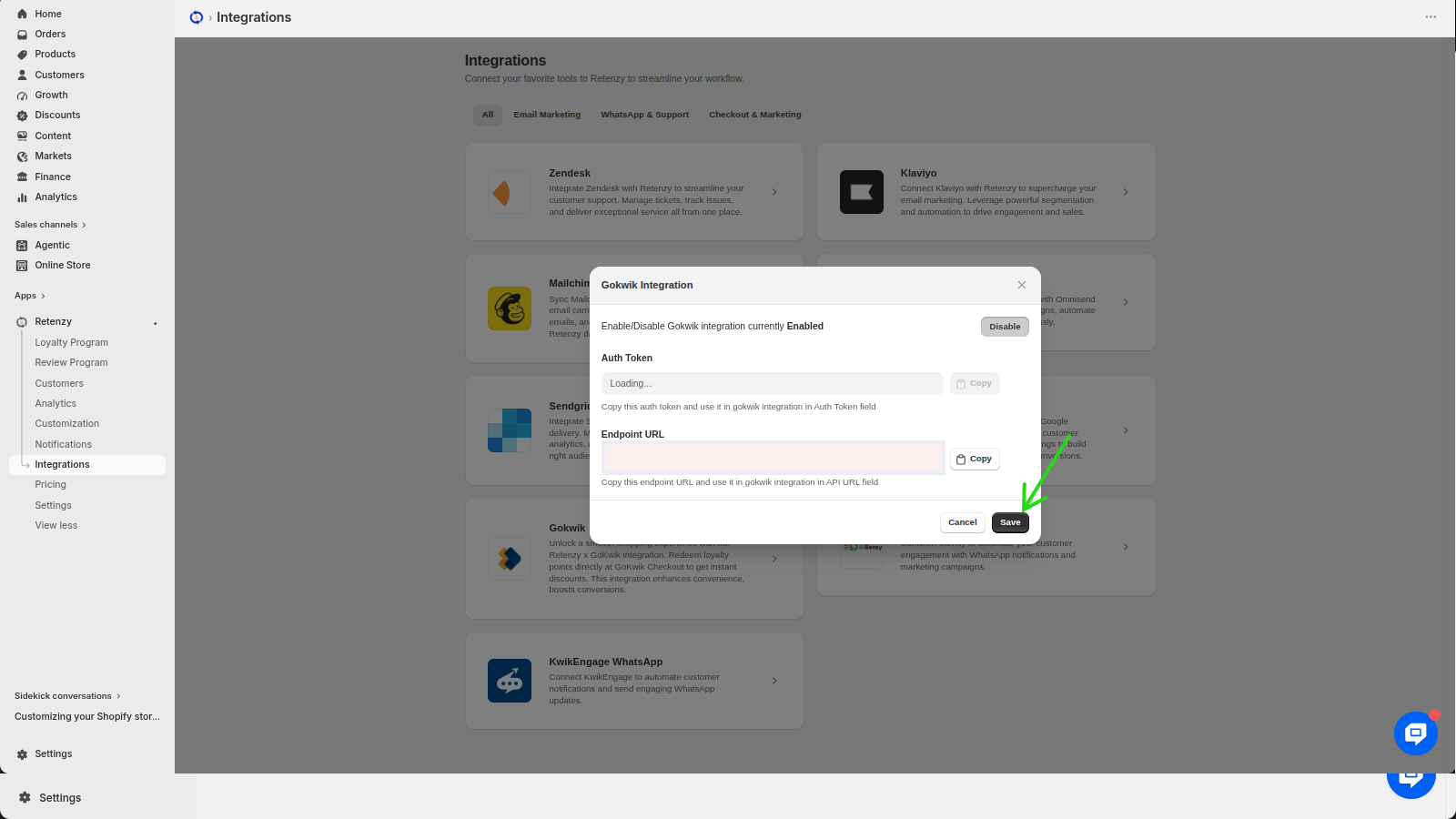
Step 6: Save Your Changes
- After selecting your preferred email client, click Save to apply the changes.