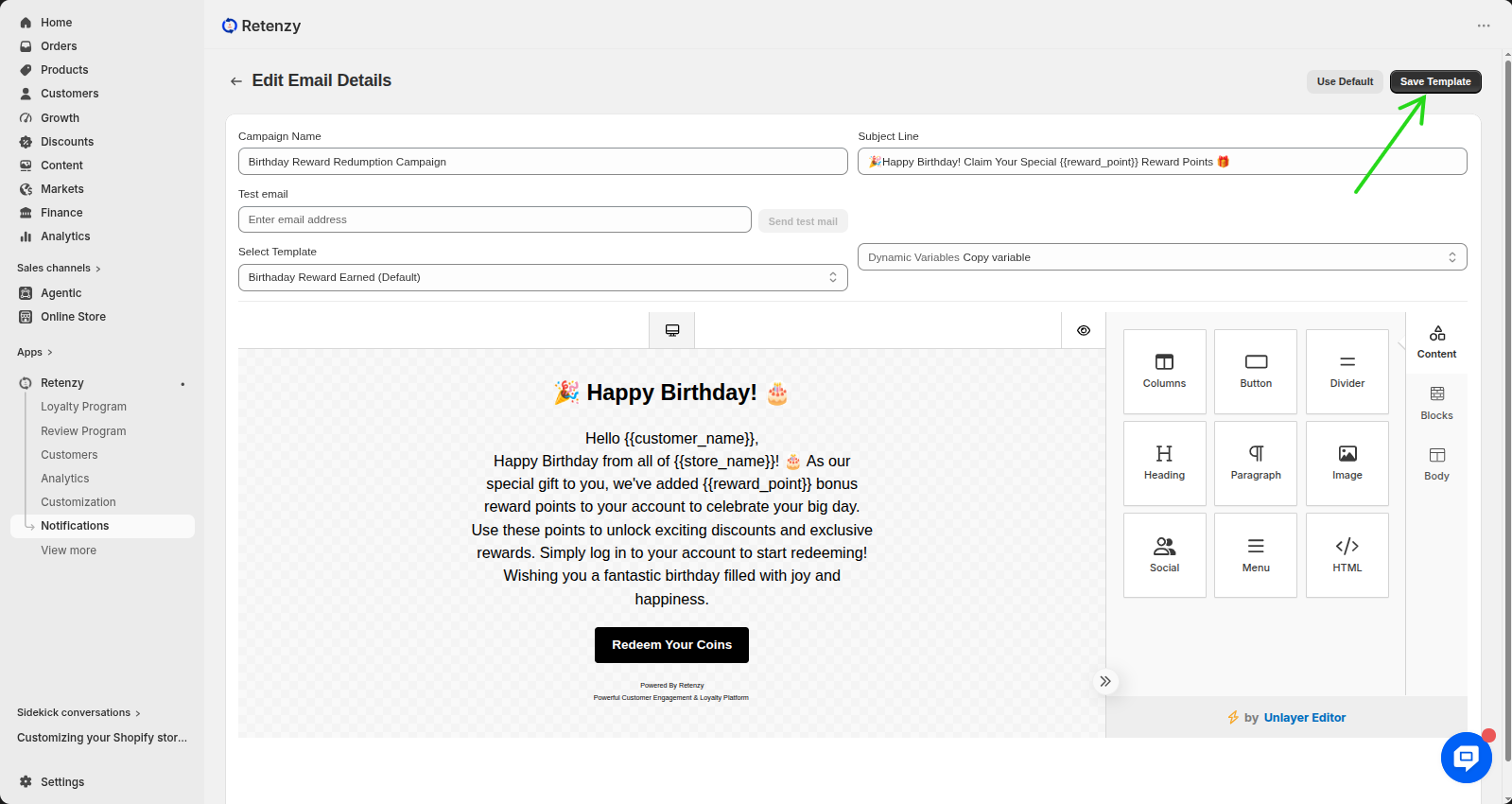
Email templates allow you to customize the automated emails sent to customers (e.g., birthday greetings, anniversary wishes, or reward notifications).
Steps:
Step 1: Open the Retenzy Dashboard
- Log in to your Retenzy dashboard.
Step 2: Navigate to the Notifications Section
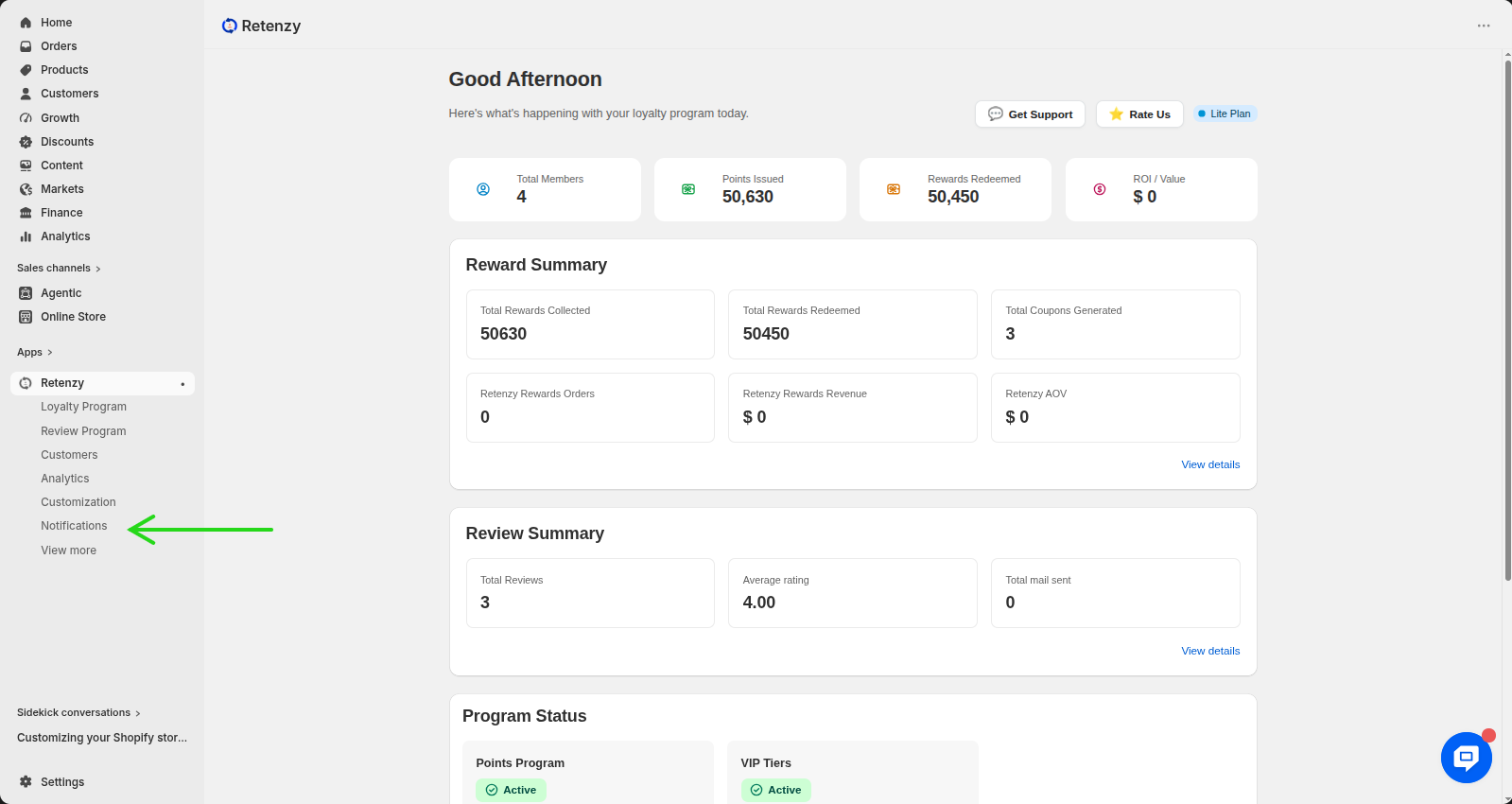
- From the left-hand menu, click on Notifications.
Step 3: Open the Template Library
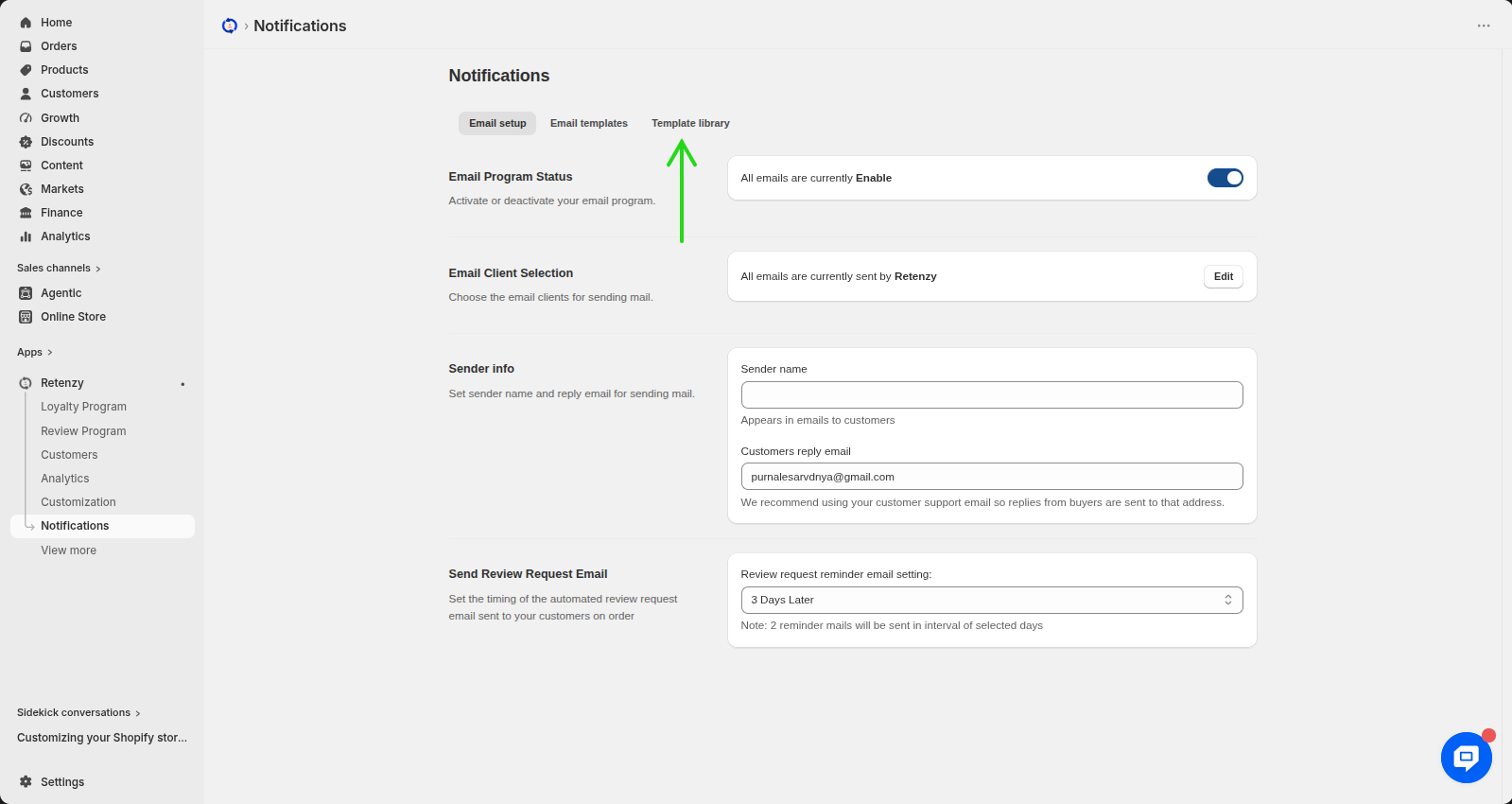
- In the Notifications section, open the Template Library.
Step 4: Select a Template
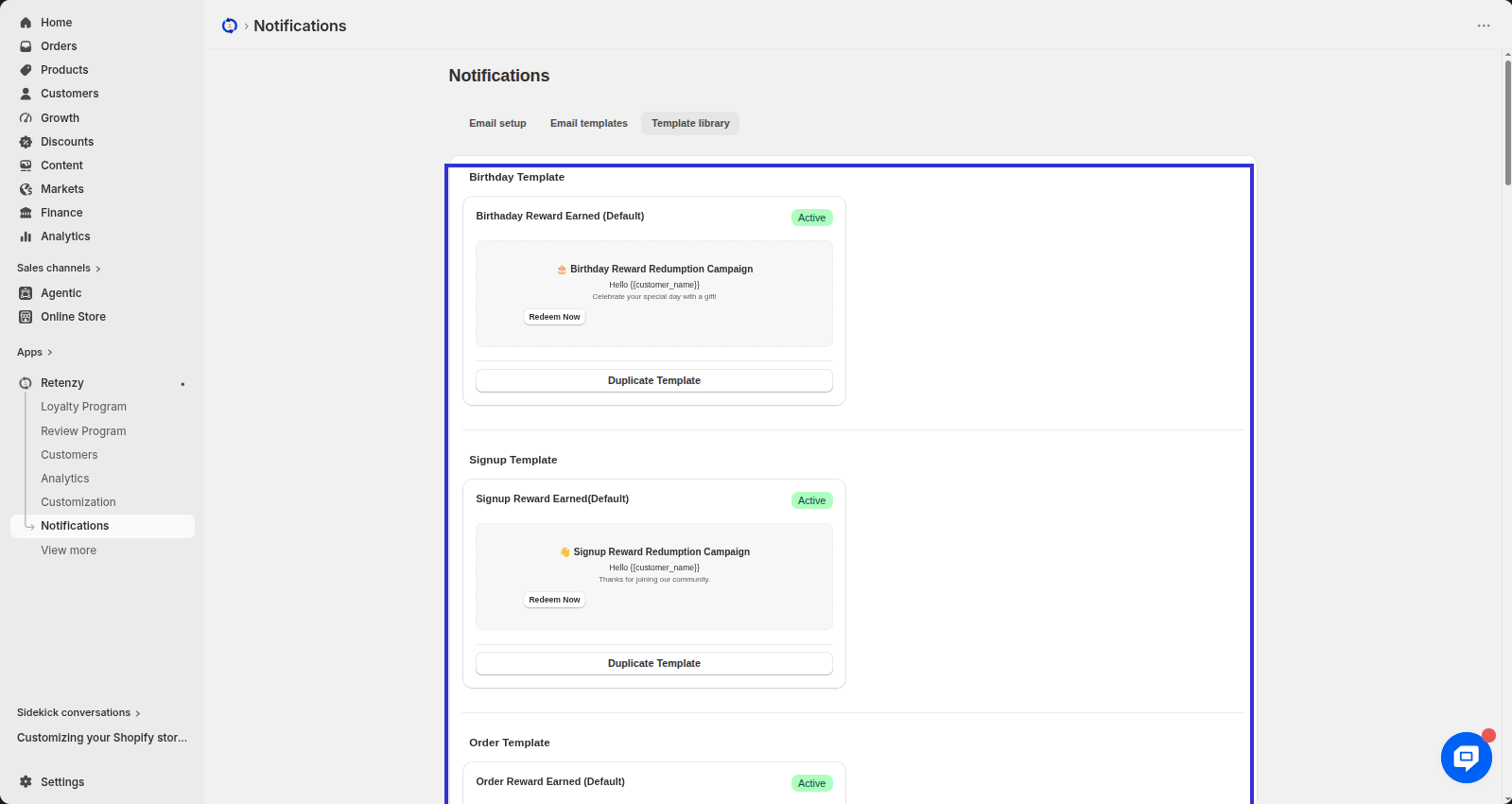
- You will see a list of default templates, such as Birthday Template and Anniversary Template. Select the template you want to edit, or duplicate it if you want to keep the original unchanged.
Step 5: Customize the Template Settings
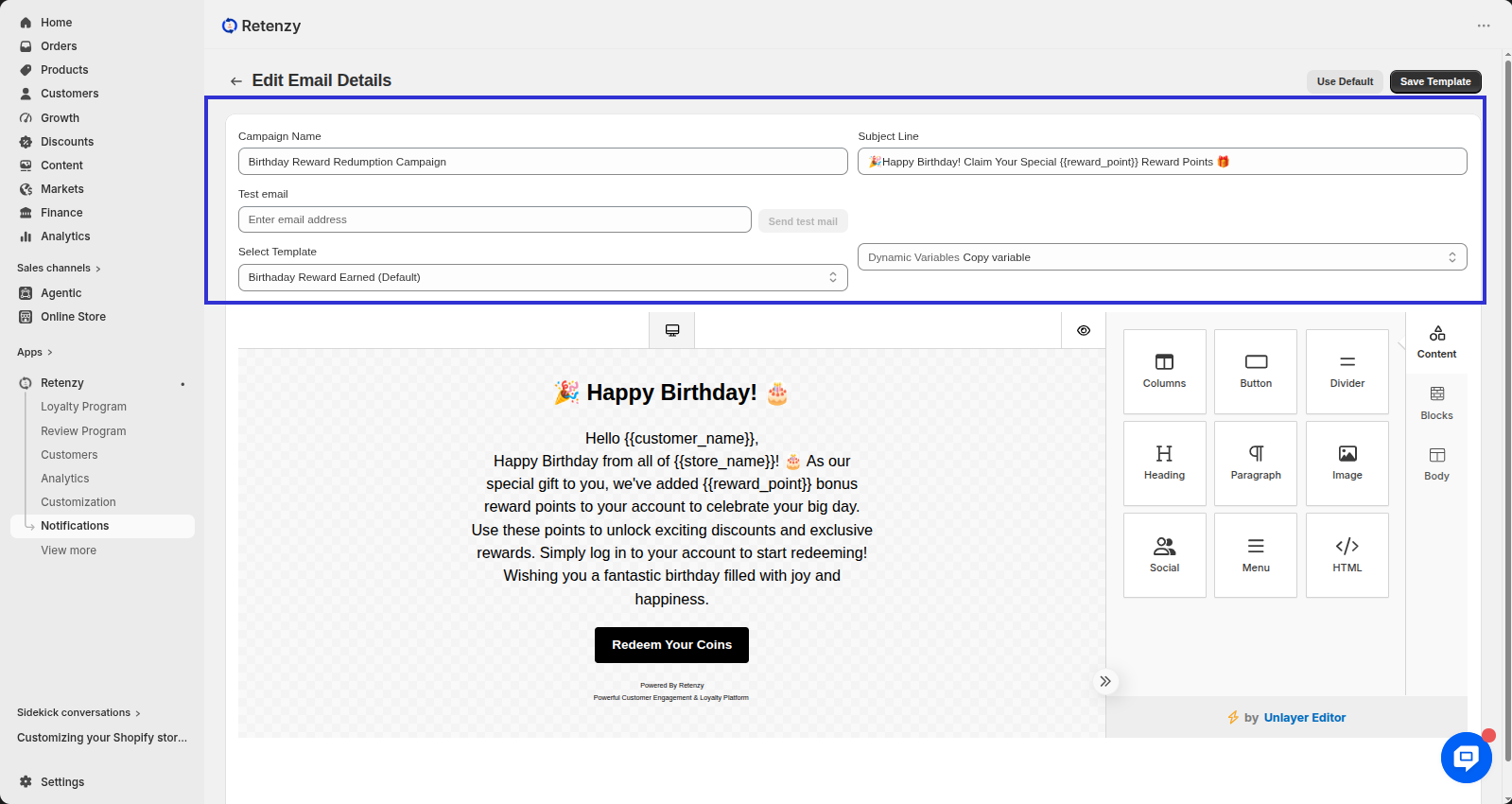
- Update the Template Name. If needed, enter your email address in the Test Email field to send yourself a test email.
You can also click See Variables to view and use dynamic placeholders, such as:
-
{{customer_name}} – Customer's name
-
{{store_name}} – Store name
-
{{reward_points}} – Reward points
Step 6: Edit the Email Content
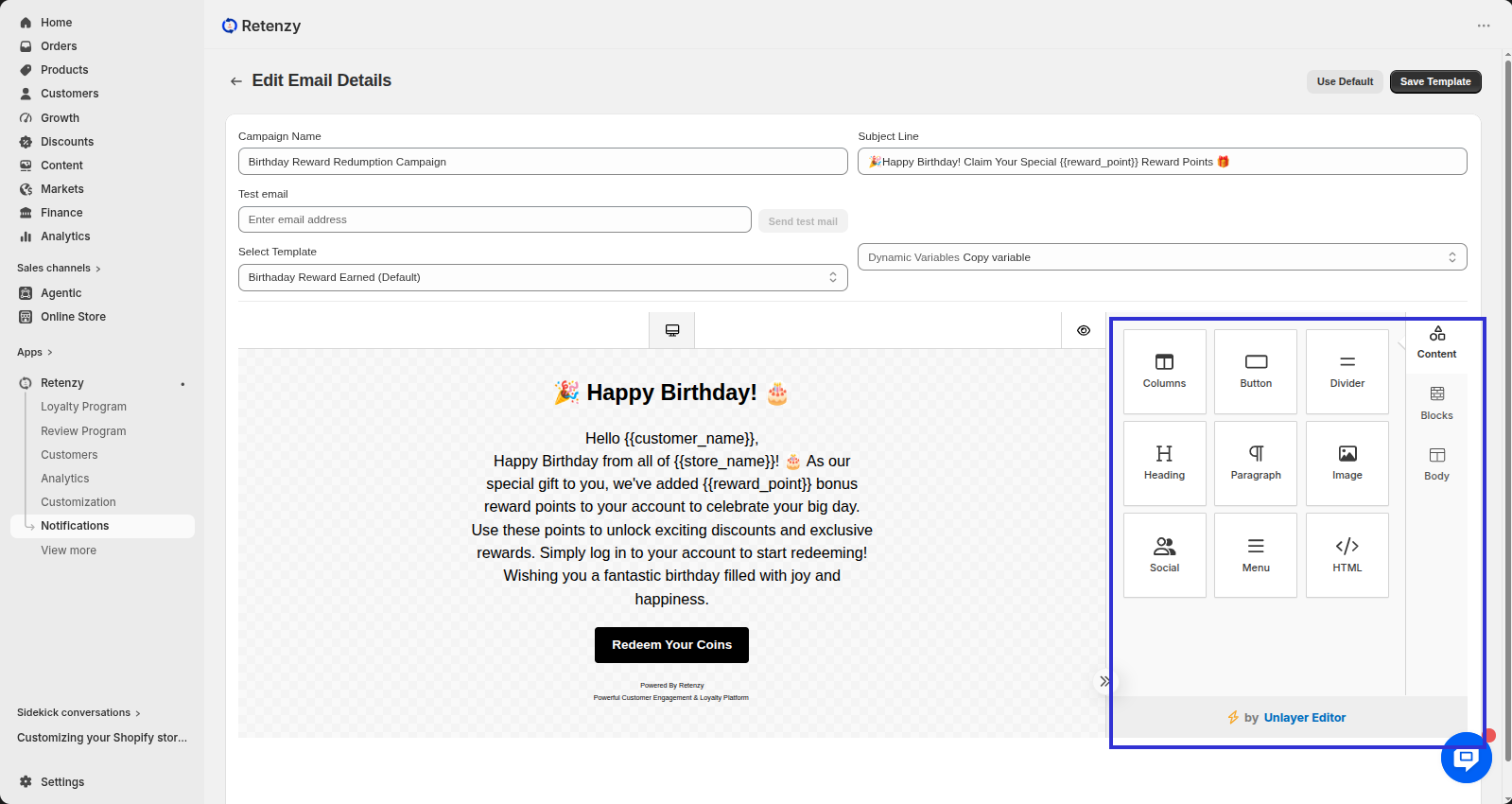
Use the editor to customize your email template. You can modify:
-
Text and Headings (H1, H2, H3, H4)
-
Font Family
-
Font Weight
-
Font Size
-
Text Color
-
Button Text
-
Button Link
Customize the content and design to match your brand.
Step 7: Preview the Email
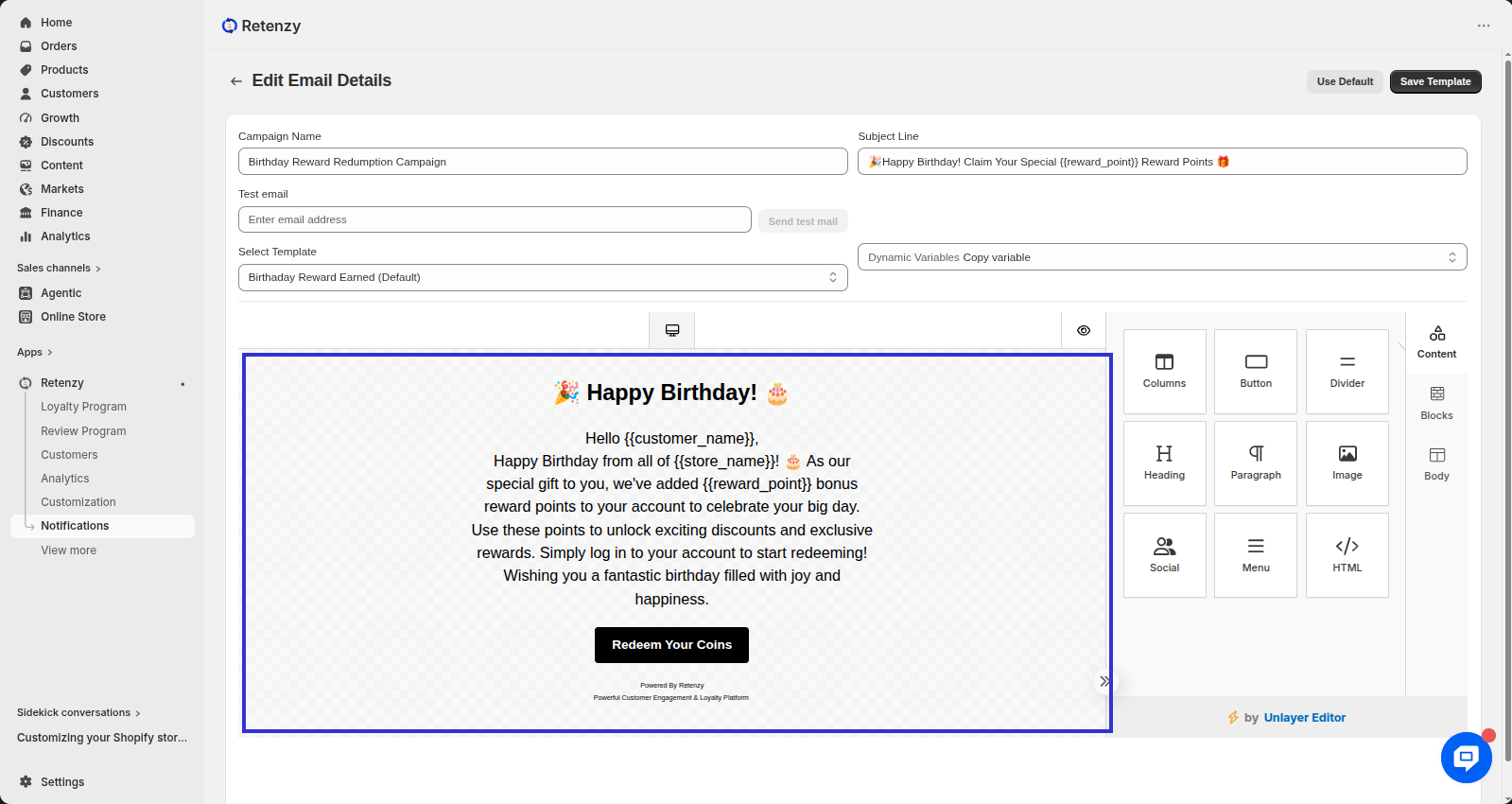
- Click the Preview (eye) icon to view how the email will appear on desktop or mobile devices.
.png)
Step 8: Save and Activate the Template
- Once you're satisfied with your changes, click Save Template. Ensure the template is Active so it will be sent automatically when the corresponding event is triggered.