Step-by-Step Guide: Create a Membership Program
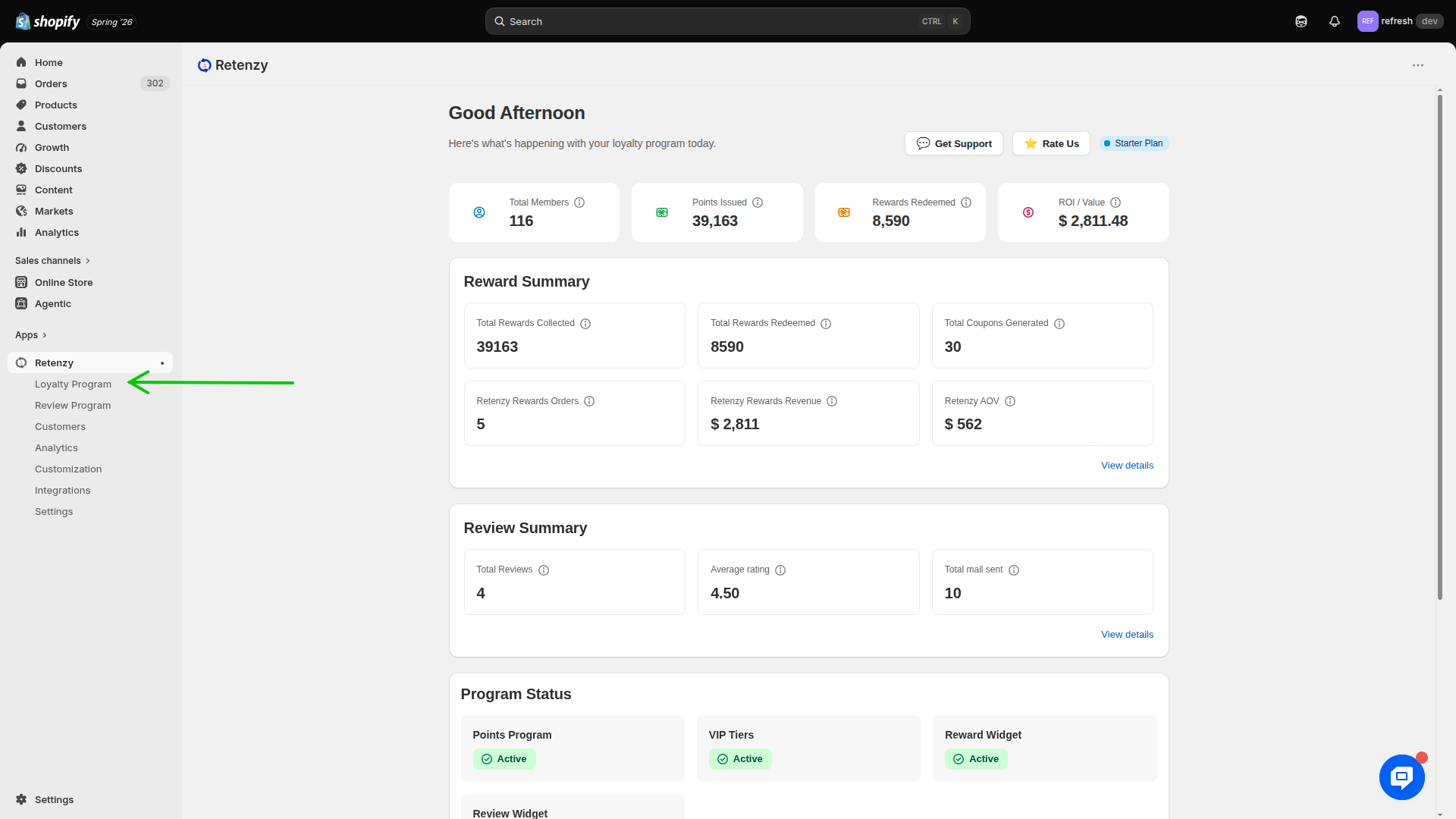
Step 1: Navigate to the Loyalty Program
-
Log in to your Retenzy Dashboard.
-
From the left-hand navigation menu, click Loyalty Program.
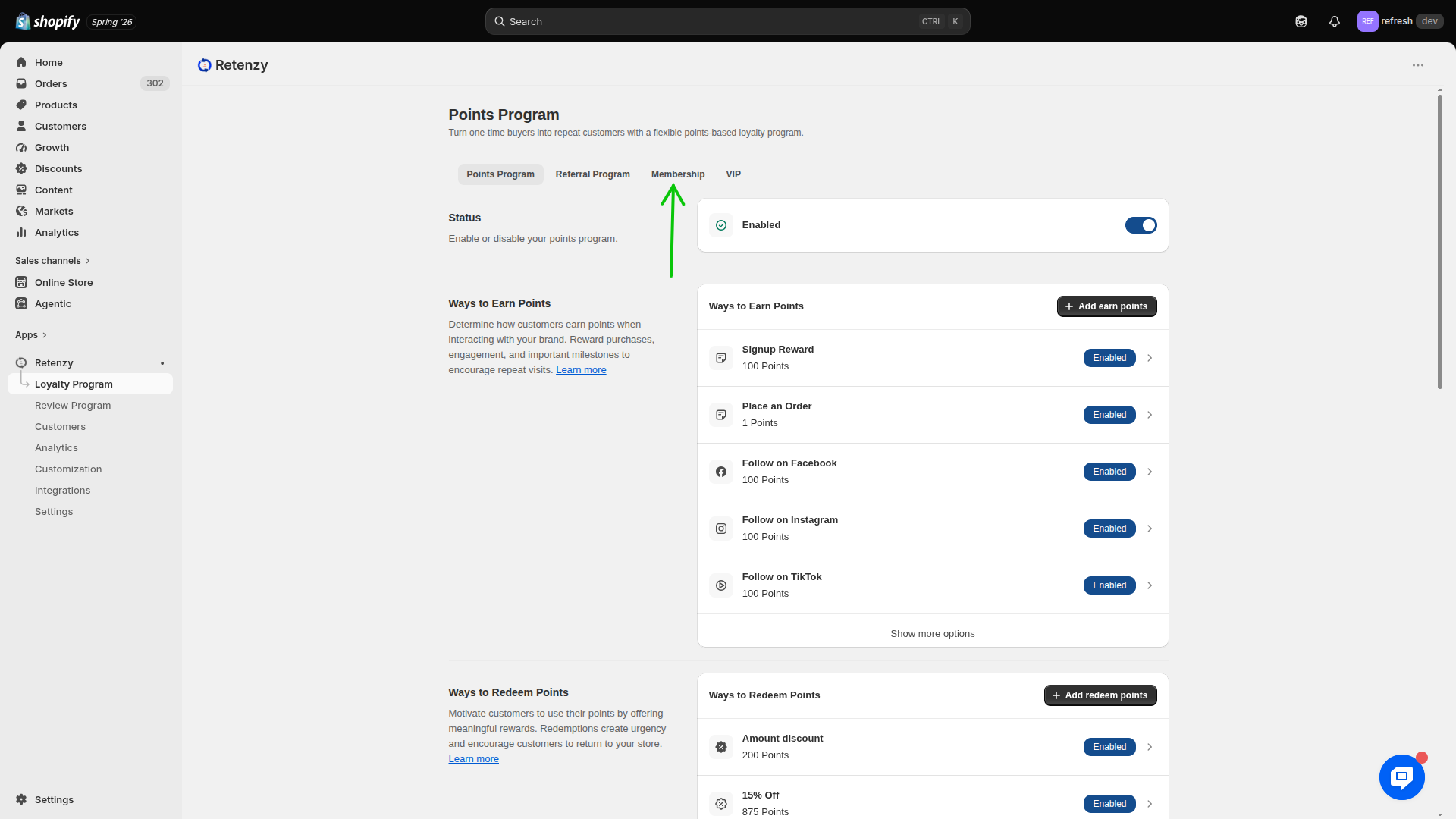
Step 2: Open the Membership Section
-
Under the Loyalty Program section, click Membership.
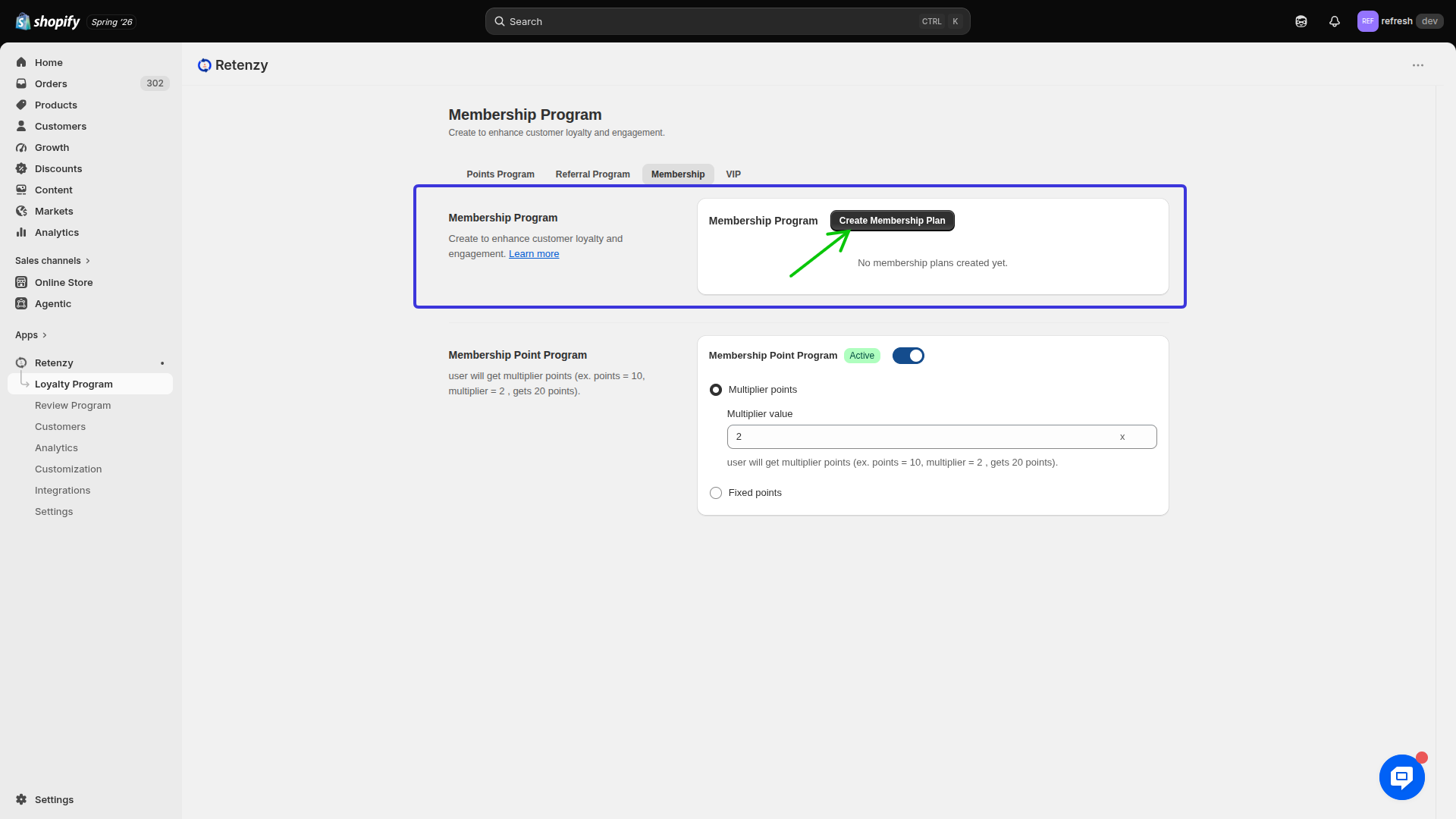
Step 3: Add a New Membership
-
In the Membership Program section, click Add Membership.
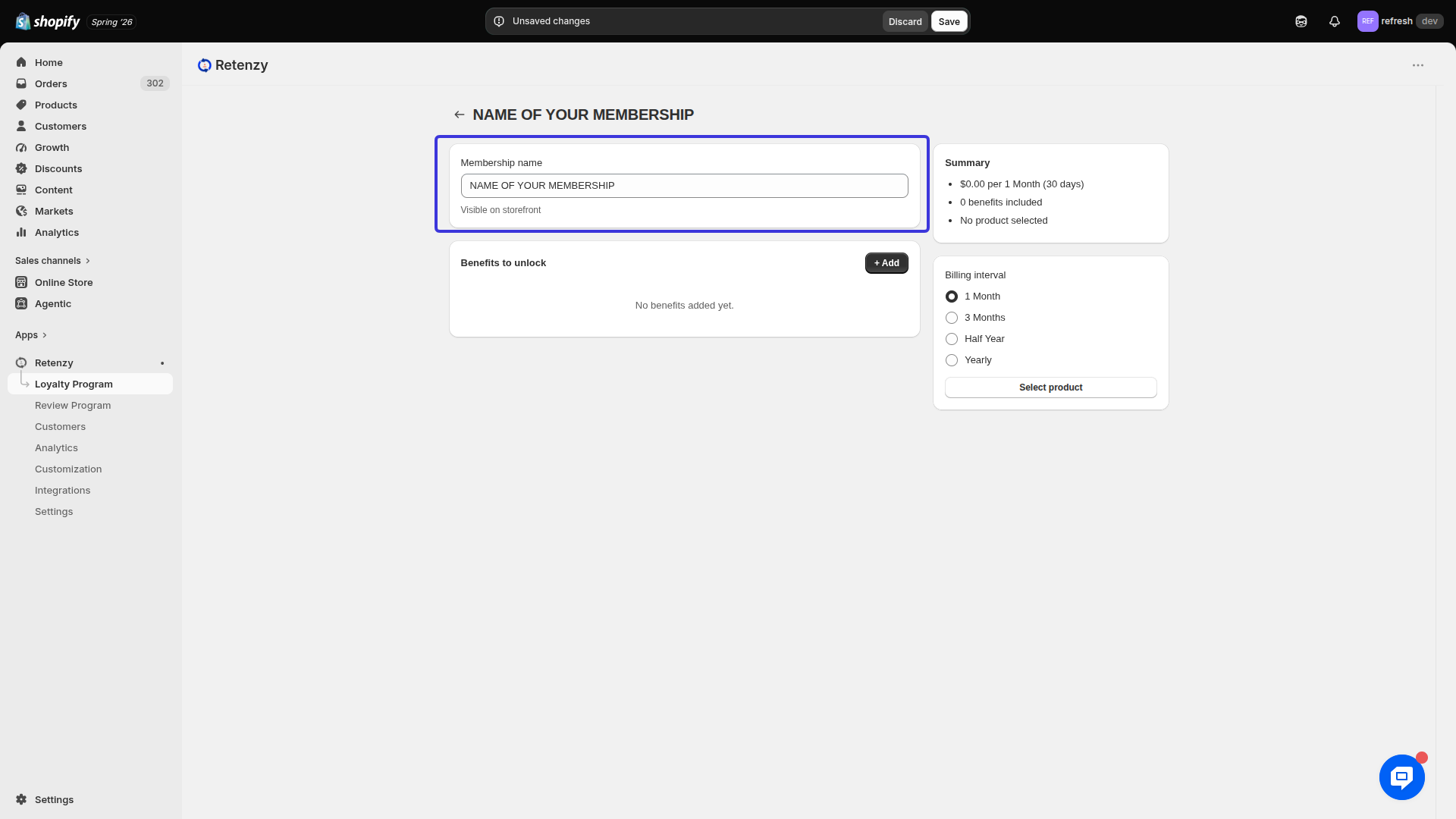
Step 4: Enter the Membership Name
-
In the Membership Name field, enter a name for your membership program.
Example:
-
Gold Membership
Choose a name that clearly represents the membership plan.
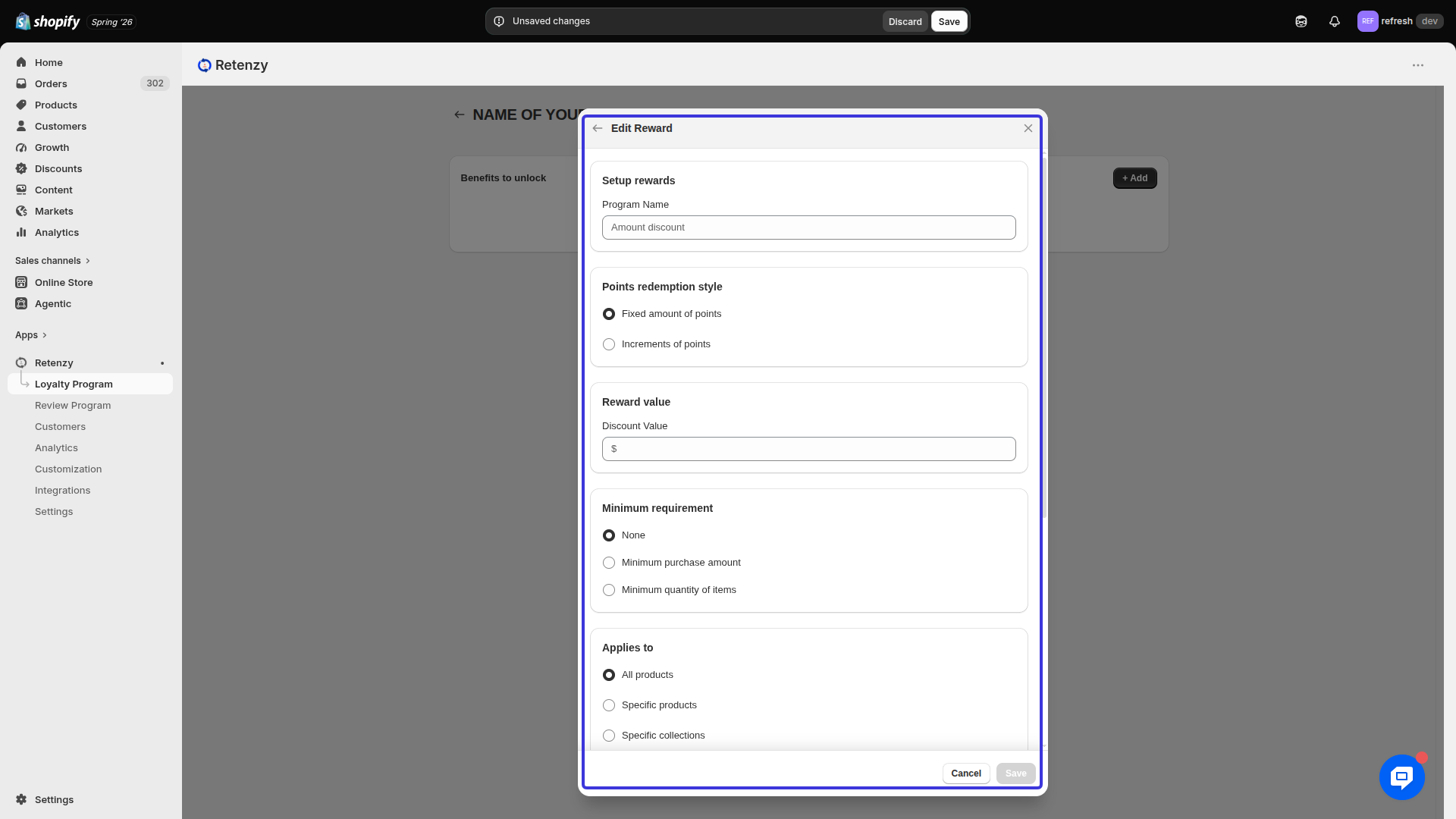
Step 5: Configure the Membership Details
Complete the remaining membership settings, including:
-
Membership Benefits
-
Reward Type
-
Reward Value
-
Minimum Requirement
-
Applies To
-
Discount Code Combination
-
Coupon Expiration
Configure each option according to your business requirements.
Example:
-
Benefit: 15% Discount
-
Coupon Expiration: 30 Days
Step 6: Configure the Billing Details
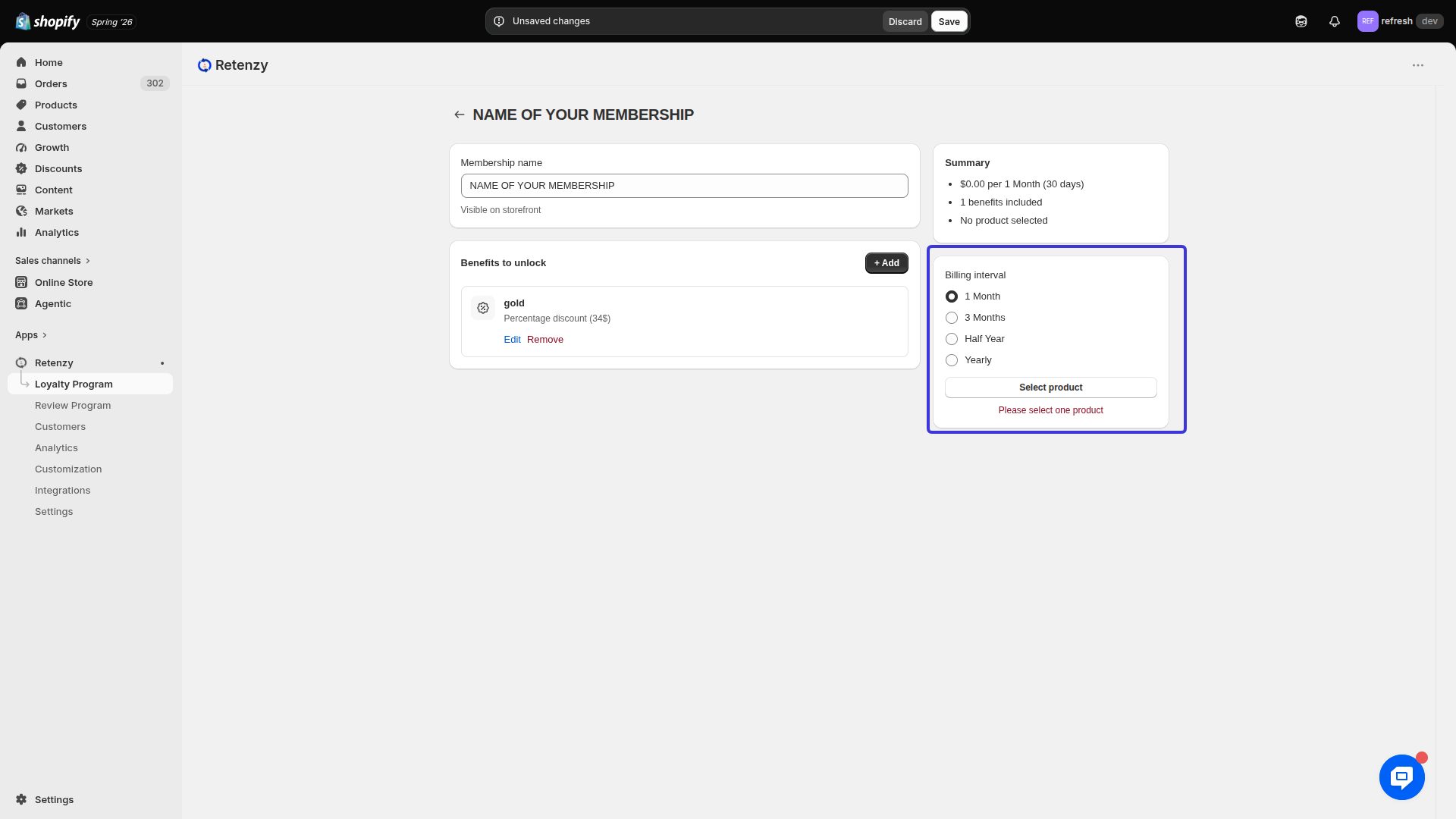
In the Billing Interval section on the left side:
-
Select the Billing Interval (for example, Monthly or Yearly).
-
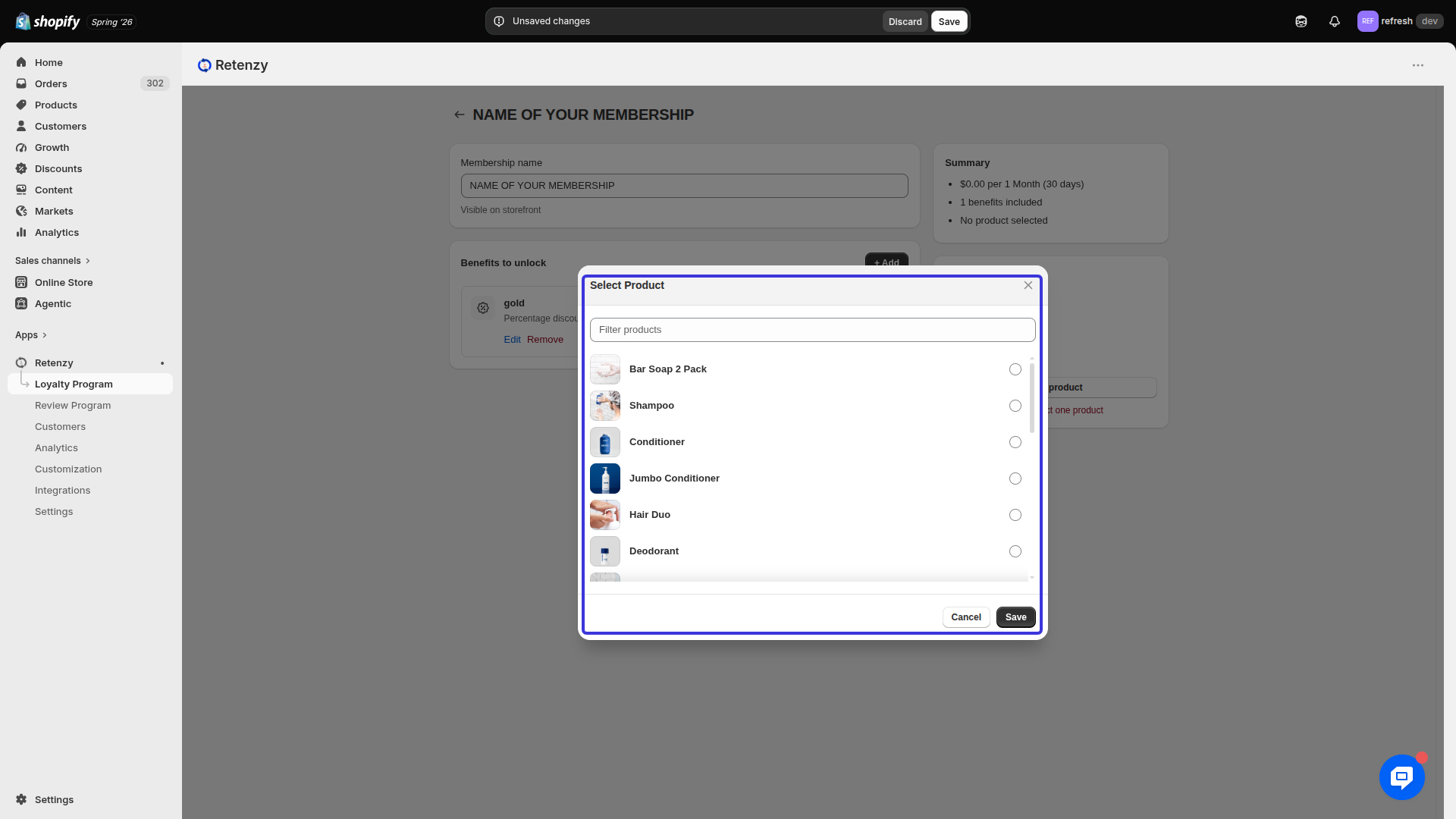
Choose the Product associated with the membership.
-
Select the Membership Duration.
Example:
-
Billing Interval: Monthly
-
Duration: 3 Months
Step 7: Save the Membership Program
-
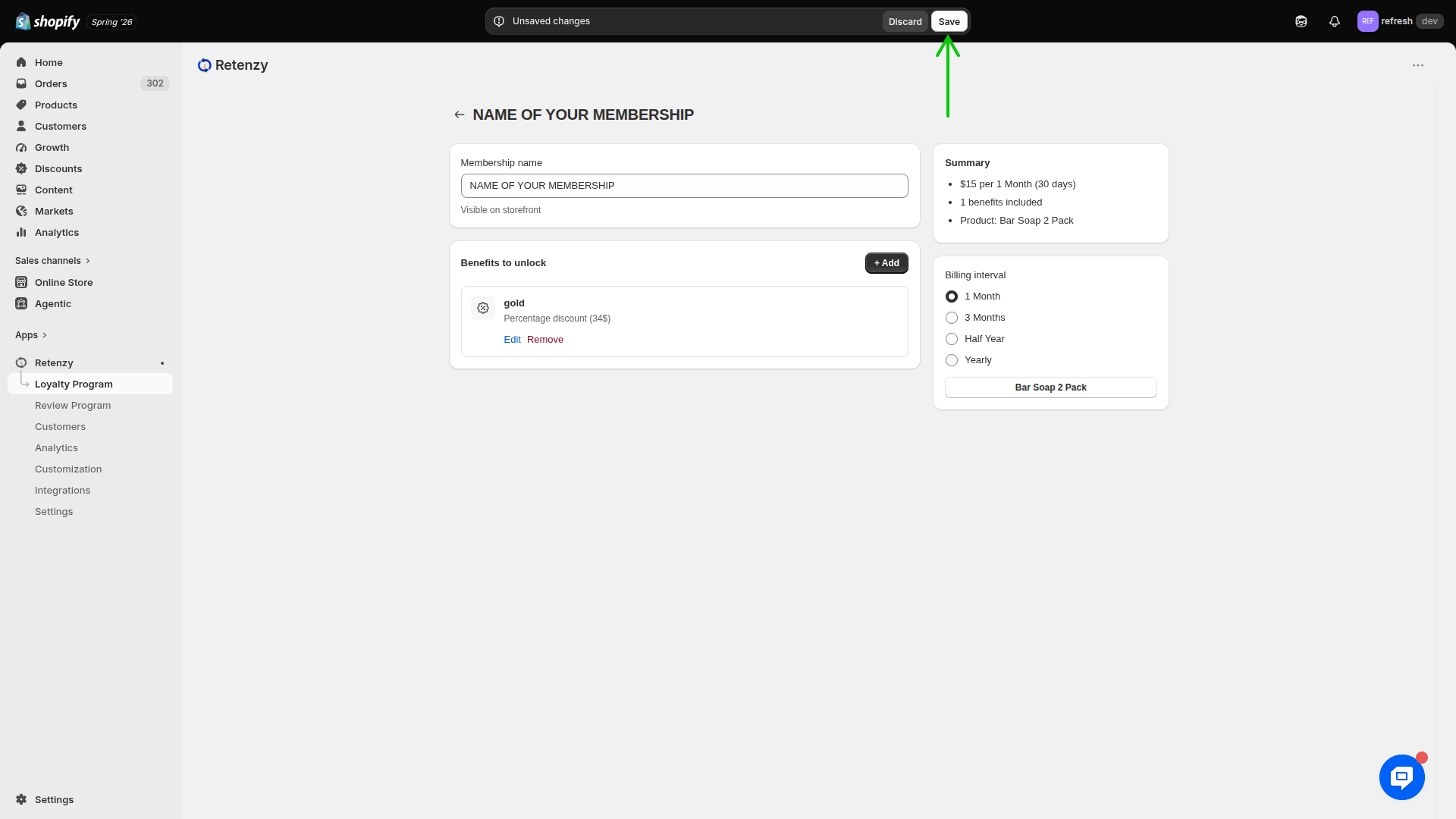
Review all the configured details.
-
Click Save to create the membership program.
.png)
