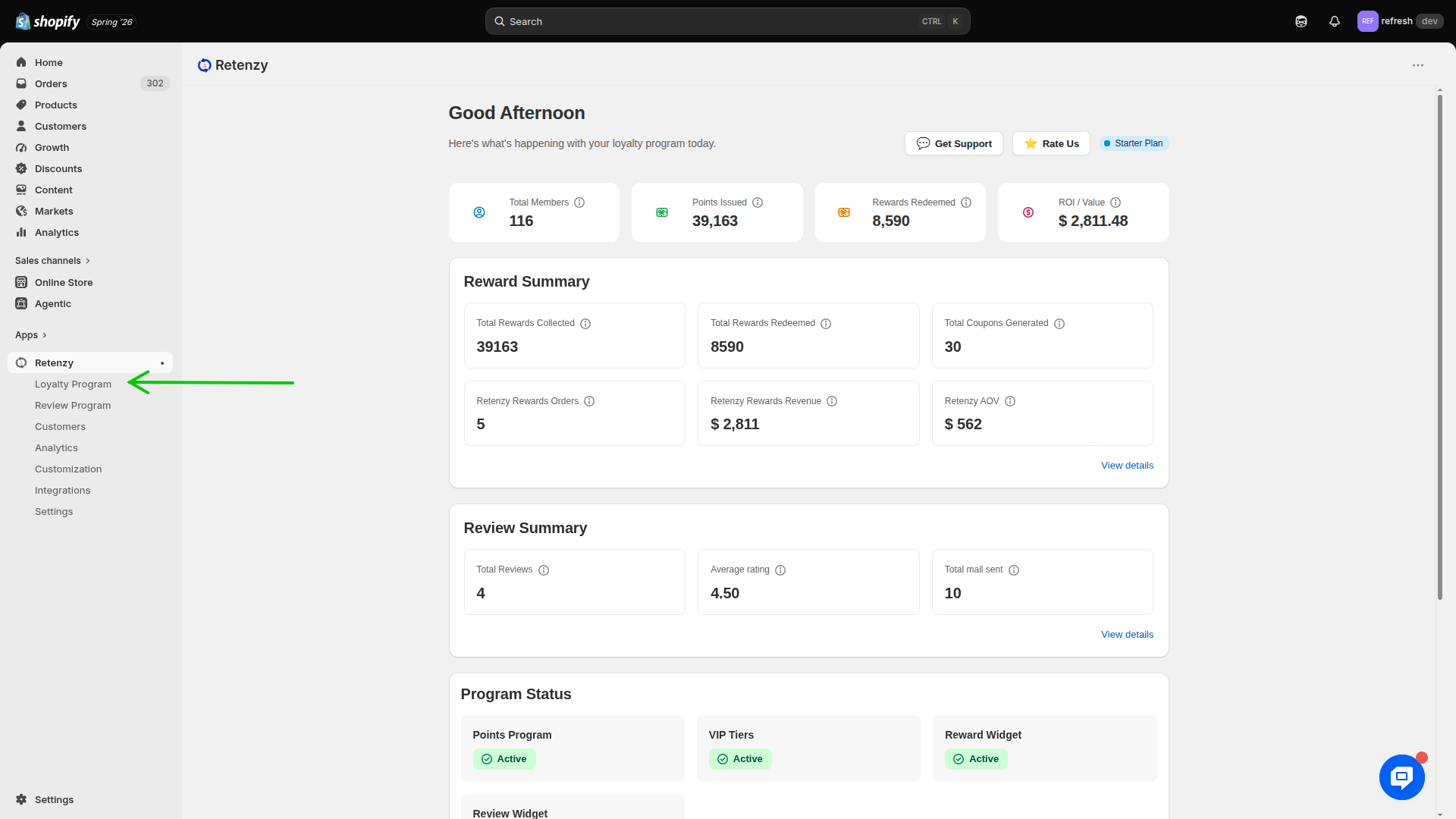
Step 1: Navigate to the Loyalty Program
-
Log in to your Retenzy Dashboard.
-
From the left-hand navigation menu, click Loyalty Program.
Step 2: Open the VIP Program
-
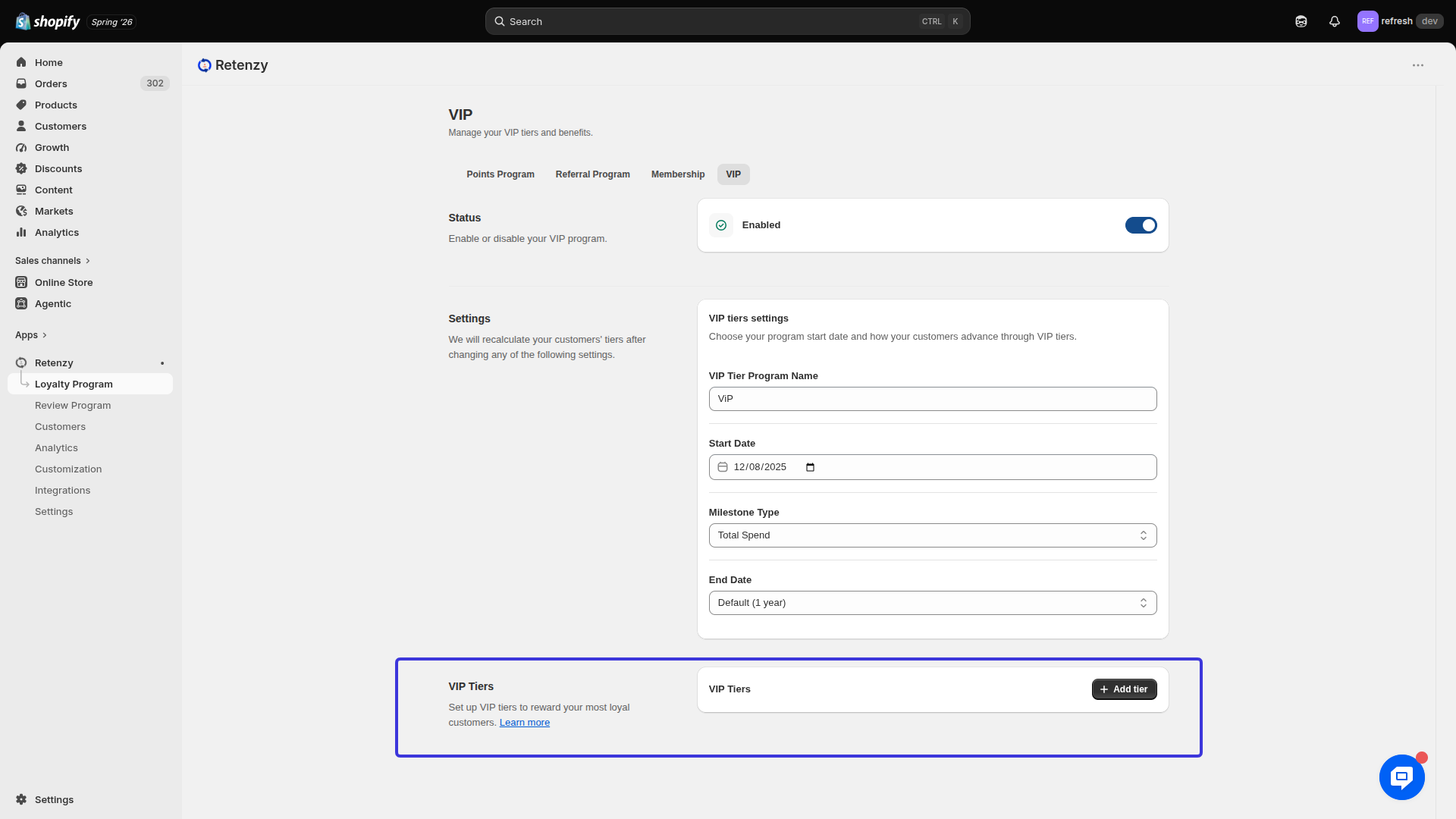
From the Loyalty Program section, click VIP.
Step 3: Add a VIP Tier
Scroll down to the VIP Tiers section and click Add Tier.
Configure the following details:
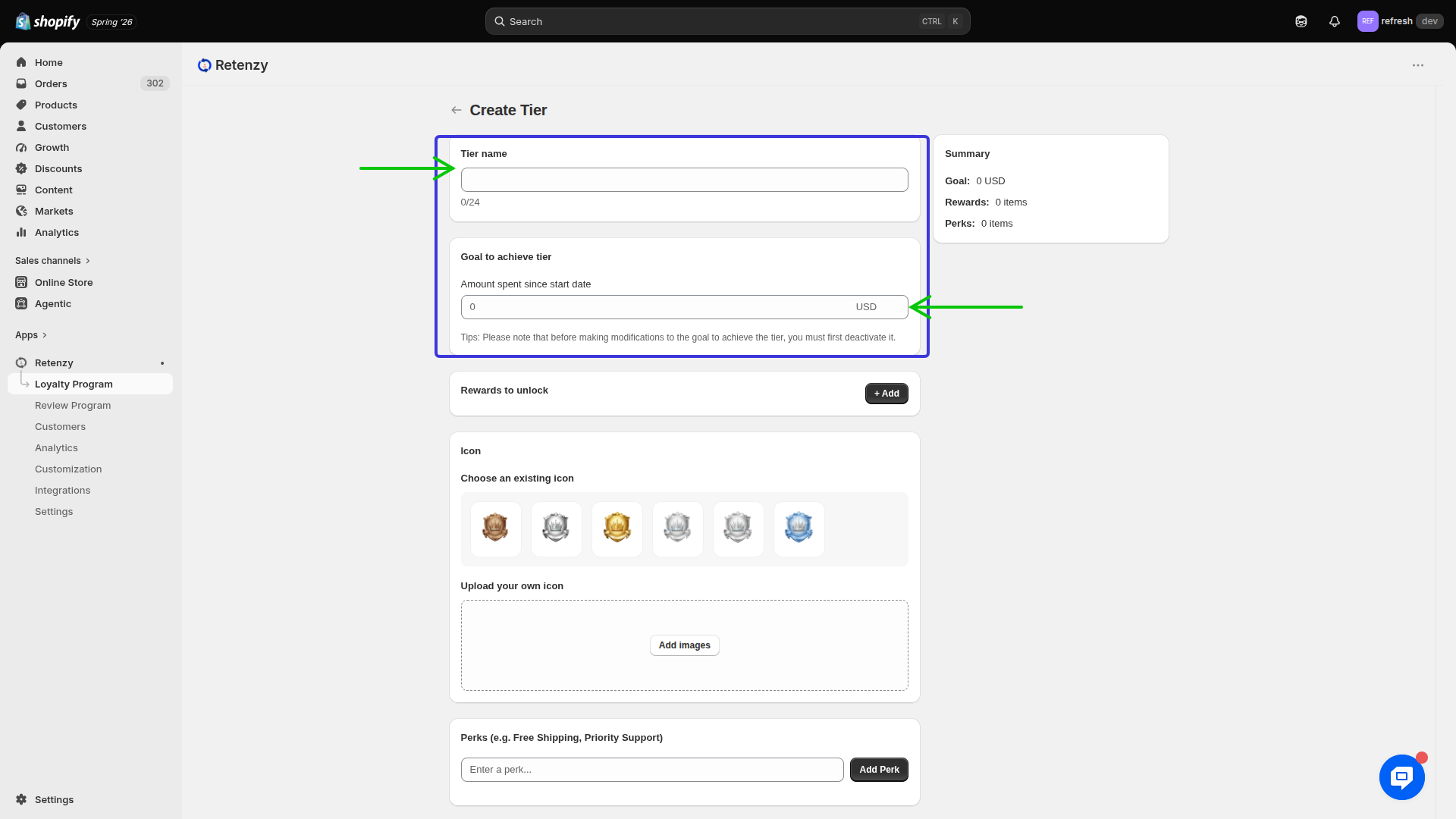
Tier Name
Enter a name for the VIP tier.
Examples:
-
Bronze
-
Silver
-
Gold
-
Platinum
Goal to Achieve Tier
Specify the spending requirement needed to unlock the tier.
Example: Spend ₹10,000 to unlock the Gold tier.
Step 4: Add Rewards to Unlock
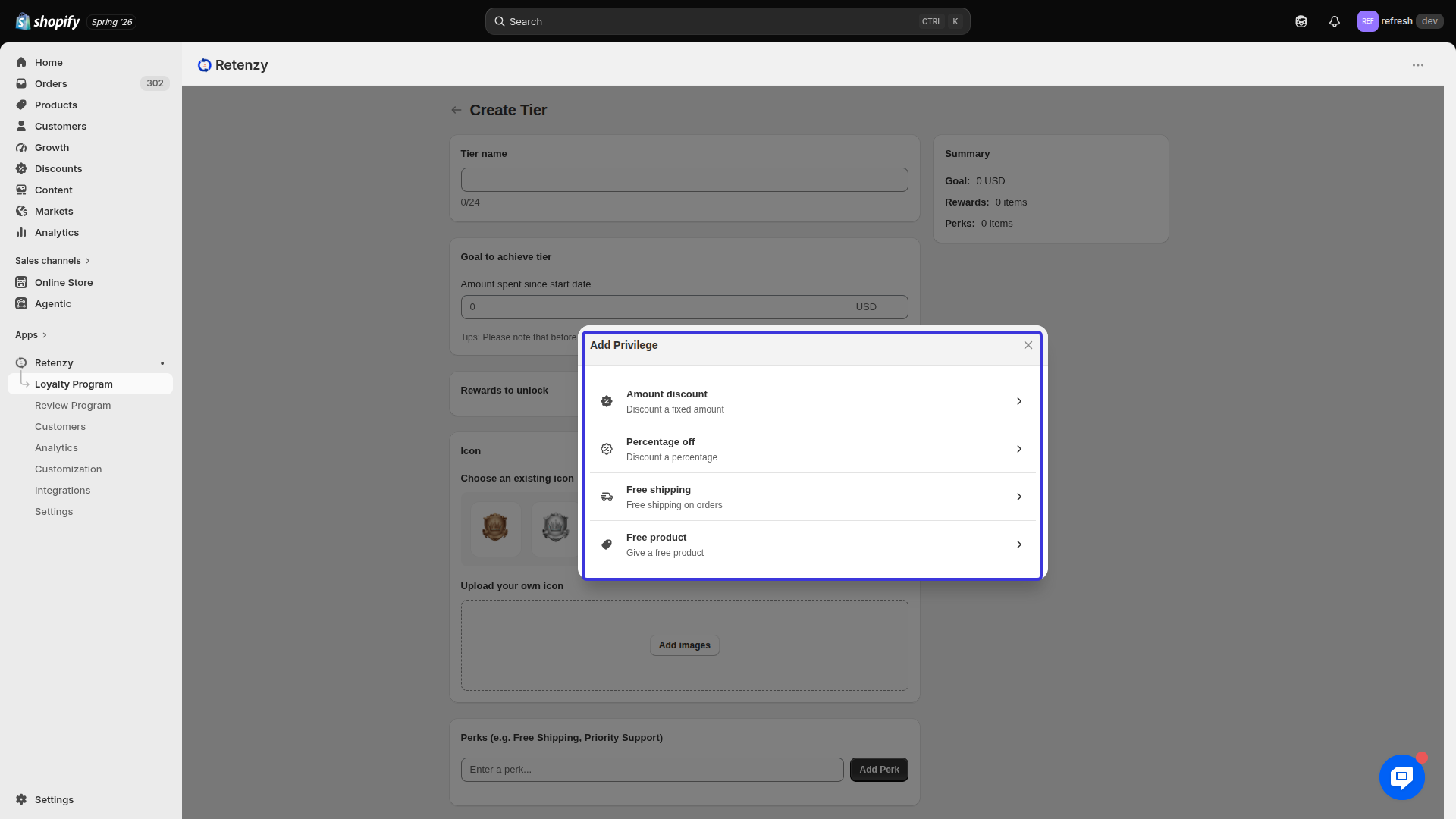
Under Rewards to Unlock, Add Privilege and choose the rewards you want to offer.
- Amount Discount
- Percentage off
- Free Shipping
- Free product
Example: Select Percentage Discount to reward the referrer with 10% off on their next purchase.
Step 5: Configure the Reward Settings
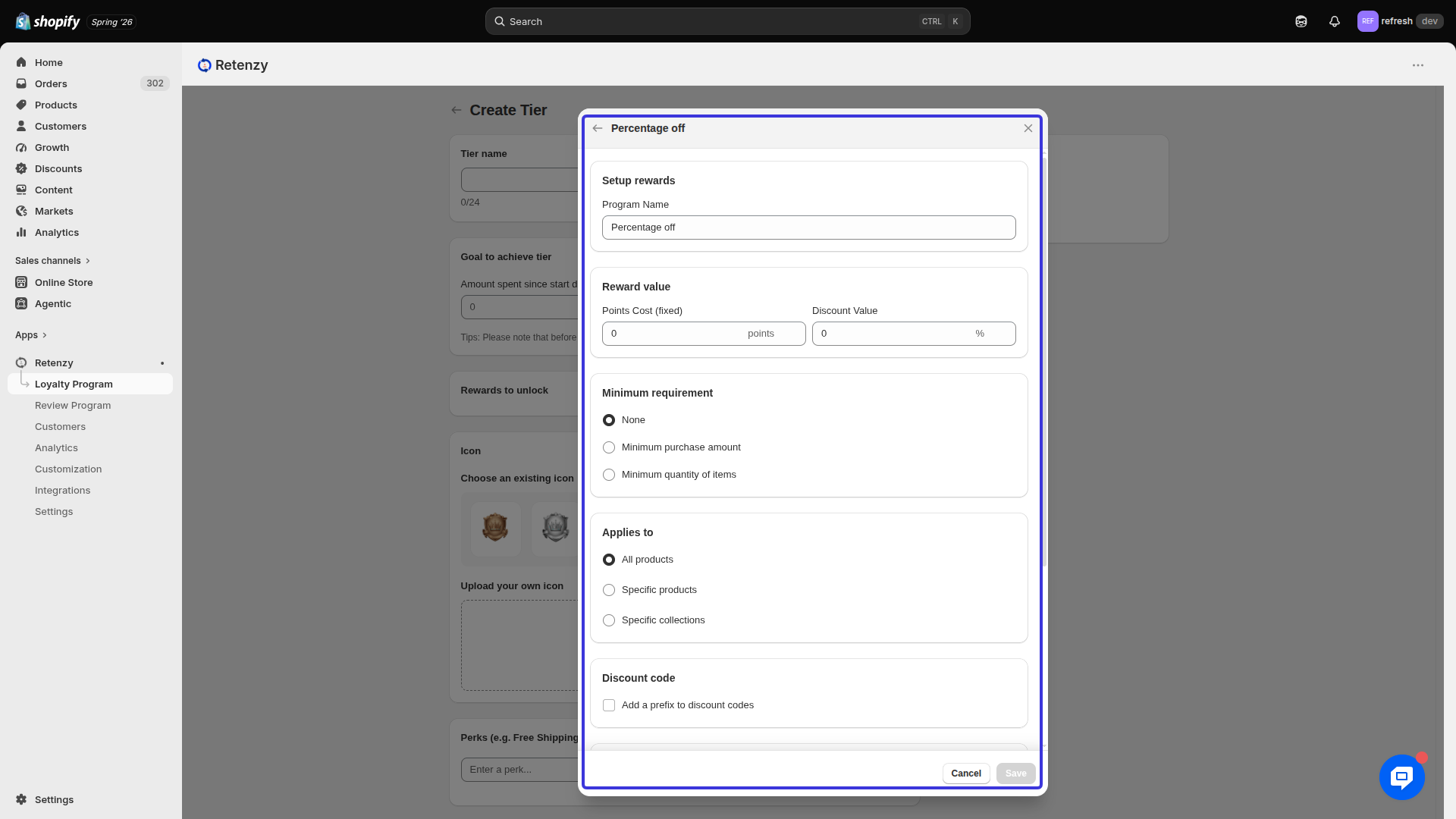
Complete the following fields based on your campaign requirements:
1. Reward Type
Choose the type of reward you want to provide.
Example: Percentage Discount
2. Points Redemption Style
Select how the reward will be redeemed.
Example: Automatic Redemption
3. Reward Value
Enter the reward amount.
Example: 10%
4. Minimum Requirement
Specify the minimum purchase amount required to use the reward.
Example: ₹1,000 minimum order value
5. Applies To
Choose which products or collections the reward applies to.
Example: All Products
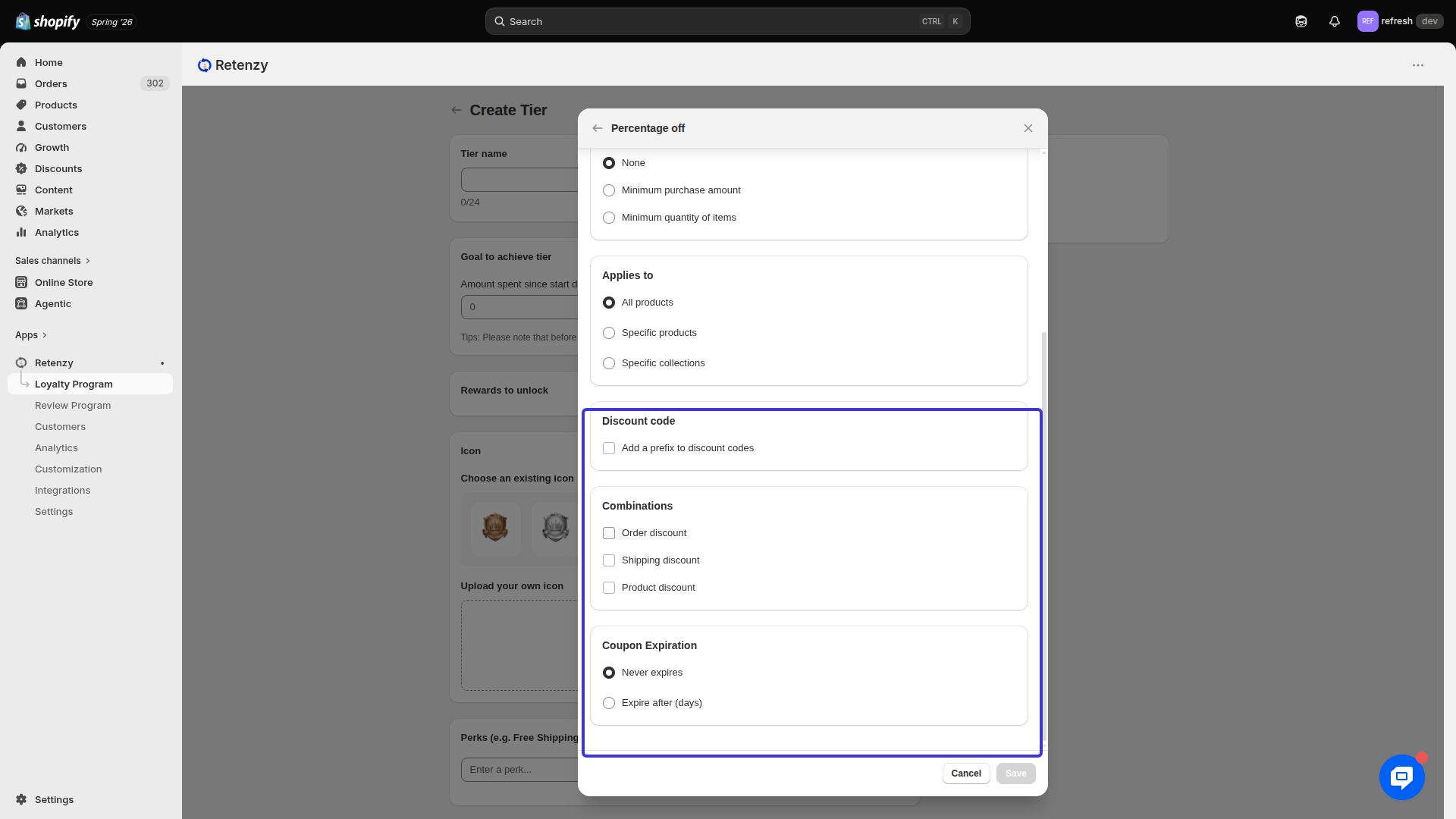
6. Discount Code Combination
Select whether this discount can be combined with other discount codes.
Example: Enabled
7. Coupon Expiration
Set the validity period for the coupon.
Example: Expires 30 days after it is issued.
.png)
Step 6: Customize the VIP Tier
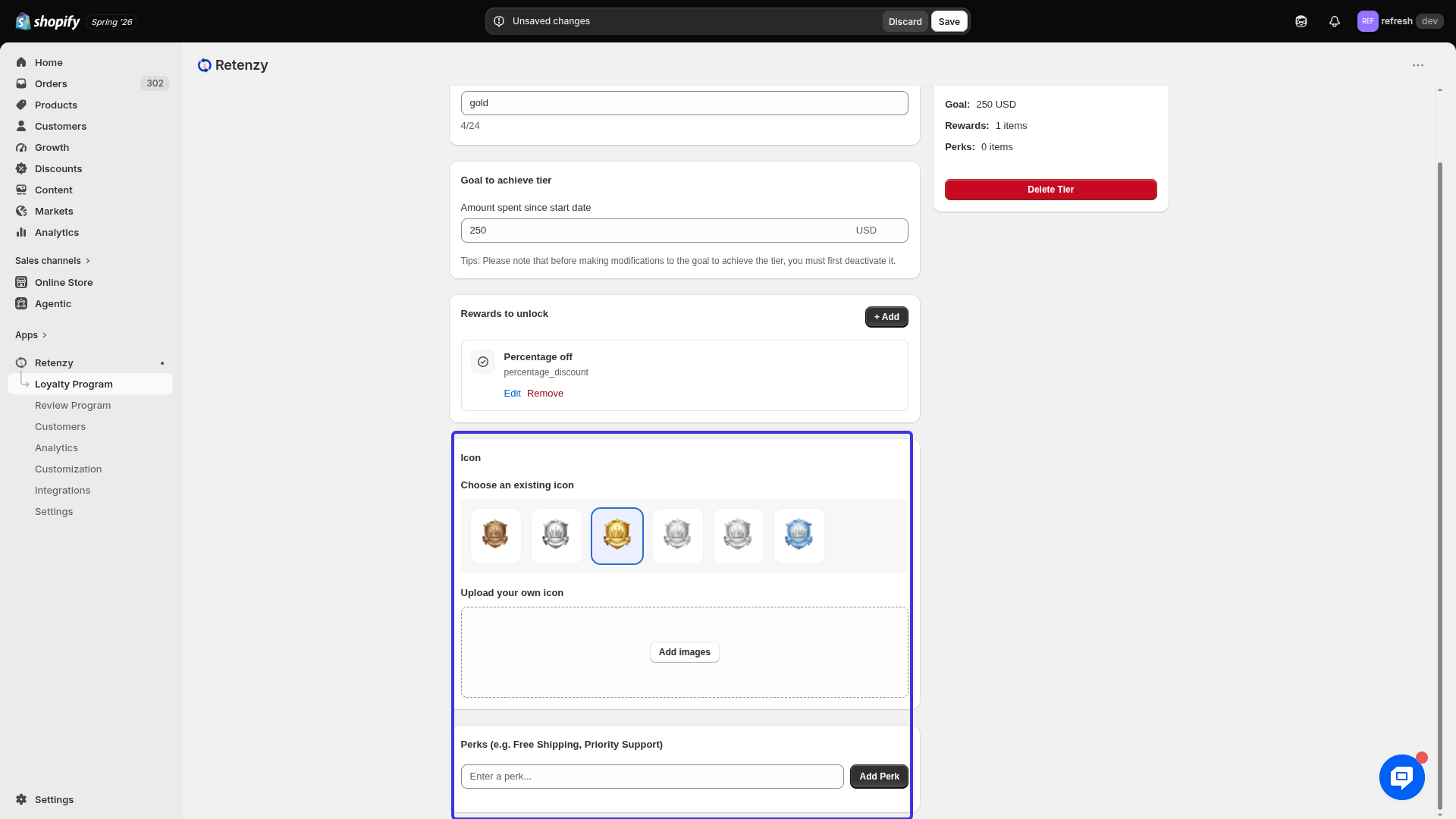
Personalize the appearance of the VIP tier by:
-
Selecting a predefined Icon, or
-
Uploading a custom Image.
Then, add the Perks that customers will receive.
Example Perks:
-
Free Shipping
-
Priority Support
-
Early Access to New Products
-
Exclusive Member Discounts
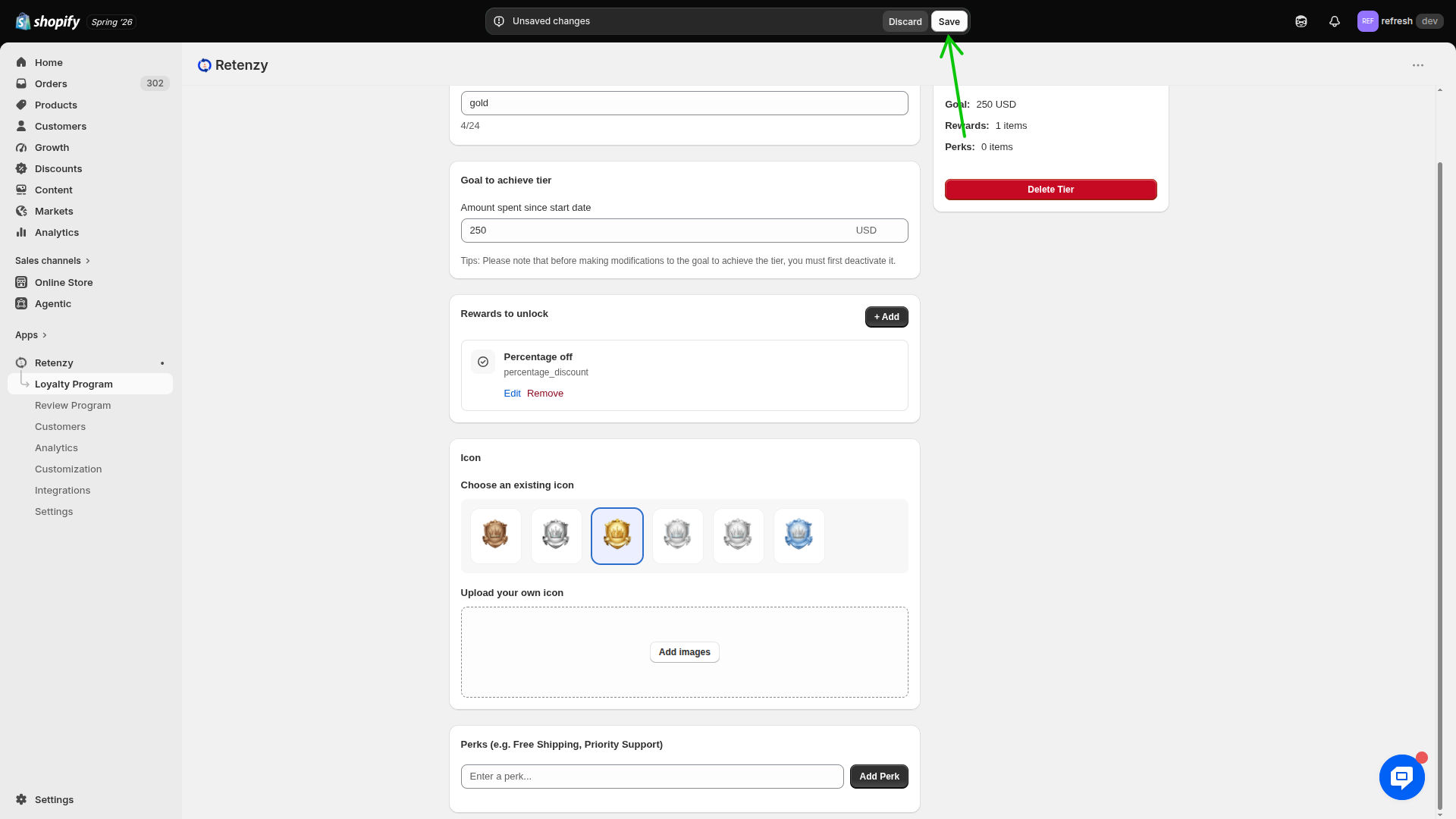
Step 7: Save the VIP Tier
-
Review all the configured settings.
-
Click Save to create the VIP tier.